


Facebook Messenger for Business: Analyze and Optimize Your Strategy

In today’s digital age, using online platforms to engage with customers has become a key part of any marketing and business strategy. Among these platforms, Facebook Messenger has become a powerful tool for businesses to connect and interact with their audience. It not only helps businesses reach a large number of users, but also creates opportunities to build closer relationships and deliver personalized service.
However, using Facebook Messenger in your business strategy is about more than just sending messages. To be truly effective, you need to analyze and optimize your strategy on this platform. In this article, we’ll explore how to analyze the way you use Facebook Messenger for your business and suggest ways to improve your strategy.
Why Direct Messages (DMs) Matter for Businesses on Facebook
If you want customers to engage with your business on Facebook, you may have noticed that focusing on public interactions like comments and likes has become less effective. In fact, according to data from RivalIQ, for businesses using Facebook, the average engagement rate per follower hovers at only about 0.60% across industries.
Shifting your attention away from chasing public likes and comments can be a smart decision for many businesses. That means you need a strategy that prioritizes engagement through Direct Messages (DMs).
So Why Is Facebook Messenger a Good Choice?
As of January 2023, Messenger was one of the three most popular messaging apps worldwide, with about 930 million monthly active users. In the US, it is especially popular with people aged 25 to 44, who make up about 45% of all users.
By encouraging customers to engage through DMs on Facebook, you can build more meaningful relationships and achieve goals such as:
- Providing customer service: Want to resolve questions or share solutions while protecting your customers’ privacy? In Direct Messages, you can handle order-related issues or help customers find your products and services in their local area.
- Booking appointments: Want to make it easy for customers to book a service or talk to your company’s team? You can book and confirm appointments directly through DMs, without sending customers to an external website.
- Selling directly: Have products to sell on Facebook? You can create orders and invoices right in Facebook Messenger, even if you don’t have an online store on Facebook.
- Creating remarketing audiences: Planning to run an ad campaign to target potential leads or sales? You can remarket to customers who have had previous conversations with you, helping you grow your existing relationships.
As you can see, focusing on Facebook Messenger can be an important part of your business strategy and help you tap into its full potential.
How to Use Messaging Insights in Meta Business Suite
To make Direct Messages (DMs) a better option for businesses, Meta introduced new messaging insights in Business Suite in June 2023. Let’s walk through how to access and use these insights to set a baseline for your performance. Then we’ll look at the tools and strategies for getting the most out of Direct Messages (DMs).
Note that as of July 2023, these new messaging insights work only for Facebook Pages. It’s still unclear whether they will be extended to Instagram business accounts or creator accounts in the future.
For a quick overview of your messaging analytics, open the Insights panel in Business Suite and scroll to the bottom of the Overview tab. Here you can check the total number of messages initiated during the selected time period, the number of new contacts, and conversion-related metrics from orders placed in Direct Messages (DMs).
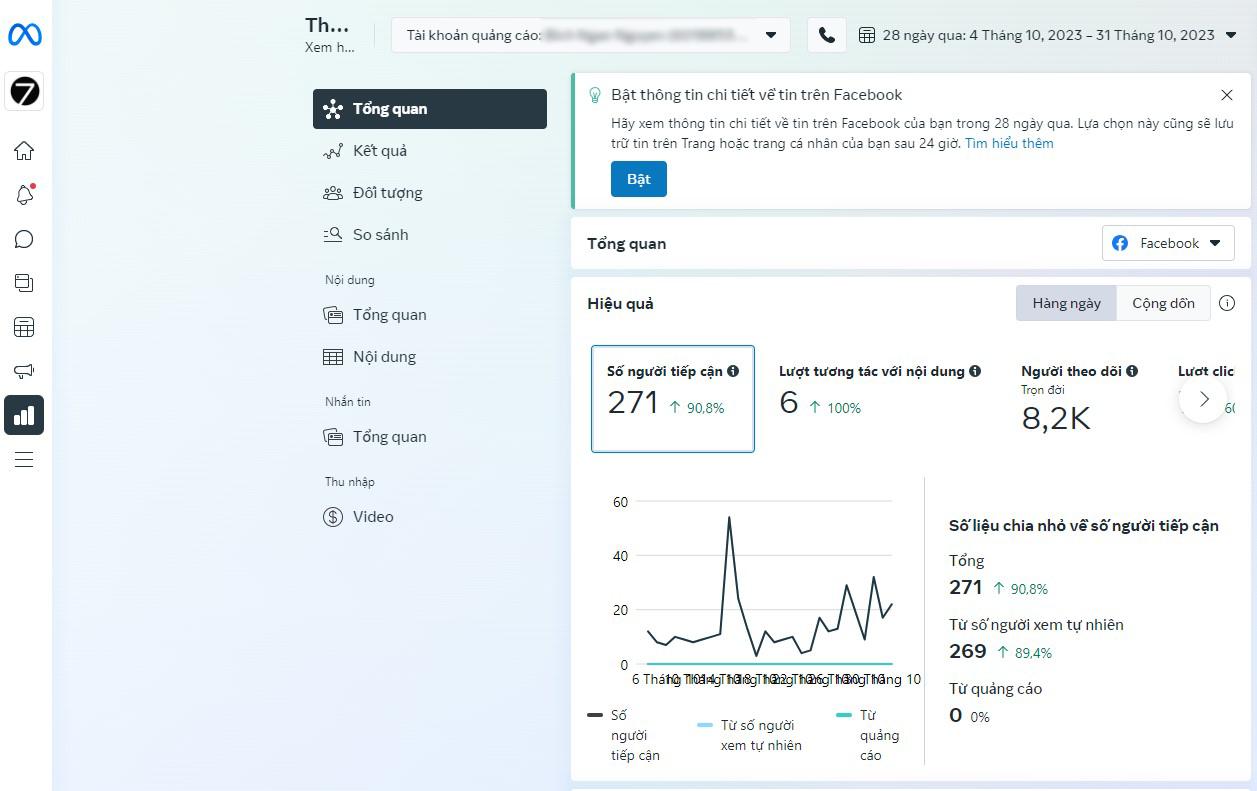
This dashboard displays comparison metrics so you can easily tell whether your results are better or worse than in the previous period. For a more detailed look at these numbers, click the “See more about your messaging performance” button or select the Messaging Overview tab from the Insights menu.
Track New and Returning Customers
The first panel in messaging insights shows basic Audience numbers. Here you can see the total number of people who have messaged you (“contacts”), as well as the number of new contacts and returning contacts.
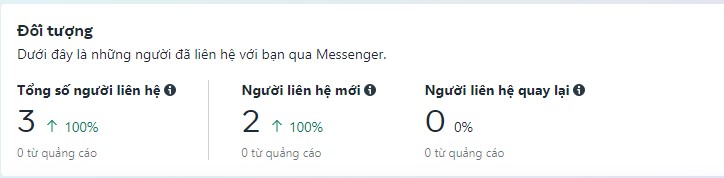
The most important metric for your business depends on your specific strategy. If your goal is to build a marketing system and attract a steady flow of potential customers, you’ll want to focus on generating new contacts.
However, if you want to build deeper relationships with customers and increase customer loyalty, you’ll want to focus on retaining and engaging with returning contacts. Ideally, you’ll keep both goals in focus.
Business Suite automatically provides comparison metrics for performance between the current period and the previous one. With these insights, you can track your progress in real time and make sure your business is heading in the right direction.
Keep in mind that you can adjust the date range to choose a preset period or a custom one to get more relevant comparisons. Business Suite began showing these advanced insights from April 5, 2023 onward.
Measure the Results That Matter
If your team uses Facebook Messenger for customer service without any revenue-generating activity, you may see a “Results” panel similar to the one below. This panel shows only the total number of Facebook Messenger conversations started during the selected period and offers no other details.
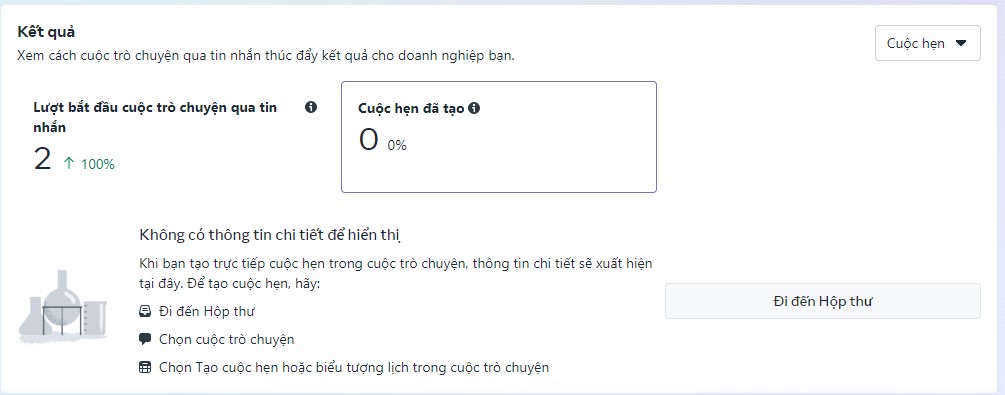
If you use DMs to handle orders or appointments, you’ll find a wealth of useful data here. This panel is designed to track both the orders and the appointments created through DMs, including the related revenue.
The Appointments panel charts the number of appointments confirmed through DMs. Below the main chart, you can see other detailed appointment metrics, including appointments requested, canceled, and declined.
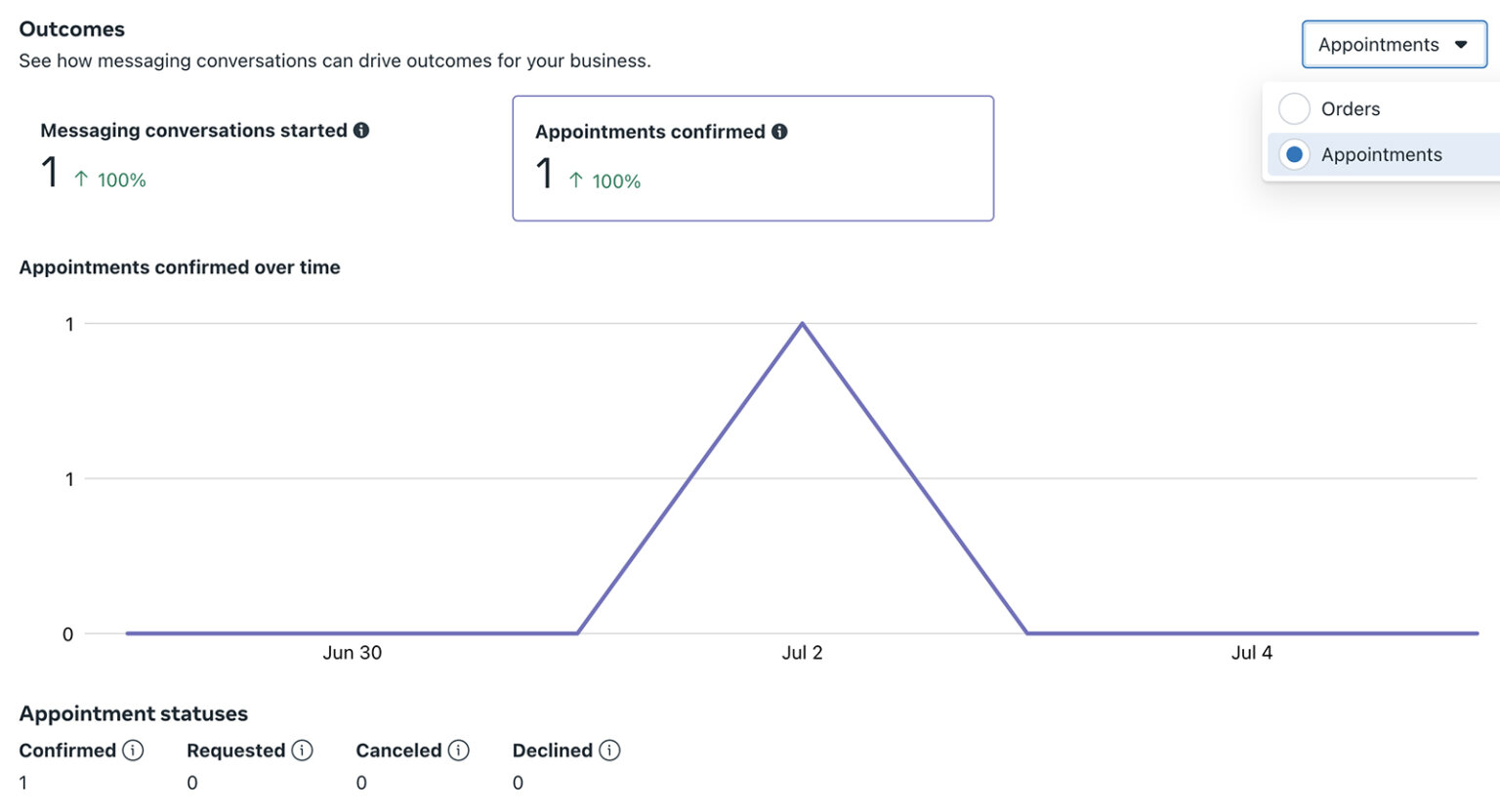
This dashboard helps you measure your team’s appointment-booking efforts and make sure you’re hitting your goals. It can also help you identify potential problems in the booking process. For example:
- Are you declining a lot of appointments? This may suggest you need to revisit the appointment types set up for your Facebook business Page and how you promote your services to your audience.
- Are your customers canceling a lot of appointments? This may suggest you need to revisit your customer qualification process.
- Is your team receiving many appointment requests but failing to confirm many of them? You may want to review your booking process to make sure you’re not missing opportunities to generate revenue.
If your business sells products directly through DMs, use the drop-down menu in the top right corner and select the Orders panel instead of the Appointments panel. Here you can see the total number of orders started in DMs and the total revenue those orders have generated. Note that this revenue figure reflects orders that have been paid.
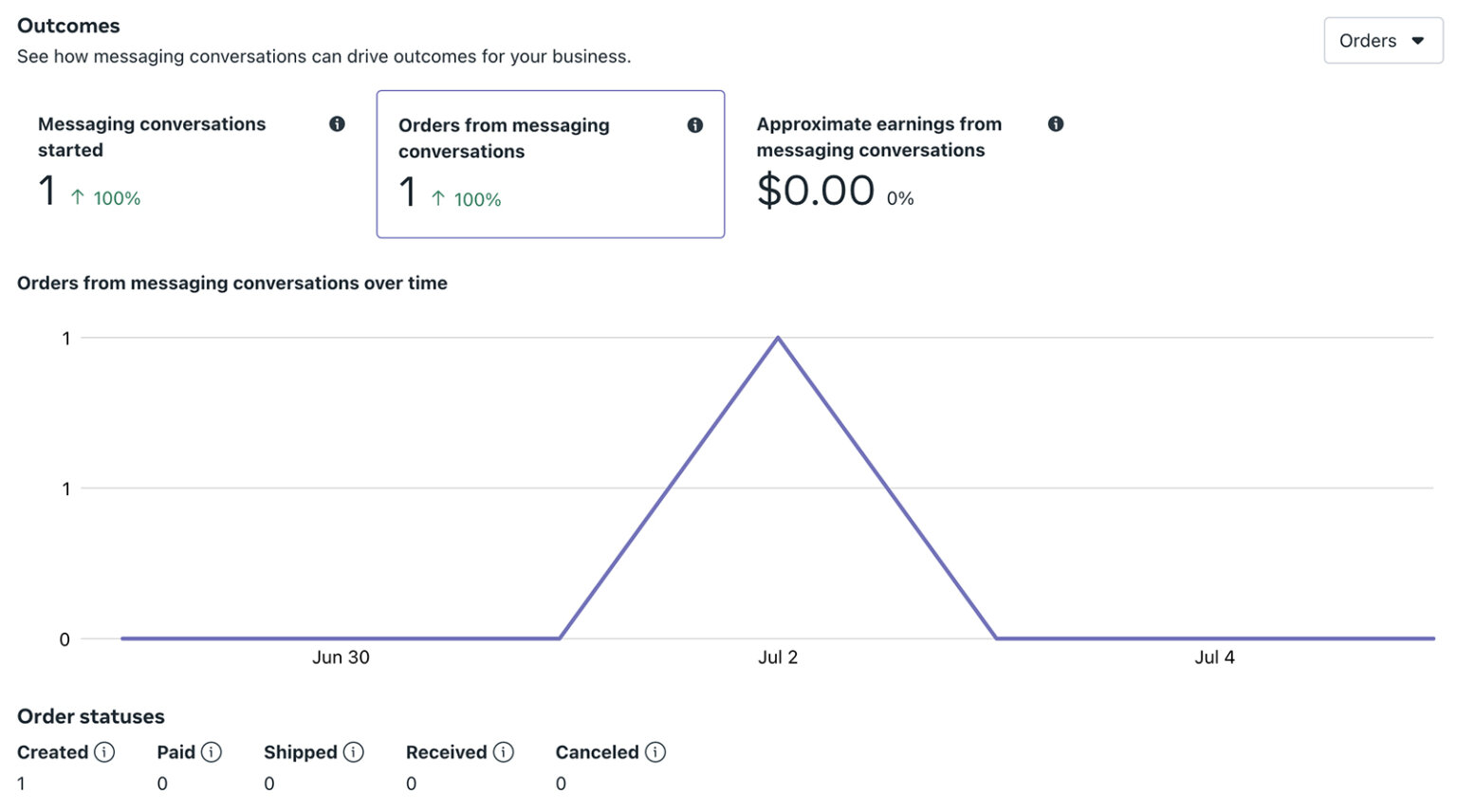
Similar to the Appointments view, the Orders panel breaks these metrics down in detail so you can identify potential bottlenecks. You can see the total number of orders created, paid, shipped, received, and canceled.
If you see many unpaid orders, it’s a good idea to revisit your ordering process and add extra follow-ups. If you see many canceled orders, you may want to revisit your order policy to filter out unqualified customers and spare your team unnecessary work.
Track Responsiveness
Now you have a view of how many people message your business on Facebook Messenger and what kinds of people they are. But how is your team responding? Scroll down to the Daily Responsiveness panel to track these metrics.
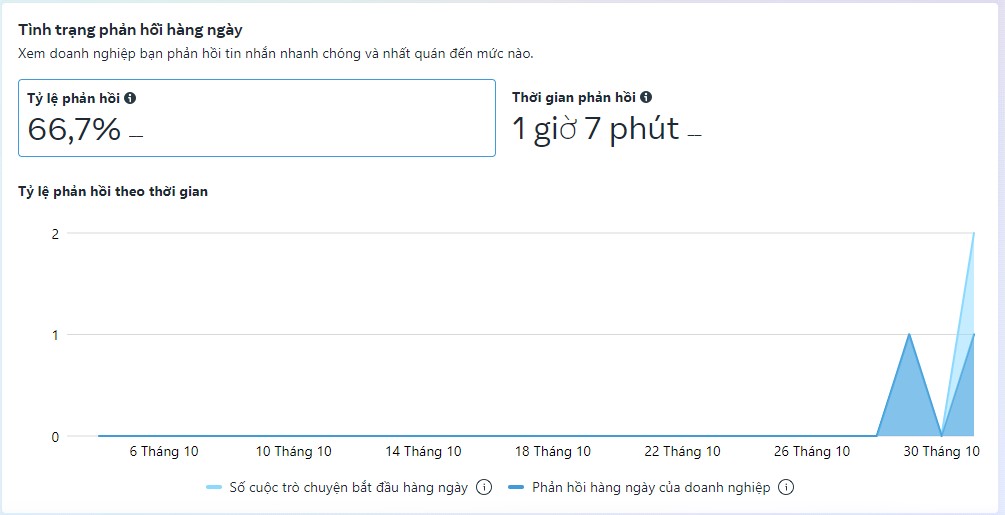
Business Suite shows your response rate (displayed as a percentage), which is the percentage of messages your business replied to within 24 hours of receiving them. Ideally, your response rate will be close to 100%, showing that you answered every message within a day.
If your response rate is well below 100%, you may be missing opportunities to connect with customers. To raise your Page’s response rate without investing a lot of extra time, consider the tips below.
The Daily Responsiveness panel also shows your Page’s average response time, which is the average time it takes your team to reply within 24 hours. You want to keep this number as low as possible to show that your team answers Facebook Messenger messages quickly.
Why does responsiveness matter? Facebook Pages with a response rate of at least 90% and a response time under 15 minutes display a “Very Responsive” badge. Because this badge is visible to both followers and non-followers of the Page, it can encourage existing or potential customers to message your team, knowing they’ll get a quick reply.
Tips for Optimizing Your Business’s Direct Message (DM) Strategy
Want to speed up your direct message (DM) replies, or encourage more customers to contact your Facebook Page? Try the strategies below.
Turn on Suggestions. One of the simplest ways to improve your messaging is to enable Suggestions in your Business Suite inbox. When you turn on Suggestions, you’ll automatically receive tips on how to reply to messages or what actions to take as you manage your messages.
You can turn this on by opening your inbox settings in Business Suite. Go to the Suggestions tab and switch on any suggestions you want to receive.

For example, you might get suggestions for saved replies related to Facebook Messenger conversations. You can also get suggestions to turn messages into appointments or orders so you don’t miss opportunities to convert customers.
Create Automated Replies
If you find that a small team or limited time to respond is leading to long wait times, consider setting up automated replies. With automation, your Page can respond instantly and handle common customer questions more efficiently. Business Suite offers a range of automation templates to choose from and also supports custom automation workflows.
To access these tools, click the automation icon at the top of your Business Suite inbox. Then browse the template library or create a new automation from scratch.
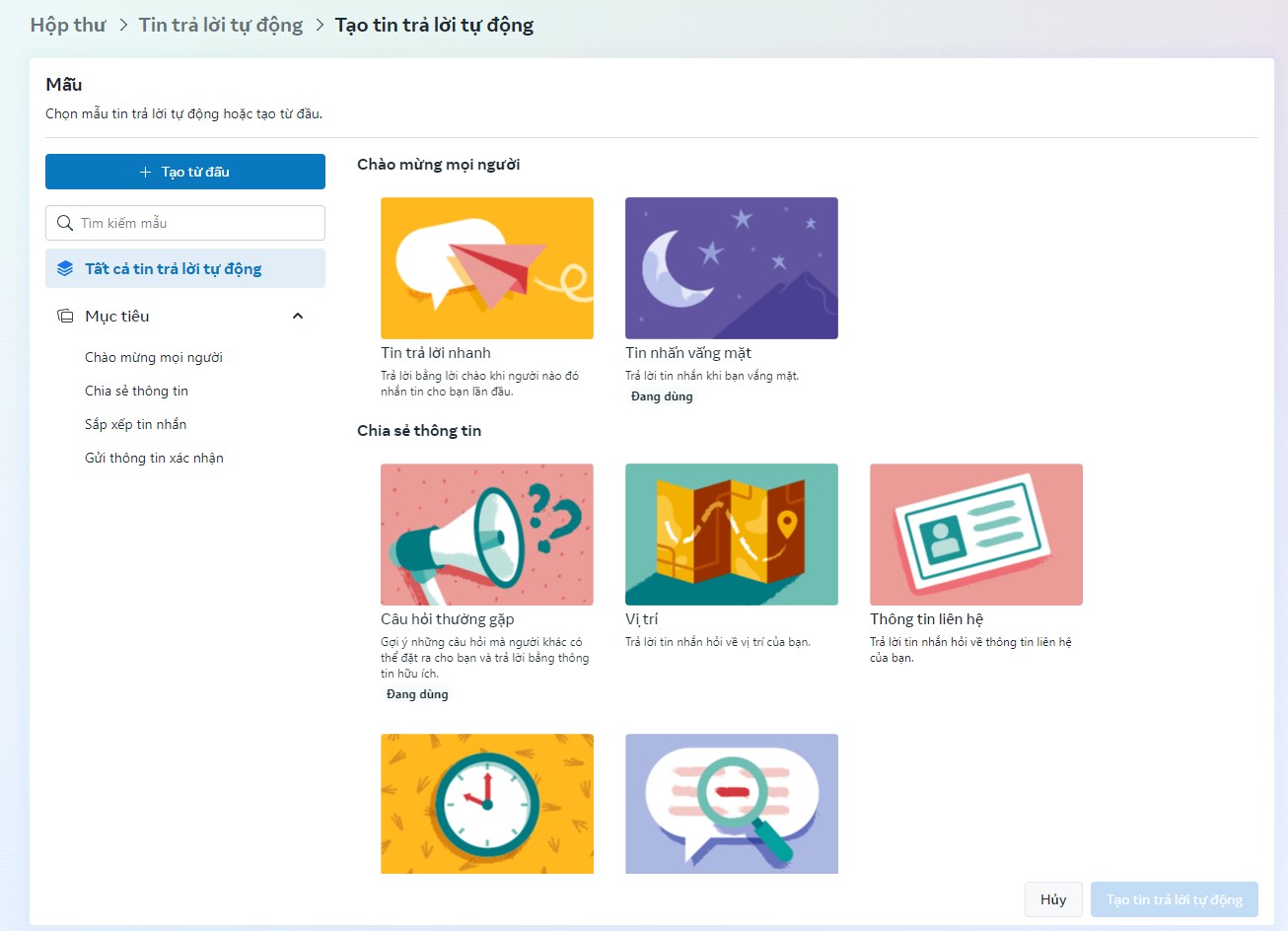
For instance, you can set up an instant reply that responds right away when a Facebook Messenger user messages your business for the first time. Saved-reply automations support text, emojis, and links. They also let you personalize your Facebook Messenger messages, which you can use to greet people by their username or add your business’s contact information.
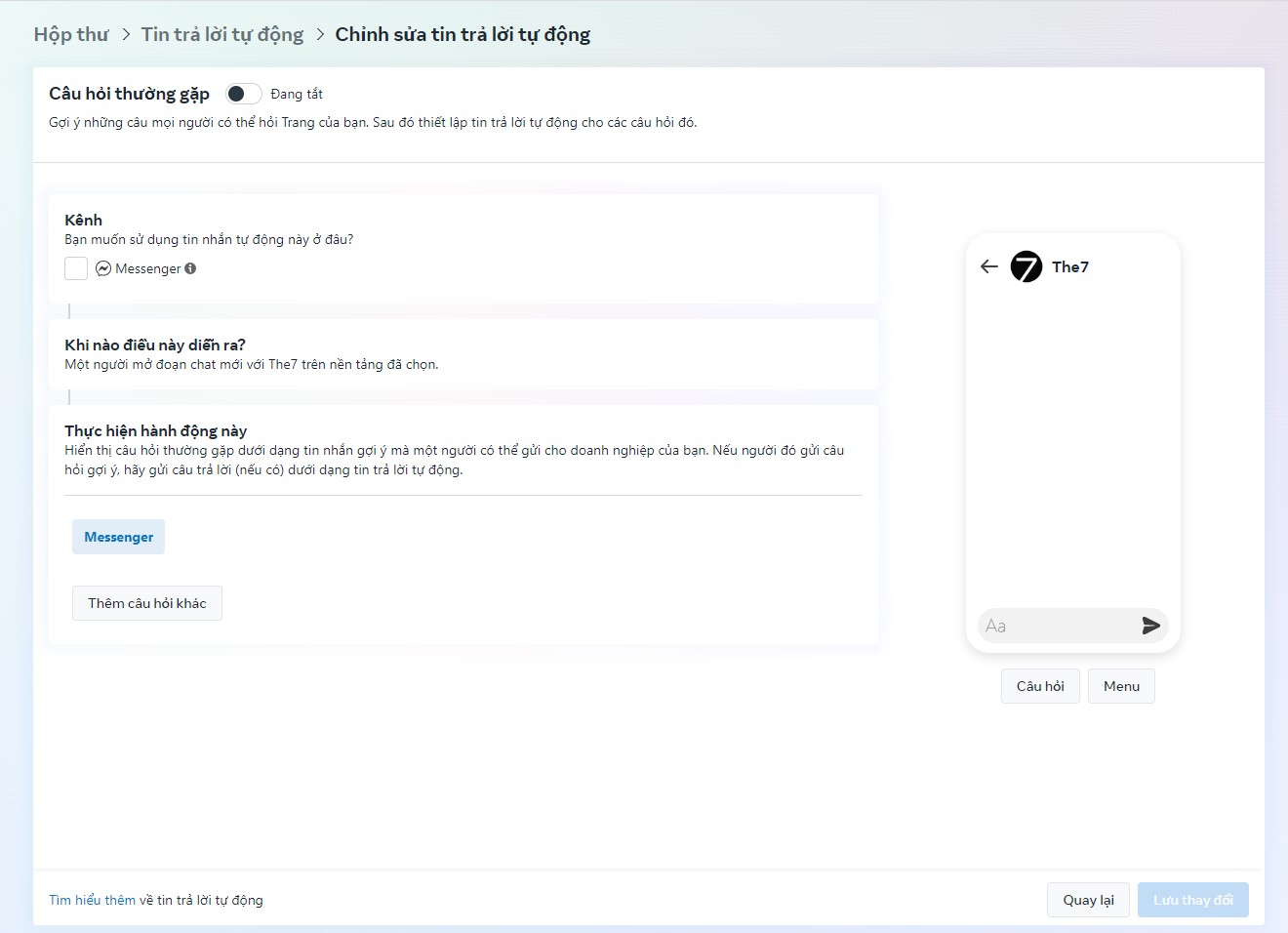
Automating “away” messages is also very useful, especially if your team isn’t online around the clock. You can schedule these automated messages so they’re sent only when your team is offline. Consider adding helpful resources to these messages so customers can find answers to their questions or take the actions they want without waiting for you to get back.

Although these Facebook Messenger automations can make customers happier and lighten your team’s load, it’s important to note that they won’t improve your Page’s response rate or response time. Meta doesn’t count instant replies or “away” messages toward your response rate.
If improving your Page’s response rate or earning the “Very Responsive” badge on your Facebook Page is a top priority, you can still use the automations above. But you’ll also need to work with your team to check the inbox and send manual replies to address any response-rate issues.
See more: Optimizing TikTok Search: A Chance for Marketers to Reach Their Target Audience
Set Up Saved Replies
Want to balance sending manual replies with automating them? With saved replies, you can set up a library of answers based on the common questions or messages your team receives.
When your Page’s team members are in the inbox replying to messages, they can open the saved replies and choose one to send. Because every saved reply also has a shortcut, it will also appear when you type the shortcut in a message.
To set up saved replies, open your Business Suite inbox and click the message icon at the bottom of the screen. Then start building your replies. Each one includes a shortcut that lets you insert it quickly into a message, and a reply can be up to 1,000 characters long.
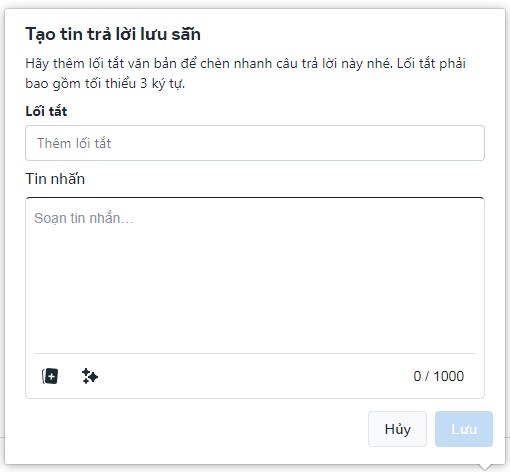
Saved replies can also include images and automated personalization, based on information about the person or your Page. When replying, your team can also take a moment to tweak these replies or add something extra if needed.
Add a Send Message Button
Want to increase the number of direct messages (DMs) your Facebook Messenger receives without paying for ads? You can encourage people to contact your business by setting up a Send Message button on your Facebook Page.
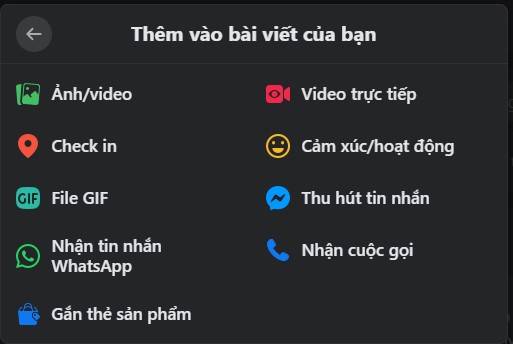
To set up this button, open the admin menu on your Facebook Page and choose the Edit Action Button option. Select Send Message, then save the new button. Page visitors can then click the Send Message button at the top of your Facebook Page to start or continue a conversation through Facebook Messenger.
Evaluate Facebook Messenger Ads
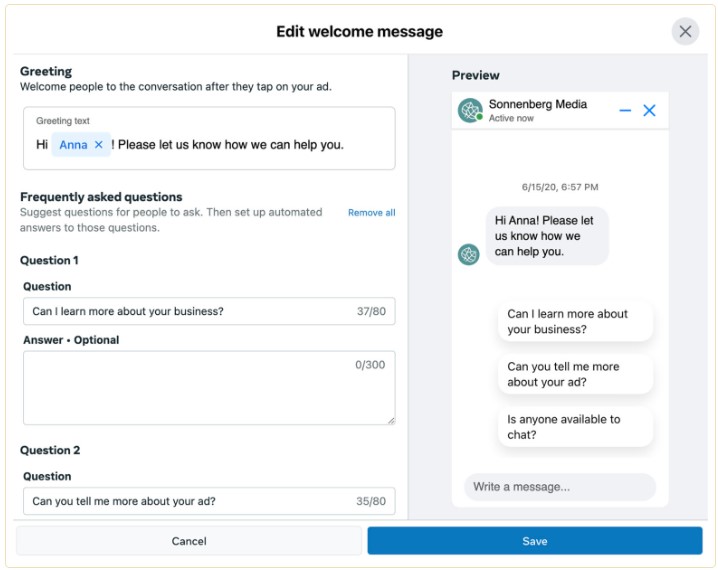
If your organic messaging strategy isn’t delivering the results you want, consider running click-to-message ads. You can set up ads directly from your Business Suite inbox. Click Create Message Ad to get started, then build the ad using an existing post or new creative.
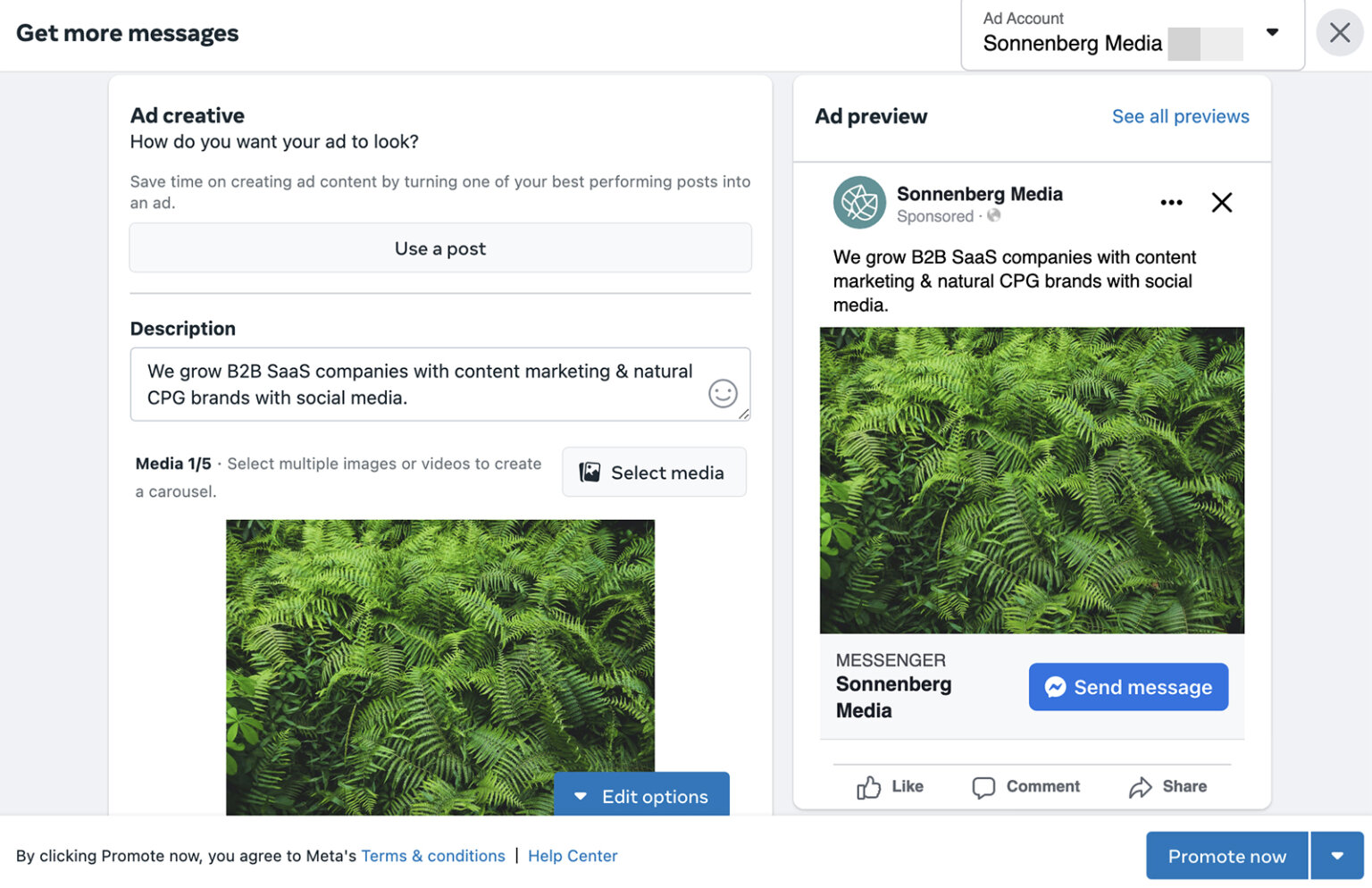
With click-to-message ads, you can encourage people to contact you on Facebook Messenger without using other channels. You’ll also see an option to add Instagram and WhatsApp.

Message ads include suggested questions to help kick-start the conversation. You can add up to three suggested questions, along with automated replies, to any message ad. Use your marketing goals or your list of frequently asked questions to do this. After you launch the campaign, you can view results directly in the messaging insights section of your Business Suite inbox.
Evaluate Ad Results
You can track basic ad metrics directly in Business Suite. The Ads That Click to Messages panel shows the following in Facebook Messenger:
- The number of message conversations started.
- The cost per message conversation started.
- The total amount spent.
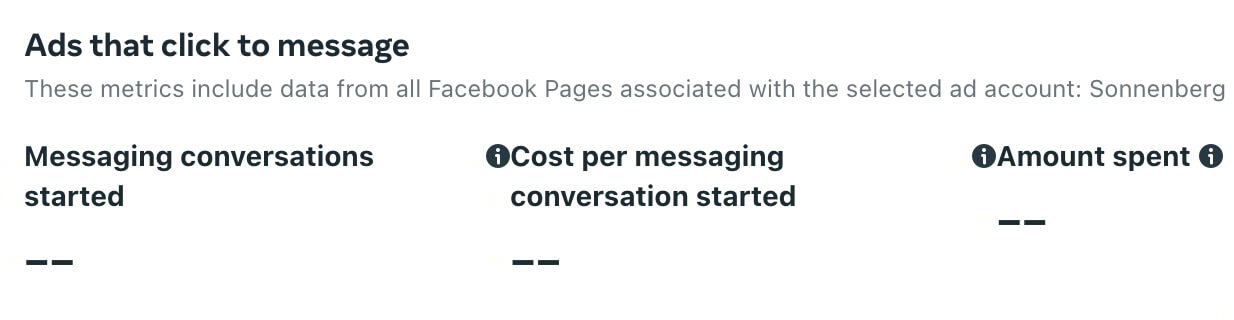
Overall, these metrics can help you make sure your message ads are hitting their goals and the key performance indicators (KPIs) you’ve set.
Conclusion
The optimization tools and insights in Meta Business Suite make it easier than ever for organizations to do business through Facebook Messenger. With a thoughtful strategy and the right organic tools, your team can get real value from both paid and organic campaigns through Facebook Messenger.

Nguyễn Đình
Bảo




As CEO of The7, I am committed to sharing practical, useful knowledge with every reader. Every article on The7 is based on my 7 years of hands-on experience in marketing — Facebook advertising, LinkedIn advertising, Google advertising, and marketing strategy. I hope you take away plenty of insight from these posts and apply it successfully in practice.
Related Articles
Building a Full-Funnel Content Marketing Strategy on LinkedIn
Table of Contents Toggle Why Build Content Marketing for the Full Marketing Funnel? (Why Full-Funnel Content Marketing?)Creating Your Strategy (Creating Your Strategy)Implementing Your Content Strategy (Rolling out your content strategy)Summary...
Designing Creative Content for LinkedIn
Table of Contents Toggle Why Is Good Creative Content So Important? (Why is Good Creative Important?)Key Components of Creative Design (the core elements of creative design)Summary (summary) Why Is Good...
Building an Organic Business Presence on LinkedIn With a LinkedIn Page
Table of Contents Toggle Why Have a LinkedIn Page?Establishing Your LinkedIn PageKeeping Your LinkedIn Page ActiveThe Measure of SuccessSummary About LinkedIn Page (Summary) Why Have a LinkedIn Page? For a...
6 Best LinkedIn Marketing Strategies for B2B in 2026
Table of Contents Toggle LinkedIn 2026: Where B2B Decisions Get MadeStrategy #1 – Why Is LinkedIn the Best B2B Marketing Channel Today?1. Decision-makers are concentrated here2. Users are in work...
7 Social Media Trends for 2026: The Era of Real Value, Real Conversion, and Real People
Table of Contents Toggle Social media is entering the biggest restructuring of the decadeTrend 1: Why is buying directly in-app becoming the new standard for 2026? (On-Platform Conversion)What should businesses...

What Is TikTok Marketing? Effective TikTok Marketing Strategies
TikTok has been topping the global rankings of the most downloaded and most visited apps. That makes it a gold mine for marketers who love creativity. In this article, The7...