


How to Link Google Analytics With Google Ads in 2024

To run Google Ads effectively, you need to do more than just launch campaigns. You also have to analyze and evaluate the performance of each campaign through its metrics. So how do you collect that data? The solution is to link Google Analytics with Google Ads. In this article, The7 will walk you through how to link these two accounts.
>>>> See more related articles:
- What Is Google Ads? Google Ads Basics for Beginners
- Google Ads Management Services
- Sharing tips on running Google Ads effectively
Why Linking Google Analytics and Google Ads Matters
With Google Ads reports alone, users can only see basic information such as clicks, CPC, bid information, bounce rate, and so on. When you link your Google Ads account with Analytics, you can analyze deeper data about user behavior and enjoy many other benefits, as follows:
- View detailed data on user behavior from your Google ads directly in Google Analytics.
- Import Google Analytics metrics such as average session duration, bounce rate, and pages per session into your account.
- Use the user data in Google Analytics to run remarketing on Google Ads.
- Create target audiences from Google Analytics and Google Ads.
- Import cross conversions between Google Analytics and Google Ads.
What Are the Requirements for Linking Google Analytics and Google Ads?
When linking Google Analytics and Google Ads, keep the following requirements in mind:
Sign in with the same email address on both accounts
- First, check your Google Ads email address in the top right corner of the screen.
- Next, click the “profile” icon to find the Google Analytics email address under the account.
- Finally, simply wait for the two accounts to connect properly.
Check whether you have the right level of access to the accounts
After you link Google Analytics with Google Ads, you need to check whether your account permissions are appropriate. Below are two ways to verify this.
- Google Ads permissions
- Go to your Google Ads interface and click the “Tools” icon.
- Under “Setup,” click “Account access.”
- Then check your permissions under “Access level.” Note: you must have “Admin” access level set for your own email address.
- Google Analytics permissions
On the platform, go to “Admin” in the left corner. Under “Settings,” select “User management.” Here, you should have edit access to the account.
Detailed Guide to Linking Google Analytics With Google Ads
Link From Google Analytics
Step 1: Go to Google Analytics and sign in to your account.
Step 2: Select the “property you want to link,” then click “Admin.”
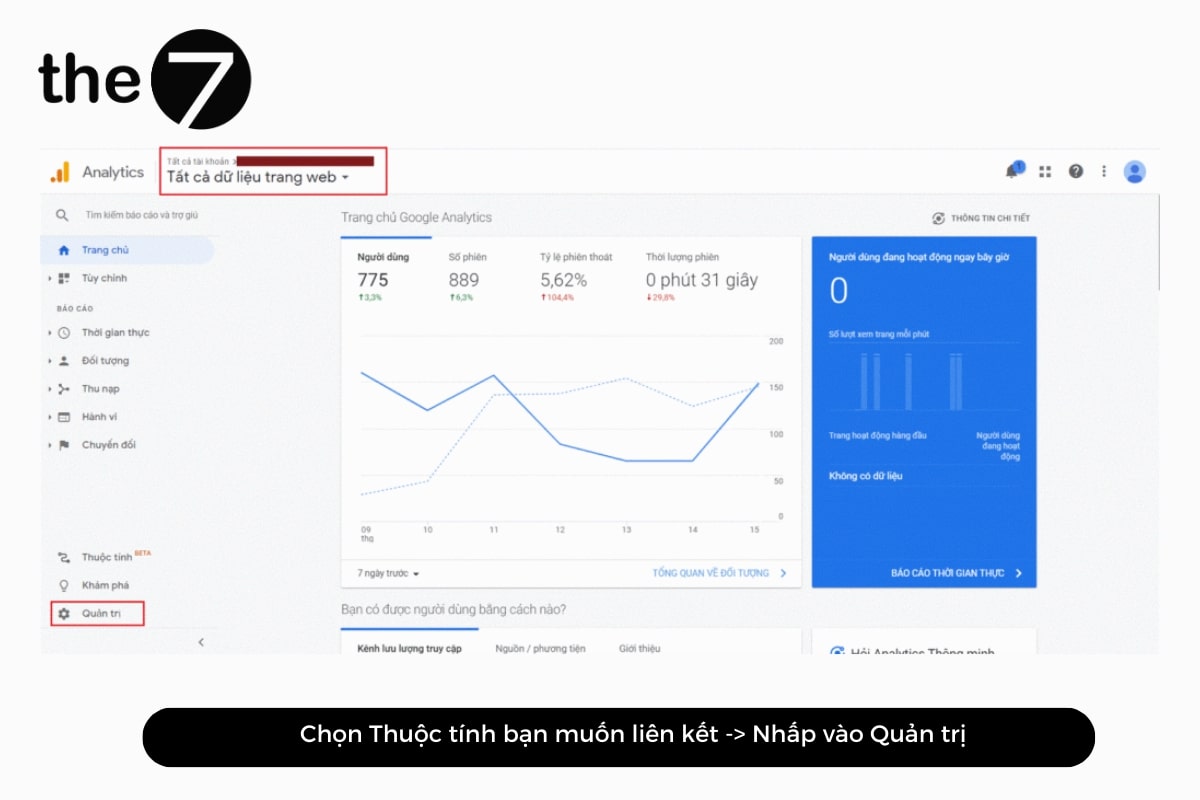
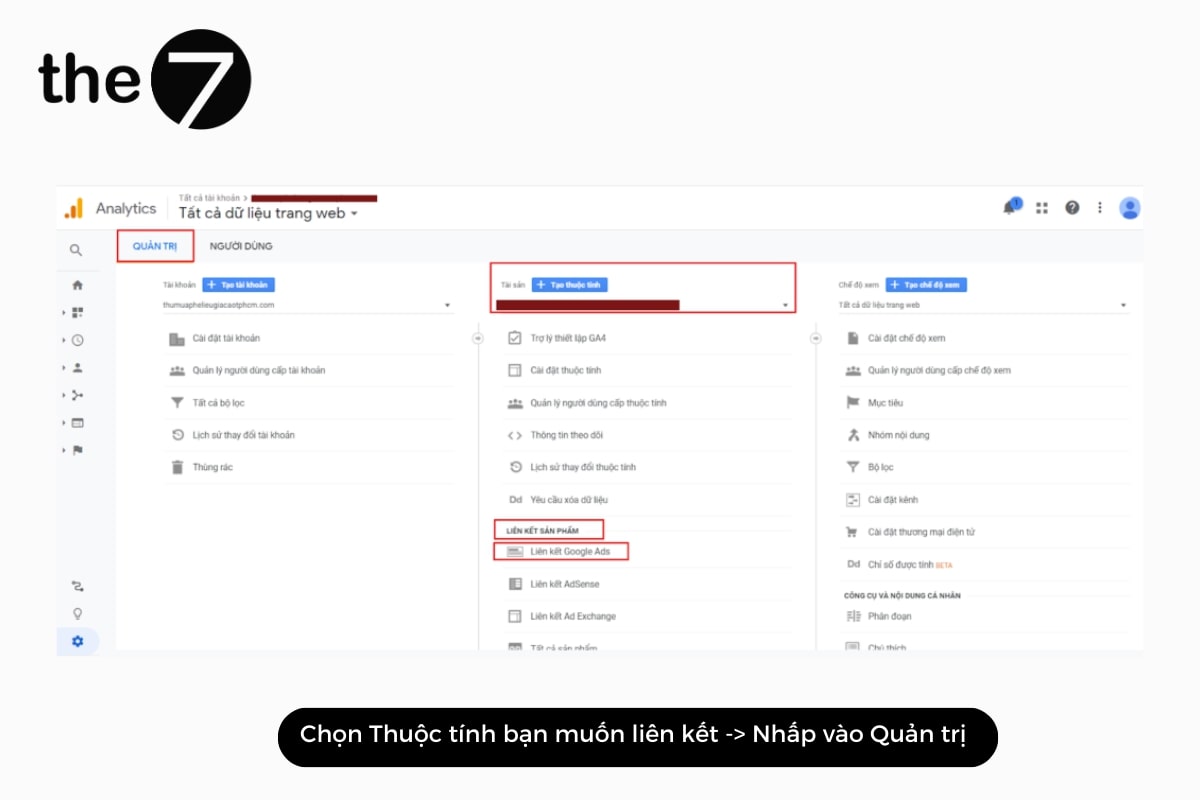
Step 3: In the Property column, under “Product links,” select “Google Ads links.”
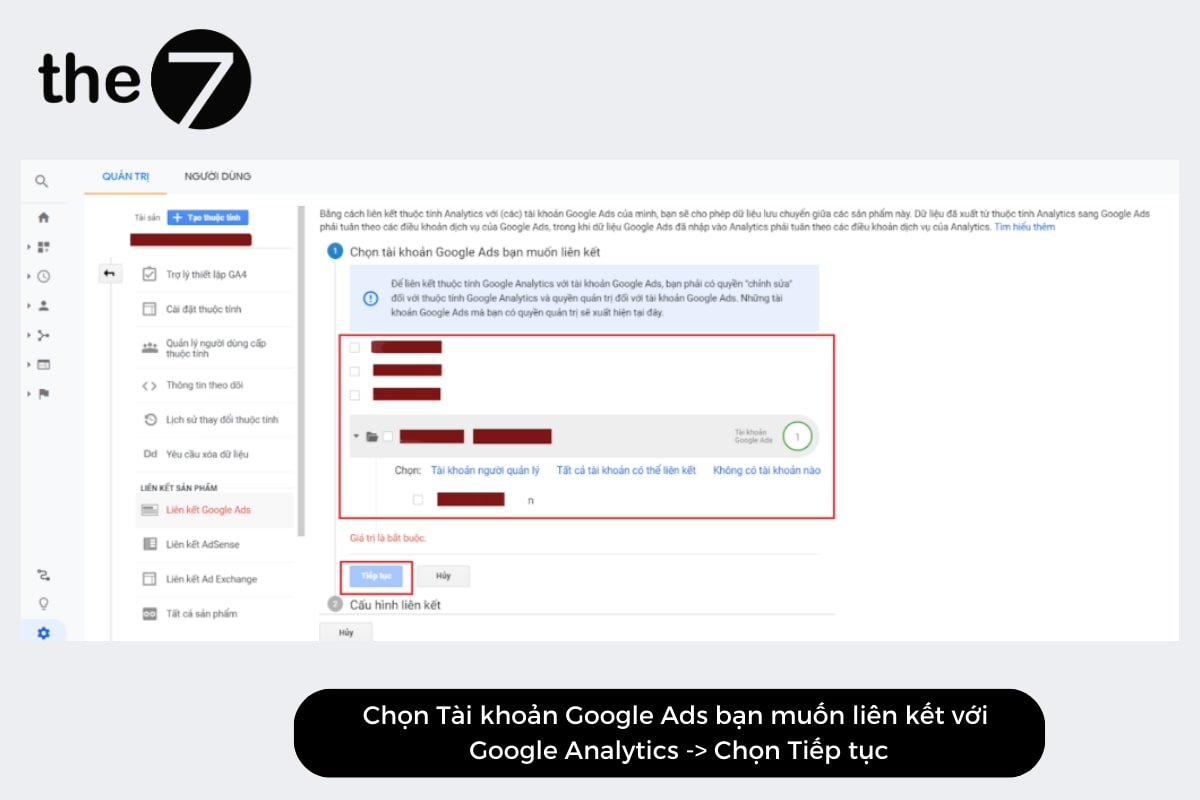
Step 4: Choose the Google Ads account you want to link with Google Analytics, then click “Continue.”
Step 5: Enter a “Link group title,” then switch on each view in the property where you want to see Google Ads data.
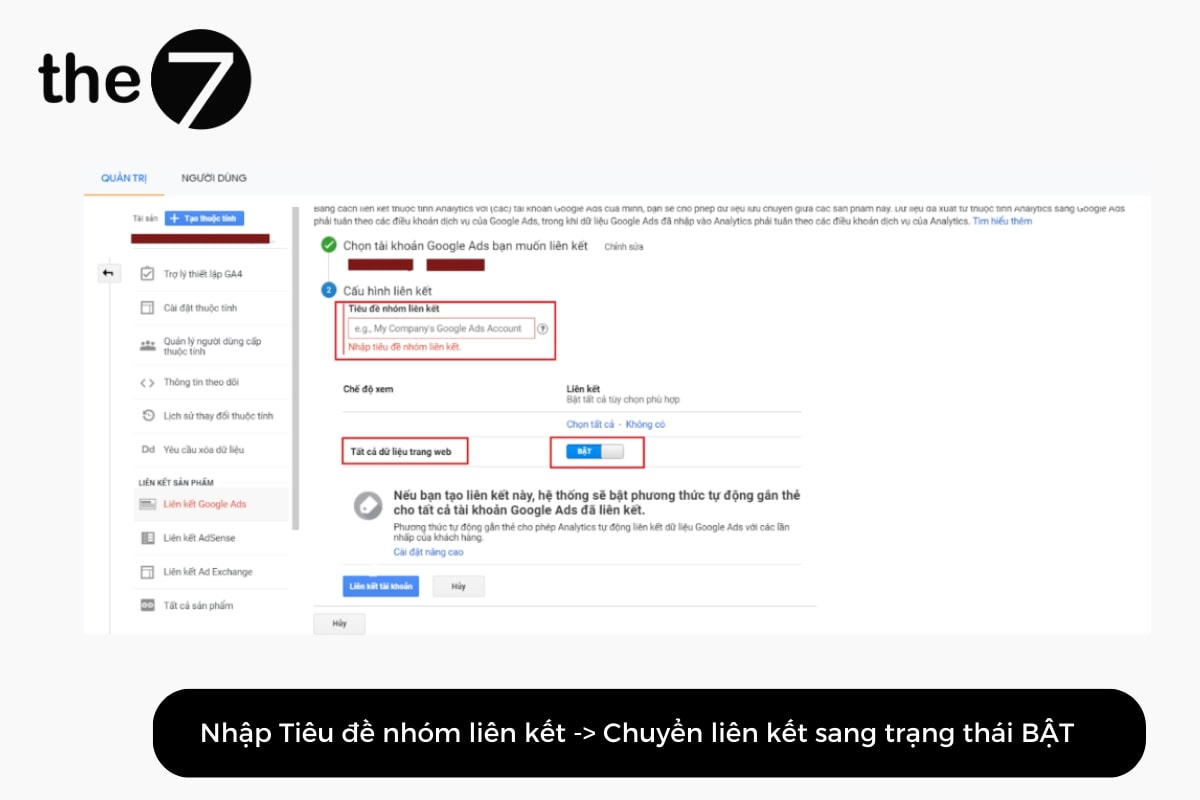
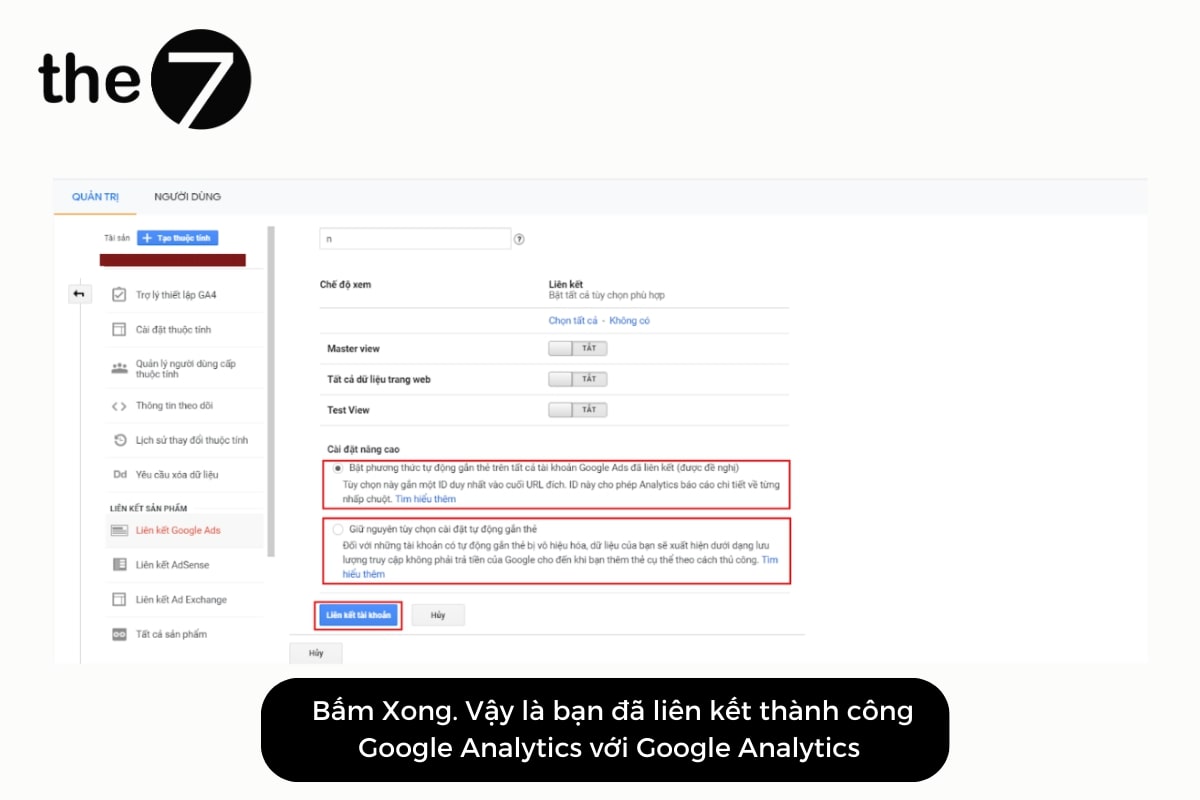
Step 6: Go to “Advanced settings,” then select “Enable auto-tagging on all linked Google Ads accounts” or select “Leave my tagging settings as is.” Then select the option to link the accounts.
- Auto-tagging: Google Ads data will be imported into Google Analytics when users click your ads.
- Leave my tagging settings as is: Your data will appear as Google organic traffic until you add specific tags manually.
Step 7: Click “Done” to finish.
3.2 Link From Google Ads
Step 1: Sign in to Google Ads.
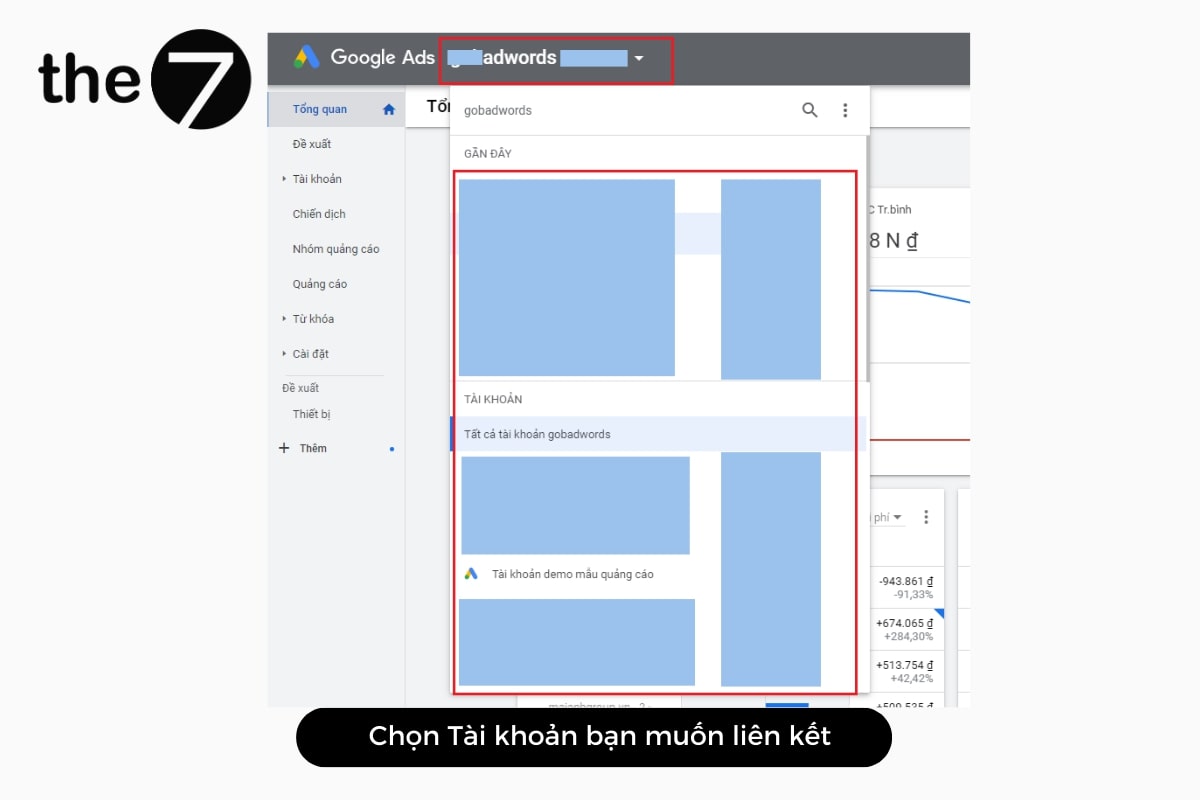
Step 2: Select the account you want to link.
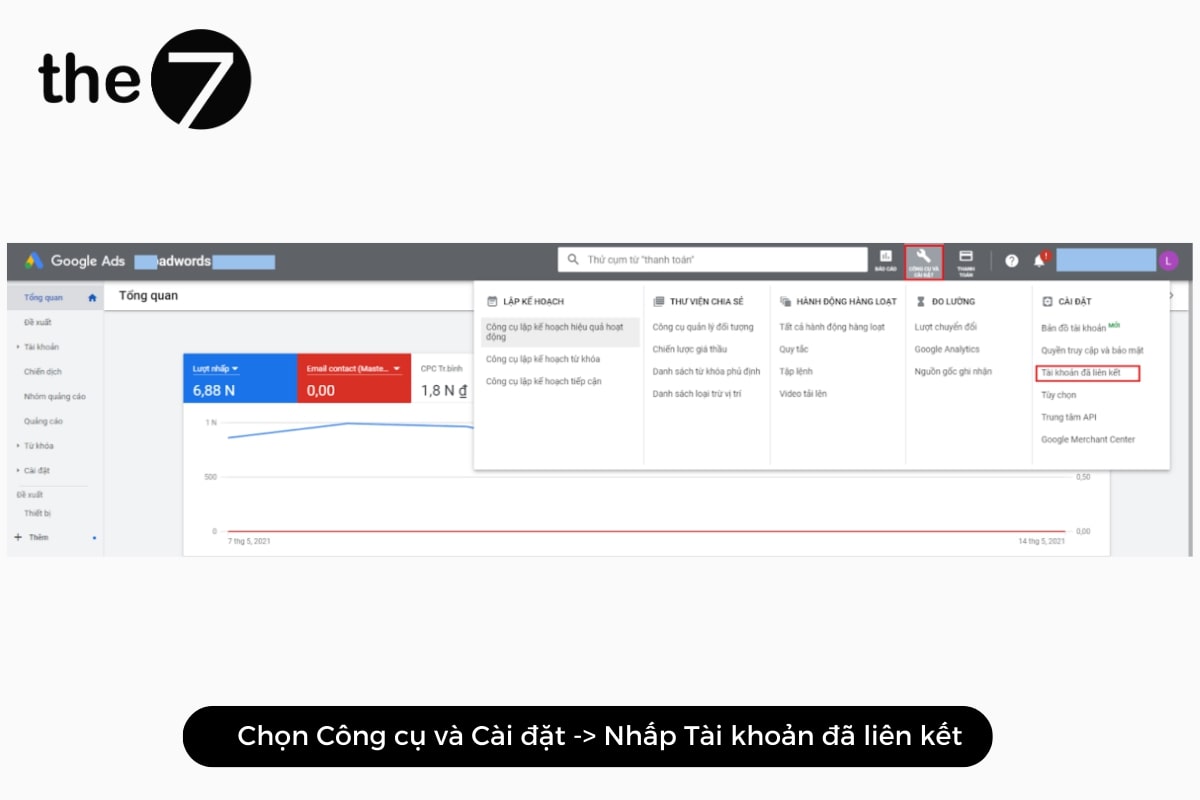
Step 3: Select “Tools and Settings,” then click “Linked accounts.”
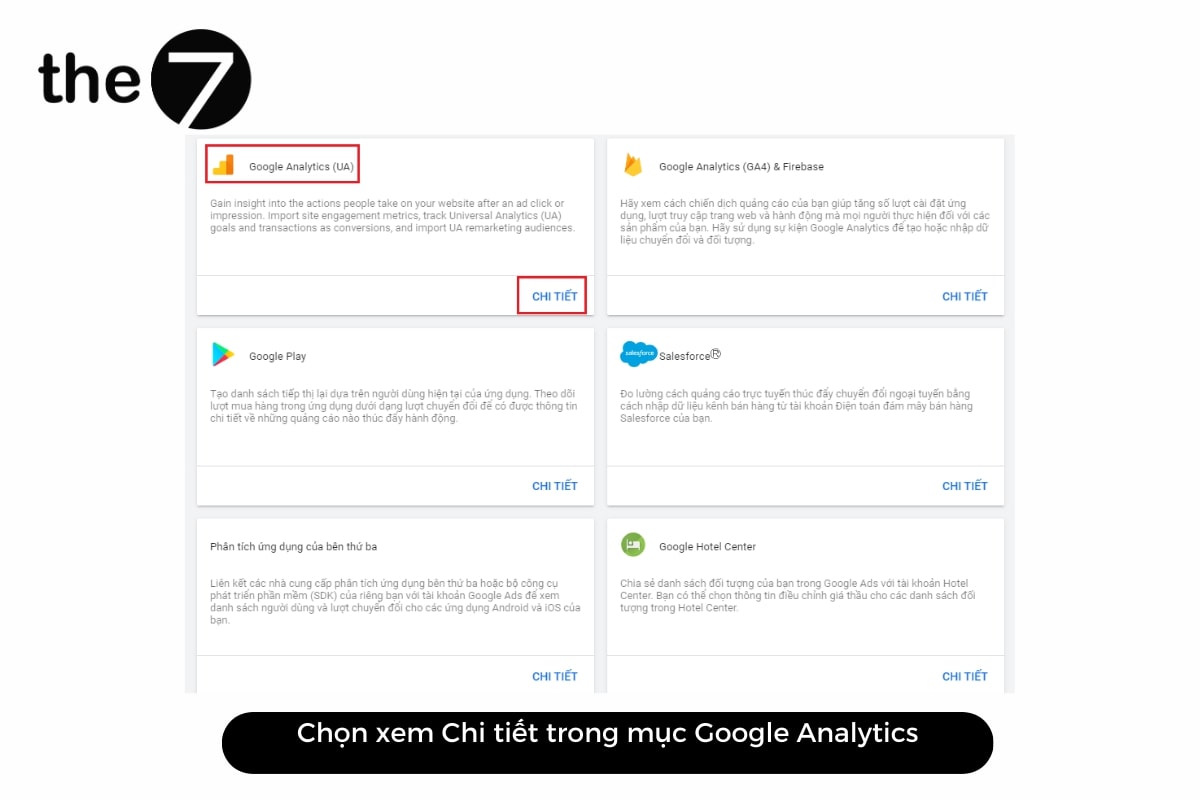
Step 4: In the Google Analytics section, select “Details.”
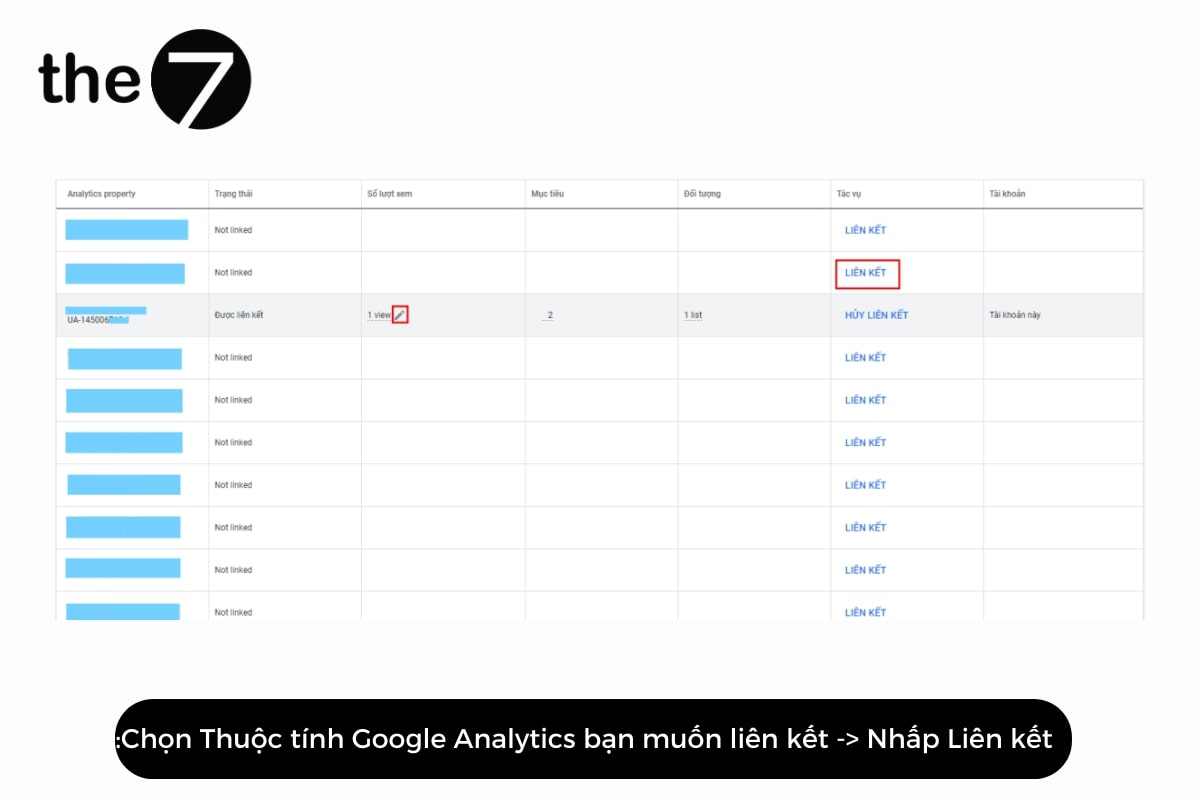
Step 5: Select the Google Analytics property you want to link and click “Link.” After linking, an Edit icon will appear in the views column of the Google Analytics property. Click the “Edit icon.”
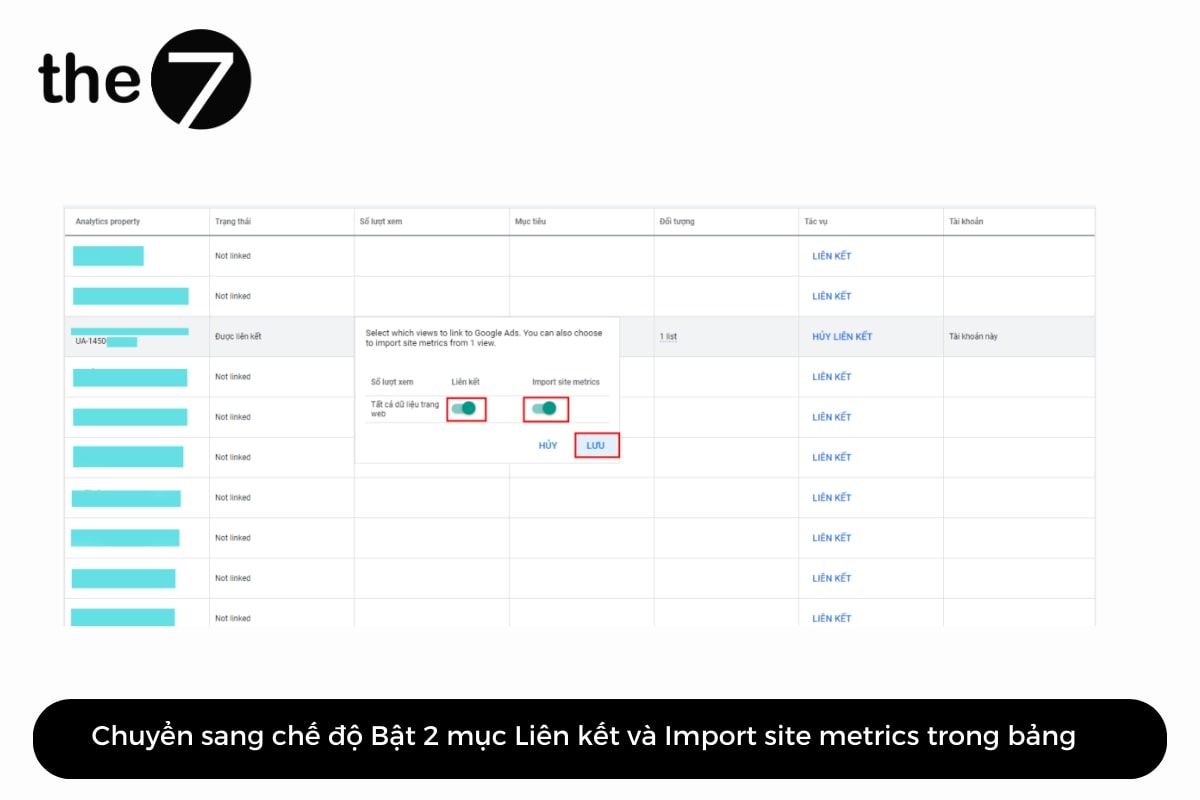
Step 6: Switch both “Link” and “Import site metrics” to On. That’s it. You have successfully linked from Google Ads.
View Data Directly From Your Google Analytics Account
Open your Google Analytics account. Click “Switch to view all reports,” select “Google Ads,” and click “Campaigns.” You will see a sales chart showing the number of users based on the transaction report for a specific time frame. You can also see the e-commerce conversion rate, bounce rate, and sessions for your campaign.
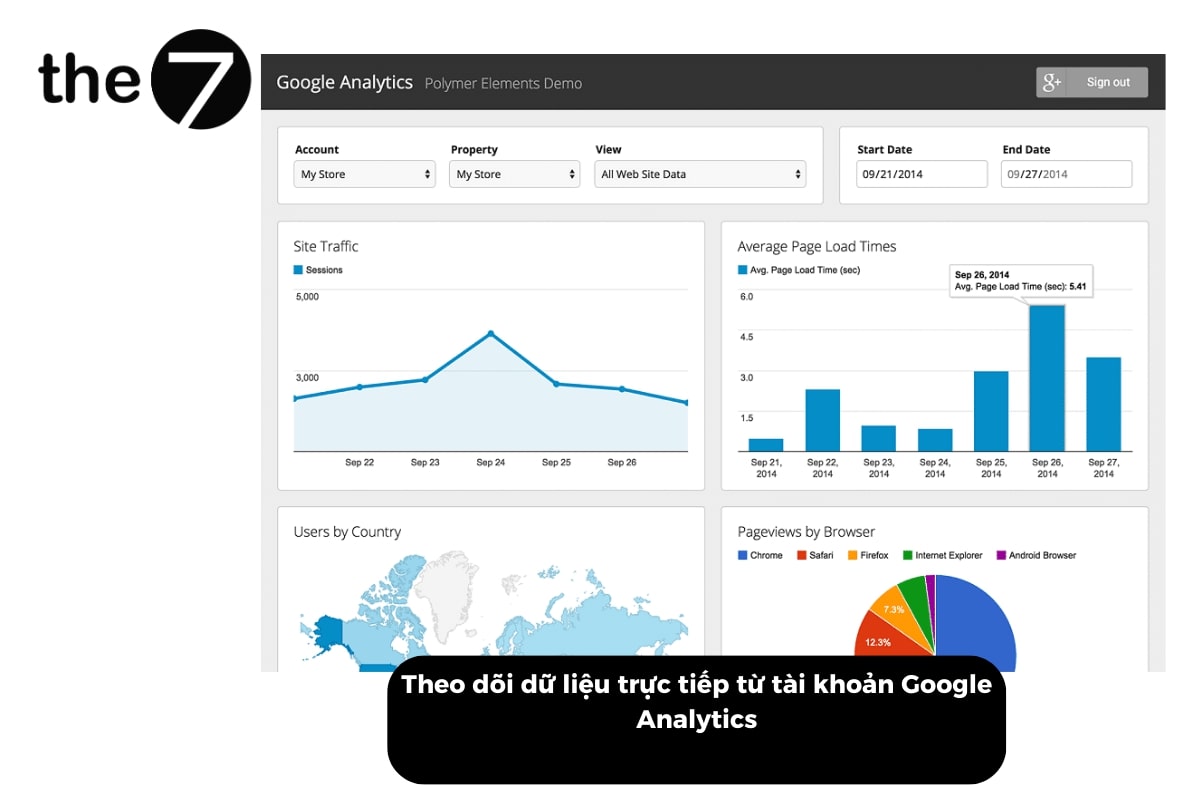
If you dig deeper into the “Campaigns” page, you will see a range of other metrics. For example, you can find cost and revenue in this report. Here you can also see the e-commerce conversion rate, bounce rate, and sessions for the campaign.
This helps you analyze and compare the results of your campaigns. On top of that, you will get revenue-related information from your Google Ads account. When you use the data in Google Analytics, you can make smarter decisions and get a more complete view of your data.
When you link Google Analytics with Google Ads, you can integrate many more features. Specifically, you can observe behavior and traffic and target your audience, which helps you optimize your Google ad campaigns. The7 hopes this guide gives you the knowledge you need to link Google Analytics and Ads.
>>>> See more: How to add sitelink extensions in 2024

Nguyễn Đình
Bảo




As CEO of The7, I am committed to sharing practical, useful knowledge with every reader. Every article on The7 is based on my 7 years of hands-on experience in marketing — Facebook advertising, LinkedIn advertising, Google advertising, and marketing strategy. I hope you take away plenty of insight from these posts and apply it successfully in practice.
Related Articles

6 Simple Yet Effective Steps to Run Google Ads in 2024
Google Ads (Google AdWords) is Google’s online advertising service that helps businesses reach the right target customers, boost brand awareness, attract customers, and drive sales as customers search for information...
How to Run Effective Gmail Ads for Your Business
One of the advertising formats attracting the attention of many business owners is Gmail advertising. So how do you run effective Gmail ads? Let The7 walk you through this fresh...
What Are Google Smart Campaigns? Tips to Drive High Traffic
Google Smart Campaigns are one of the ways advertisers can access advertising information and digital marketing techniques faster. If you have just started a small business, keeping track of your...
What Card Should You Use to Pay for Google Ads in 2024?
Which card to use to pay for Google Ads is a common question among people who are new to Google Ads campaigns. So which card is best for paying for...
How to Add Sitelink Extensions in Google Ads (2024 Guide)
Sitelink extensions let your ads give customers more information. They also make each ad stand out more than your competitors’ ads. This gives your Google Ads extensions a Quality Score...

SEO vs. Google AdWords Advertising: Which Campaign Should You Choose?
SEO and Google AdWords are both powerful forms of online marketing. With competition on the digital market growing fiercer by the day, comparing SEO and Google AdWords to decide which...