


What Is the TikTok Pixel? The Most Detailed Installation Guide

What is the TikTok Pixel? Let The7 show you how to create and install the TikTok Pixel simply and in detail, so you can track users, measure conversions, and optimize every marketing strategy on this vibrant platform. Below is the most detailed guide for 2024, helping you capture every opportunity the TikTok Pixel offers.
What Is the TikTok Pixel?
The TikTok Pixel is a tracking and analytics tool from TikTok for advertisers and marketers on the TikTok platform. It is a piece of HTML code provided by TikTok that you can embed in your website, landing page, or app.
When a user visits a website or app where the Pixel has been installed, it fires automatically and starts collecting data about that user’s behavior on the site or app.
The TikTok Pixel can provide detailed insights into how users interact with your content, helping you measure ad campaign performance and optimize your marketing strategy on TikTok. Specifically, it can track ad impressions, clicks, and other actions users take on your website.
How the TikTok Pixel Works
When someone visits your website from TikTok, the pixel code automatically collects some important information through the standard web browser. The Pixel typically collects the following:
- Timestamp: This is mainly used to mark when activities or conversions happen on the website. For example, it can record the moment a user views a page or completes a purchase.
- IP address: This helps identify the user’s geographic area when they visit the website. Based on the IP address, you can determine the user’s general location.
- Device information: The pixel code can identify the type of device the user is on, the operating system installed, and the browser they are using to access the website.

This information is collected automatically and does not require any direct interaction from the user. The purpose of this collection is typically to give advertisers and website administrators analytical insights, helping them better understand user behavior and optimize the online experience.
Why Install the TikTok Pixel?
The TikTok Pixel is a tool that helps you optimize when running advertising campaigns on TikTok.
- Measure campaign performance: The TikTok Pixel lets you evaluate the performance of your ad campaigns on the platform in detail. You can track how many users visit your website through TikTok ads. This helps you gauge how successful a campaign is based on engagement and conversions. A large number of visitors generally indicates that the campaign is performing well.
- Optimize ad campaigns: The Pixel doesn’t just collect data; it also helps you optimize your TikTok ad campaigns. By using the information from the Pixel, you can target your ads more precisely at users who have visited specific pages on your website.
- Build audiences for remarketing campaigns: The TikTok Pixel plays an important role in building audiences for remarketing campaigns. You can assess campaign quality, identify target audience groups based on their behavior on your website, and then use that information to launch a remarketing campaign.

How to Quickly Create and Install the TikTok Pixel
To create a TikTok pixel code, follow these steps in TikTok Ads Manager:
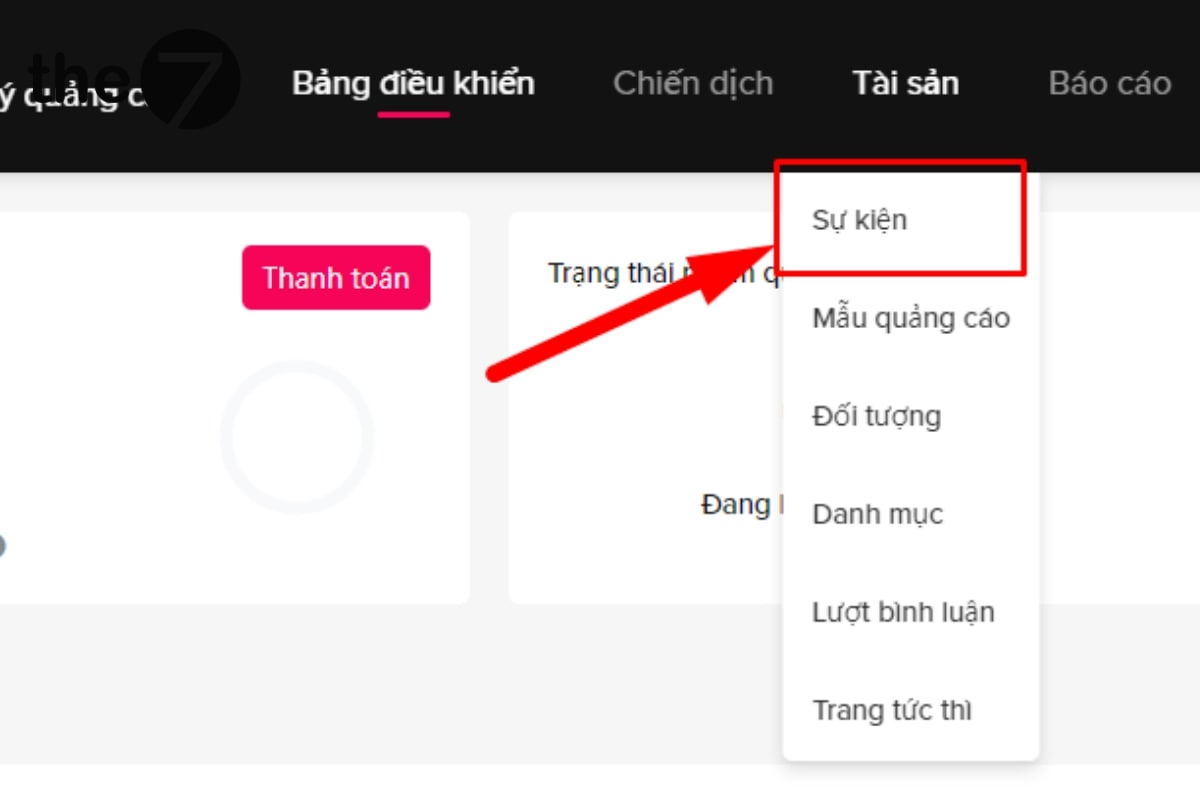
- Go to TikTok Ads Manager and select “Events” under the “Assets” tab.
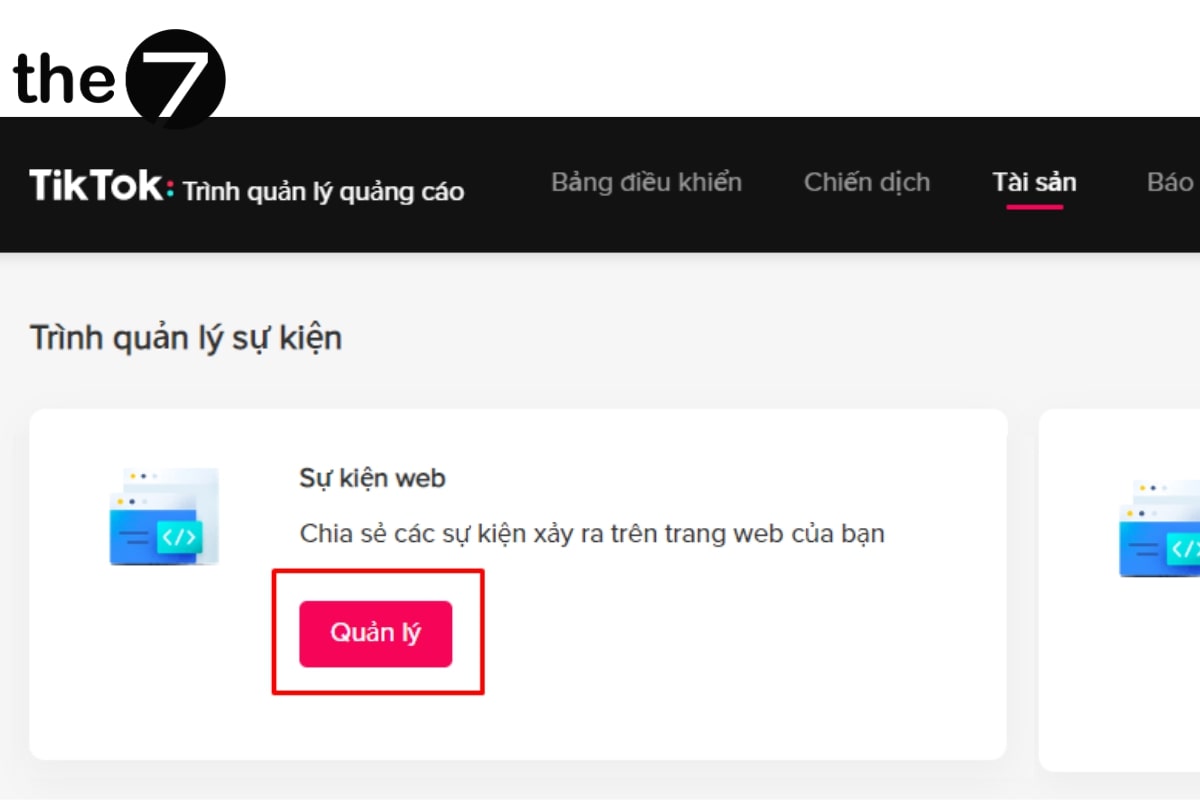
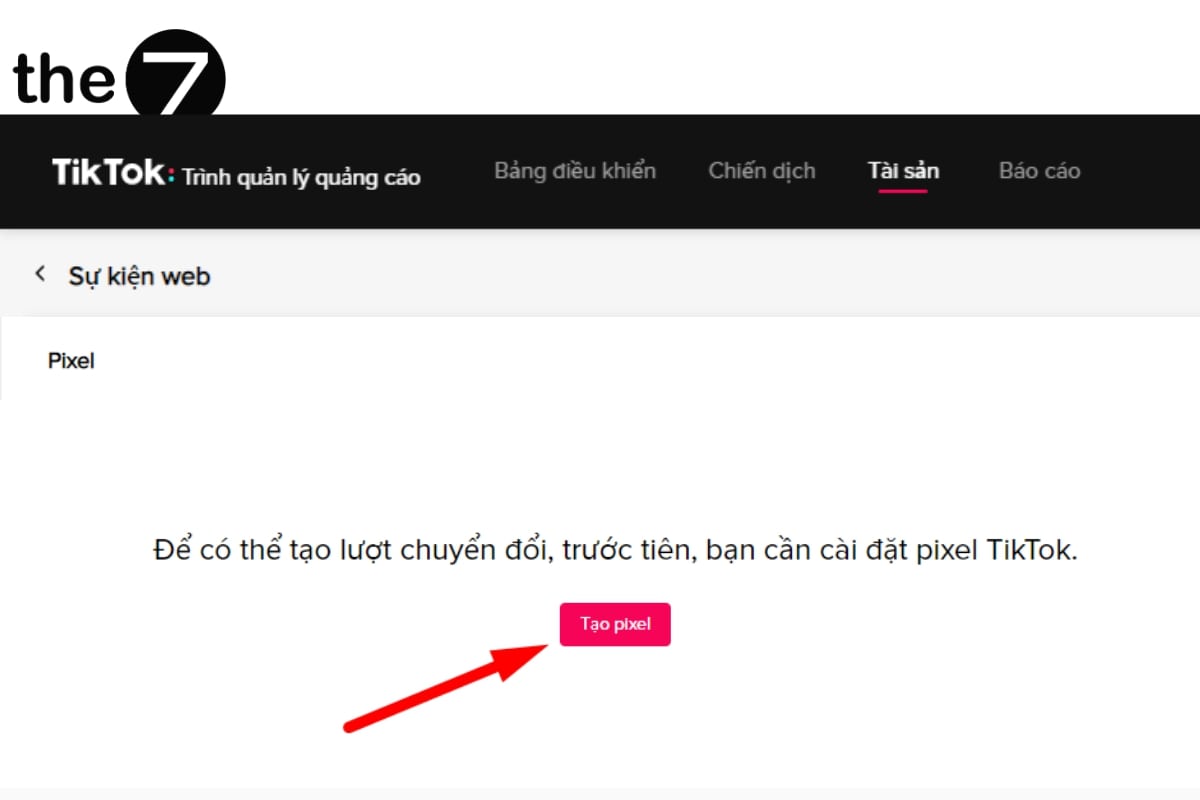
- Under “Web Events,” select “Manage” and then choose “Create Pixel.”
- Name your pixel and choose its type (for example: Purchase, Registration).
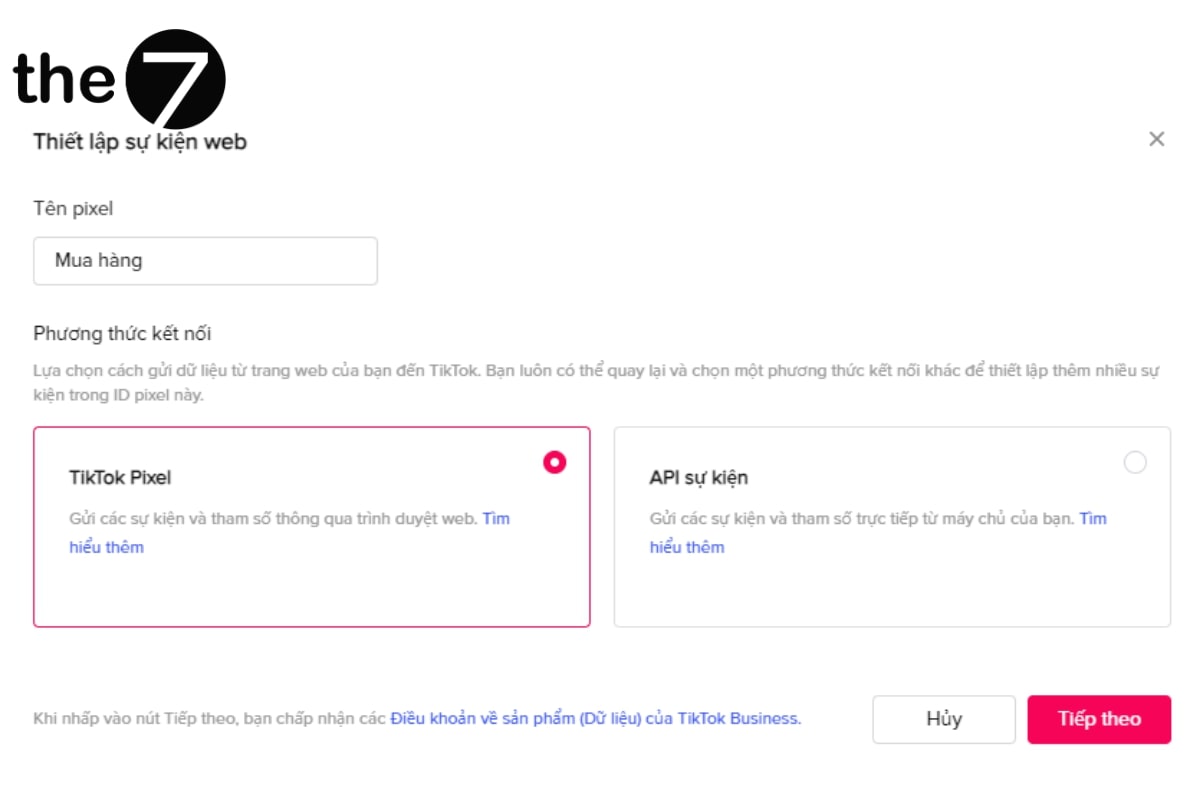
- Click “Create” to finish, then embed the generated pixel code in your website or app.
There are two ways to install the TikTok Pixel:
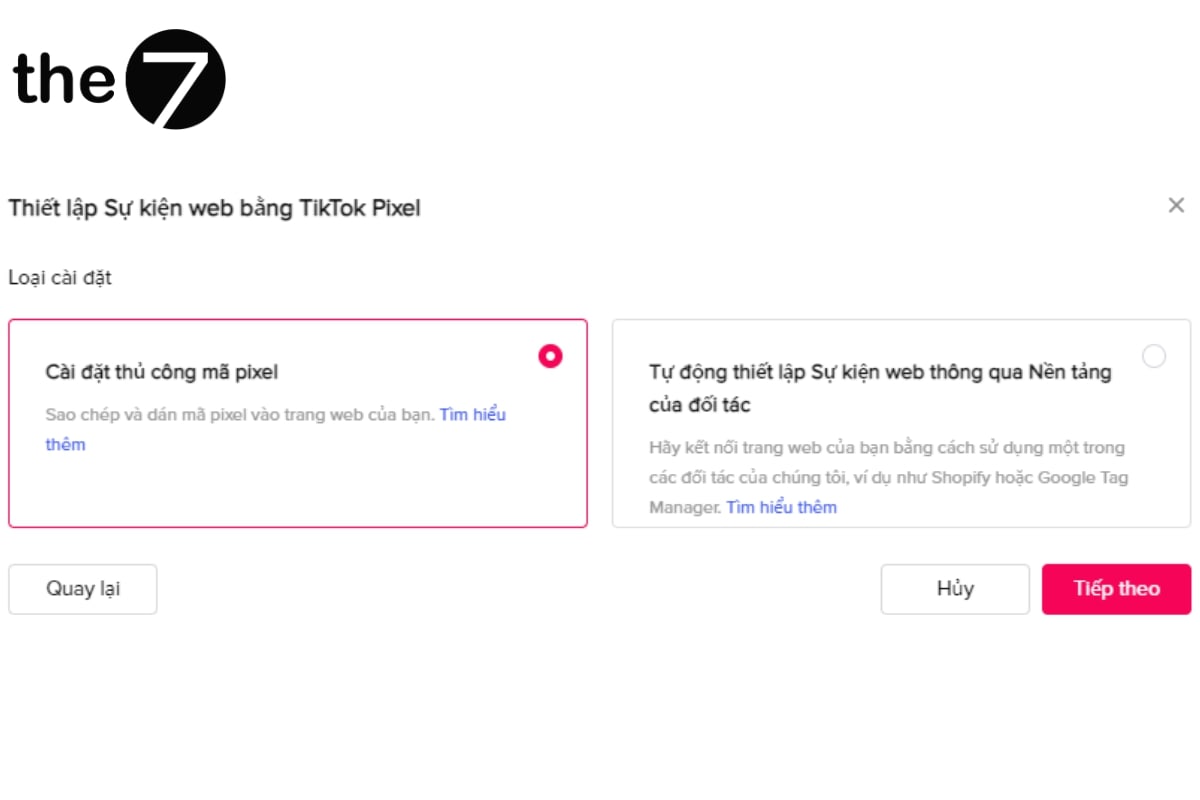
- Manual installation:
This method doesn’t require in-depth coding knowledge. You just copy and paste the HTML code into the code editor of your website.
- Installation through a third party:
You can use the platform of one of TikTok’s partners, such as Shopify or Google Tag Manager, to install the Pixel code on your website. However, this method can take extra time if you don’t already have an account on those partner platforms.
After choosing an installation method, just click “Next” to start installing the TikTok Pixel.
Install the TikTok Pixel Manually
If you choose to install the Pixel manually, TikTok will provide a snippet of HTML code. Here are the specific steps for copying and pasting the TikTok pixel code into your website:
Click the “Copy pixel code” button to copy the entire snippet.
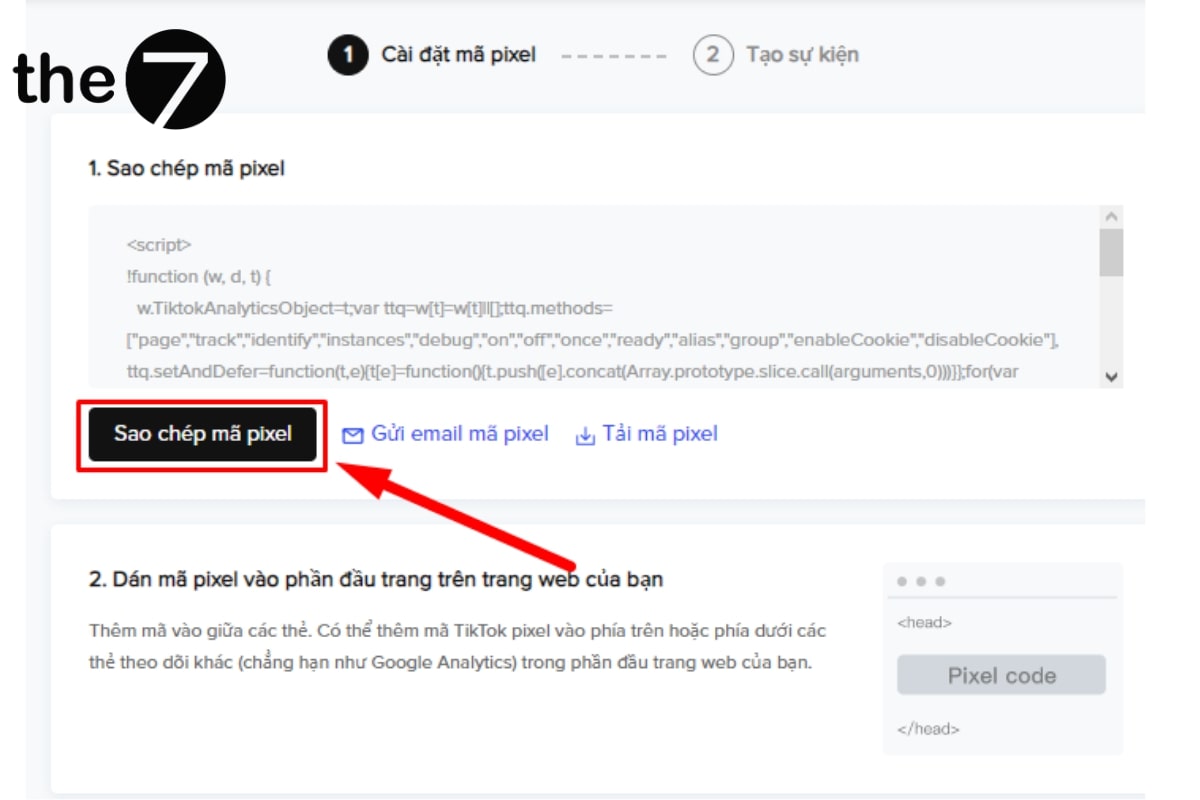
Paste the copied code between the <head> and </head> tags in your website’s HTML source code.
<!DOCTYPE html>
<html…>
<head>
<!– Paste the TikTok pixel code here –>
<script>…</script>
</head>
<body>…</body>
</html>
Note:
Paste the code only once. Pasting it multiple times can cause unwanted problems.
If you’re not comfortable editing HTML source code, you can ask a web design provider to help you, or install the pixel code through a third party such as Google Tag Manager.
Install the TikTok Pixel with Google Tag Manager
To install the TikTok Pixel through a third-party tool such as Google Tag Manager, follow these steps:
Step 1: Create the TikTok Pixel code by following the instructions above. When you choose the installation method, select “Automatically set up web events through a partner platform” and click “Next.”
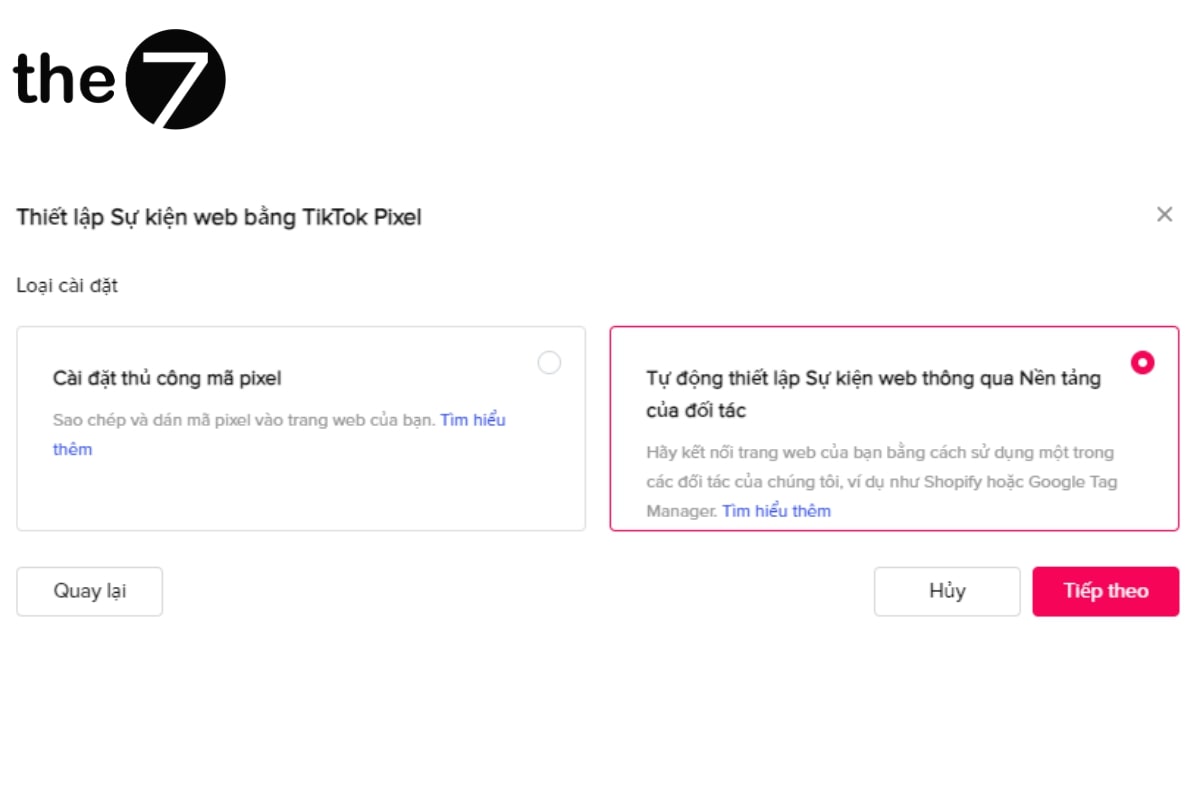
Step 2: Select Google Tag Manager and click “Next.”

Step 3: Connect your Google Tag Manager account.
- Click “Connect” to start linking your Google Tag Manager account.
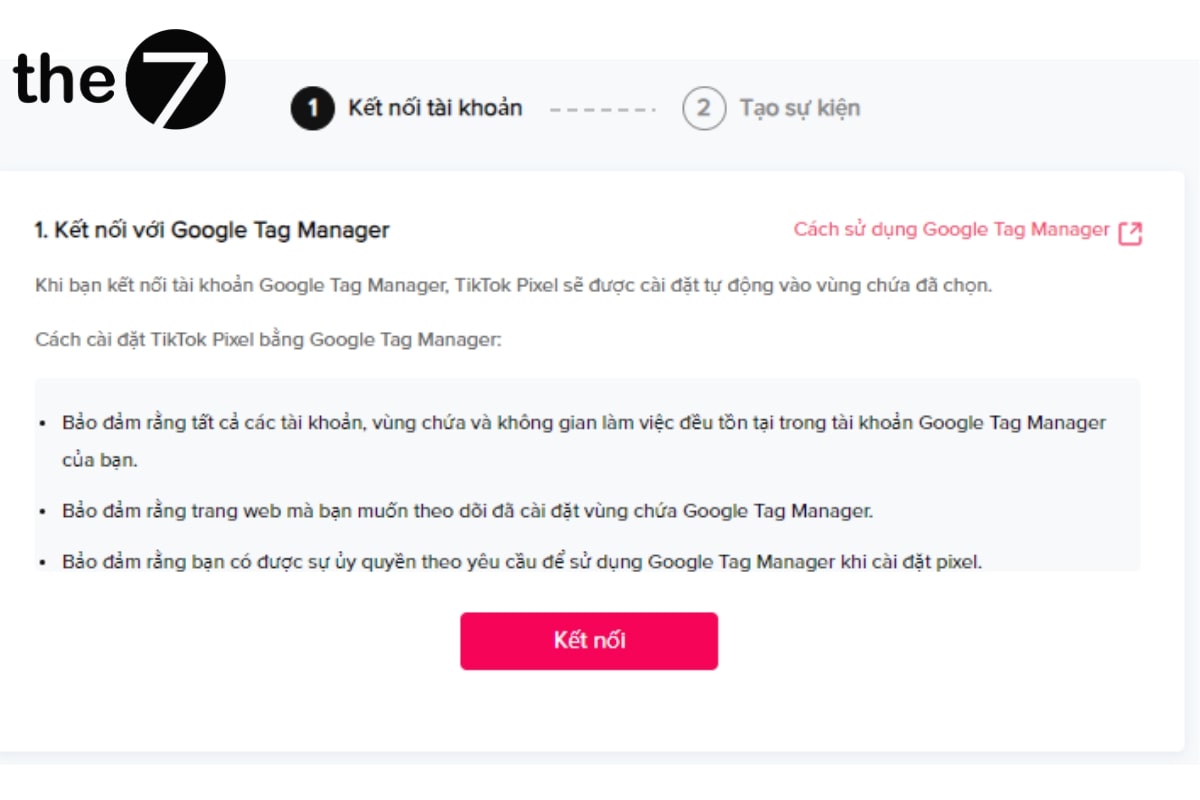
- Select your Google Tag Manager account, container, and workspace, then click “Next.”
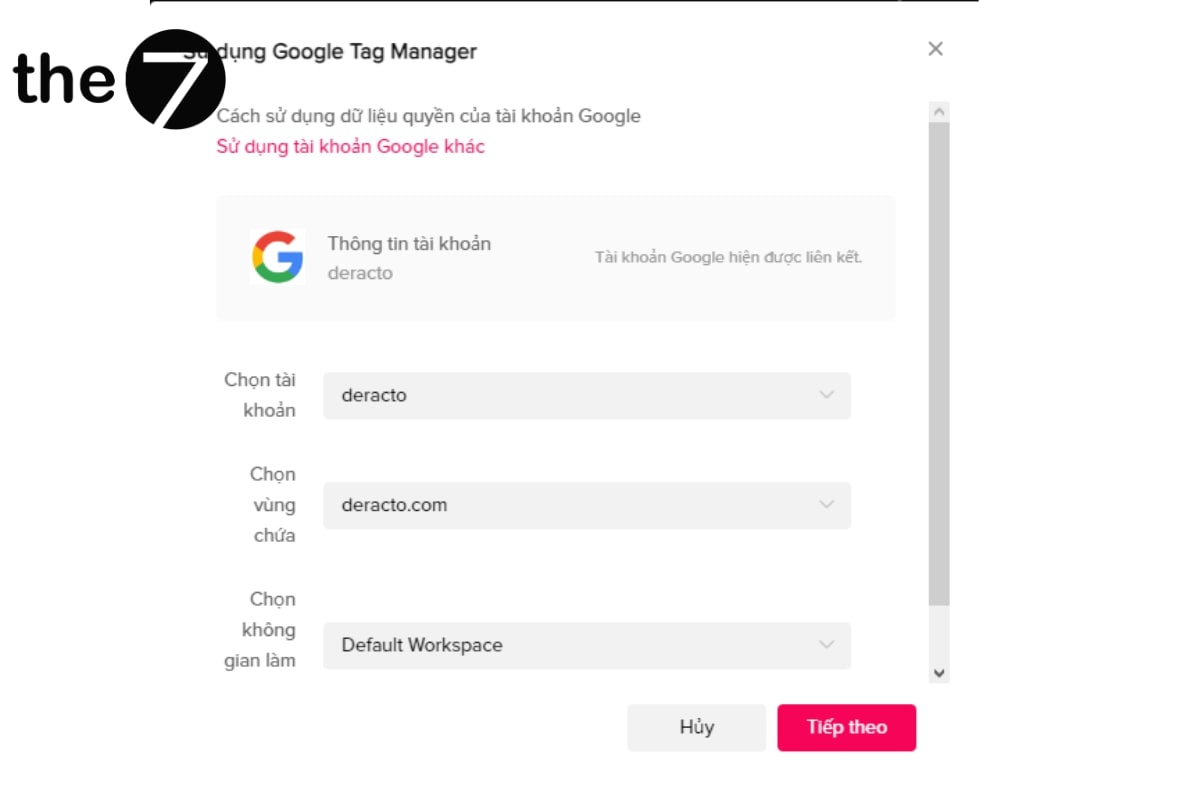
- Fill in the required information in Google Tag Manager.
Step 4: Once the accounts are linked, the screen will show a message confirming that your Google Tag Manager account has been connected successfully.
This way, the TikTok Pixel is integrated through Google Tag Manager, which lets you manage and deploy tags and pixels flexibly and efficiently.
How to Set Up the TikTok Pixel to Track Customer Behavior
Track URL Visits
To set up the pixel to track URL visits or click conversions, you can follow these steps:
Step 1: Select “Enter URL keyword” in the event settings.
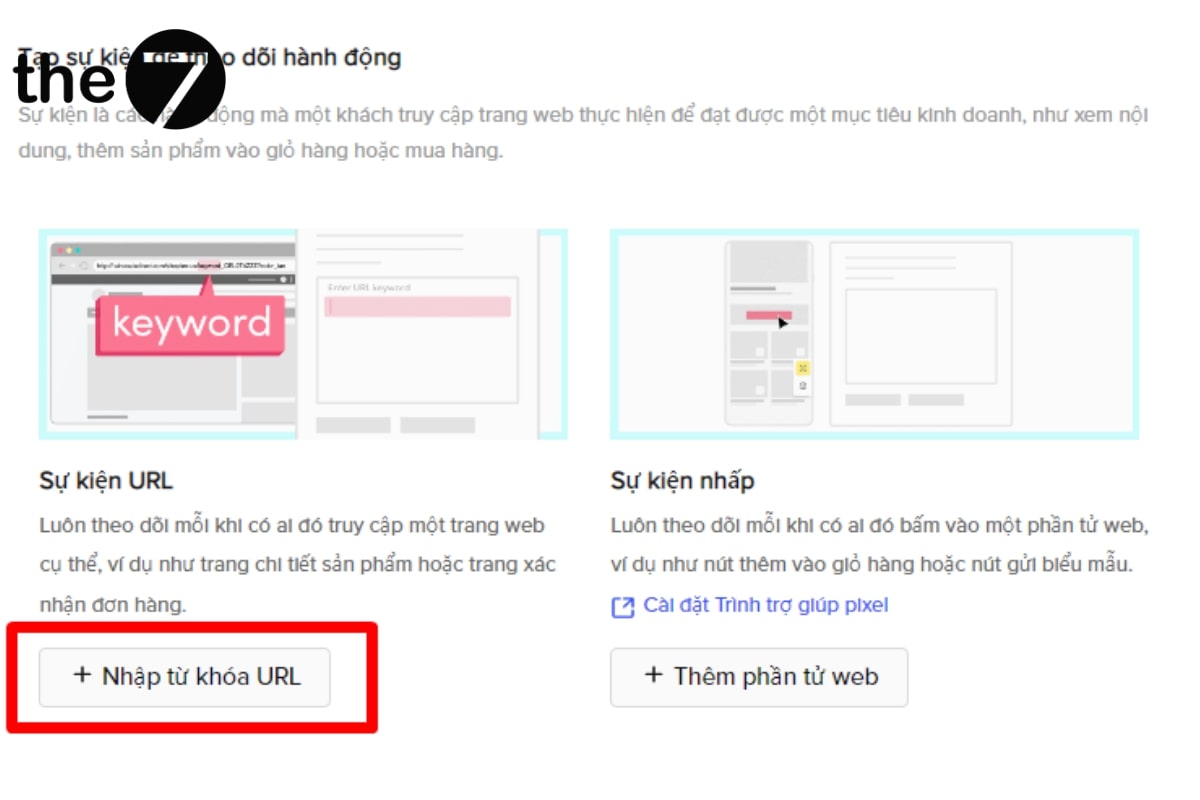
Step 2: Set up the event by entering the URL you want the pixel code to track.
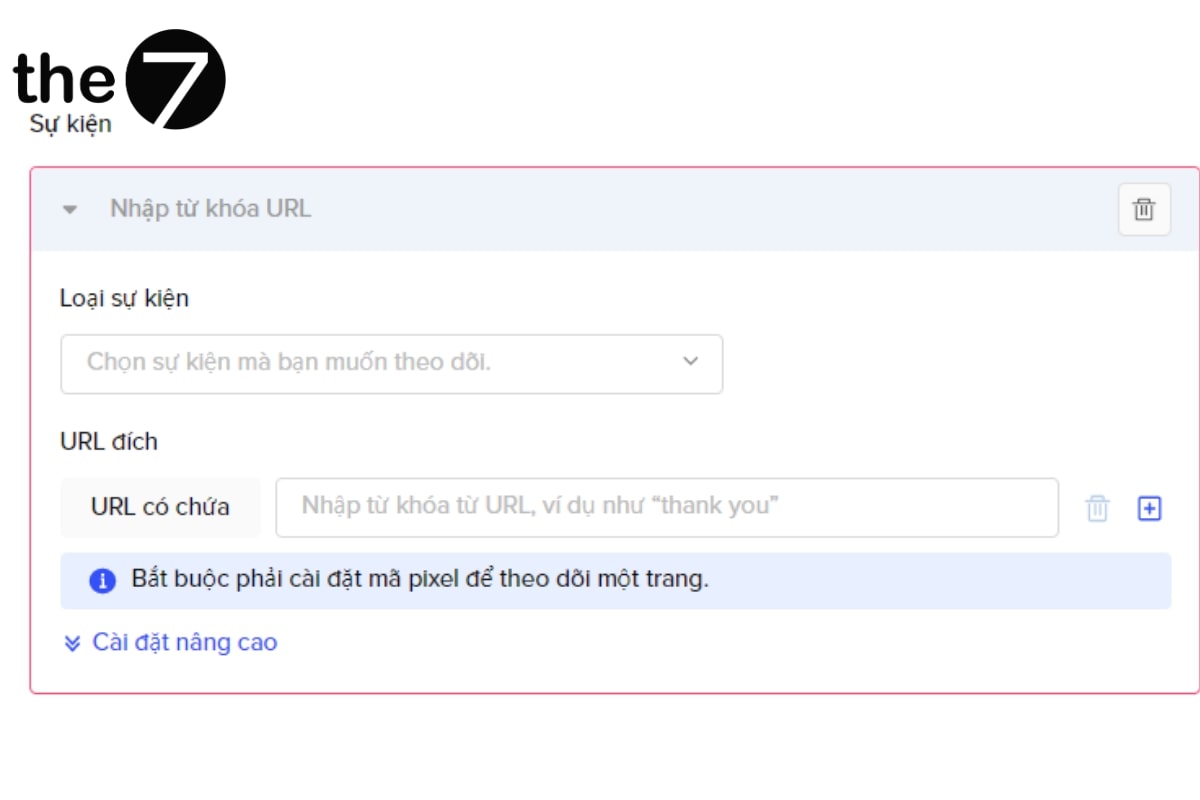
You need to choose the event type that matches the destination URL you want to track. Examples: Add Payment Info, Add to Cart, Complete Payment, or other events related to the user’s shopping journey. This lets you track and evaluate the performance of your TikTok ad campaigns in detail and with precision.
Track Click Conversions
To set up the TikTok pixel to track click conversions and click activity on your website, follow this guide:
- Install the Pixel Helper: Follow the instructions in the helper to install the TikTok Pixel Helper. This lets you track click activity on your website in detail.
- Attach the pixel code to a button or custom action: If you want to attach the pixel code to a button or action that isn’t in TikTok’s event list, you can use a custom conversion code. For example: to track clicks on a discount button, adding a product to a wishlist, or other user actions.
- Use a custom conversion code: Create a custom conversion code through the TikTok pixel management interface. This lets you set up tracking events for the specific behaviors you want to monitor, such as saving a discount code or adding a product to a wishlist.
This article from The7 has helped you understand what the TikTok Pixel is. With the Pixel’s detail and flexibility, you can better understand user behavior, measure performance, and shape an effective marketing strategy. Get started today and take your marketing campaigns to the next level on the vibrant TikTok platform!
>>> See more:
- What Is TikTok Promote? How to Use It Effectively
- A Guide to Running Effective TikTok Ads in 2024
- A Guide to Running Effective TikTok Profile Ads in 2024
- What Is TikTok? A Complete Overview of TikTok

Nguyễn Đình
Bảo




As CEO of The7, I am committed to sharing practical, useful knowledge with every reader. Every article on The7 is based on my 7 years of hands-on experience in marketing — Facebook advertising, LinkedIn advertising, Google advertising, and marketing strategy. I hope you take away plenty of insight from these posts and apply it successfully in practice.
Related Articles

What Is TikTok Marketing? Effective TikTok Marketing Strategies
TikTok has been topping the global rankings of the most downloaded and most visited apps. That makes it a gold mine for marketers who love creativity. In this article, The7...

26 Predictions for Social Media Marketing Trends in 2025
It’s that familiar time of year again, when experts and analysts start revealing their predictions for the social media marketing trends worth watching, along with the shifts that promise to...

TikTok Creator Marketplace: The Breakthrough Bridge Between Businesses and Creators
Building a TikTok channel to sell products means finding the right KOLs, KOCs, or influencers to promote them, and that is no easy task. How do you make sure your...
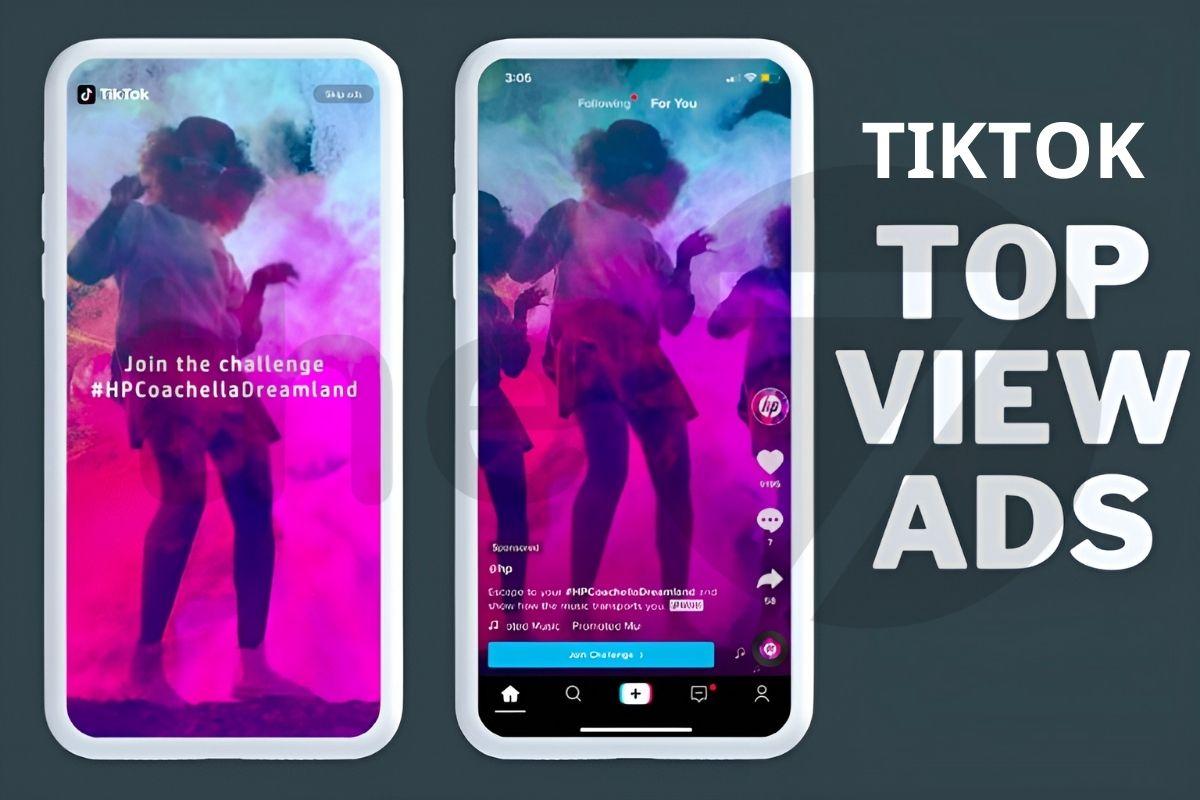
What Are TikTok TopView Ads?
In the competitive world of online advertising, TikTok TopView ads are a key tool for helping businesses stand out and make a powerful impression from the very first moment they...

How to Run Basic TikTok Ads: A Beginner’s Guide
TikTok advertising is increasingly chosen by businesses because this way of reaching customers is extremely promising and impactful. If you’re looking to learn how to run TikTok ads, this article...

TikTok Golden Hours: Secrets to Boost Views and Go Trending in 2024
TikTok has become one of the most popular social media platforms in the world, especially in Vietnam, with more than 800 million users globally. If you are a TikToker or...