


How to Run Google Maps Ads: A Beginner’s Guide
Google Maps ads are a tool that helps businesses attract potential customers on Google. This online advertising format makes it easy for shoppers to find your store and its location. So do you know how to run Google Maps ads? In this article, The7 will help beginners understand Google Maps and how to use it. Let’s dive in!
>>>> See more about our service: Google Advertising Services
What Are Google Maps Ads?
Advertising on Google Maps (local search ads) is a Google Ads format that promotes your business’s map listing to people on the search engine. When users search for a keyword, Google returns results based on their actual location. Ad costs are charged per click on a result shown on the first page of Google Maps search results. This is a way to draw nearby customers to your business. Other benefits include:
- Increase traffic and attract customers within a nearby radius.
- Prompt customers to find your business.
- Make it easy to find business information, reviews, phone numbers, locations, photos, opening hours, and more.
How Do Google Maps Ads Work?
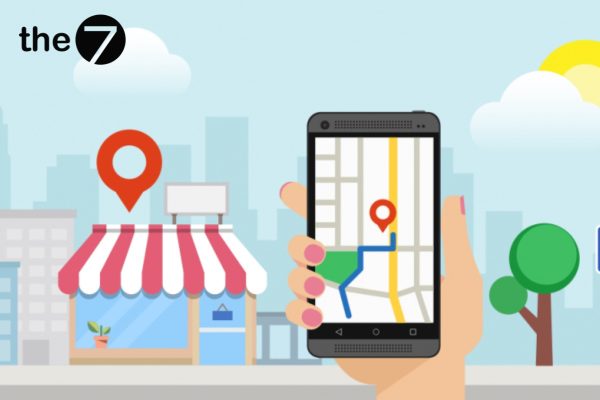
When a business runs ads on Google Maps, they appear in 3 places: Google search on desktop, the Google Maps app, and mobile devices. On mobile, your business appears right at the top of the search results. In addition, through the Google Maps app, ads also surface your business as a suggestion when customers search for information or keywords.
Example: If a customer searches for a keyword like “khu vui chơi trẻ em gần tôi” (kids’ play areas near me) on a computer, your business will be the first one suggested on the search page under “See all”.
The cost of each click on an ad on Google Maps includes:
- Clicks to the detailed location.
- Clicks on the website link.
- Call clicks on mobile devices.
Benefits of Advertising on Google Maps
Increases Visibility
If the cost of traditional billboards is too high, you can look into Google Maps advertising. It is a Google tool that helps you reach and attract potential target customers.
Because businesses get priority to register and appear on Google Search, customers who are looking for what you offer get to know your brand. It is certainly a tool that increases your business website’s visibility.
For example, say you run a clothing business and run ads for the location where you live. Google Maps will help you improve search performance, expand your reach, and encourage users to click through to your website.
Displays Business Information
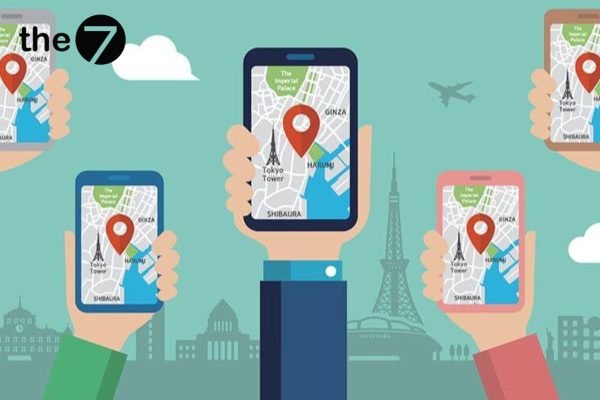
Advertising on Google Maps displays your business information right at the top of the search results. This attracts customers who are looking for the services or products your business provides.
Lets You Run Local Ads
Google Maps lets your ads reach each targeted area, specifically the local area where you live. This lets customers know the location of your store, restaurant, or local service.
Boosts Engagement and Makes It Easy to Connect
Customers can easily engage and connect with your business through clicks on your website link, phone calls, and more, creating opportunities for your business to grow.
Quickly Drives Foot Traffic
Foot traffic is the count of customers walking into a store. Because Google recommends your business, it helps you attract many more potential customers. The higher your foot traffic, the higher your sales.
When you run Google Maps ads, customers are prompted to visit your store more often, helping you reach shoppers at the right moments. A survey found that marketers who used this advertising tool increased sales by 9.1% and grew their sales volume by an additional 8.3%.
Standout Features of Google Maps AdWords
Promoted Pins
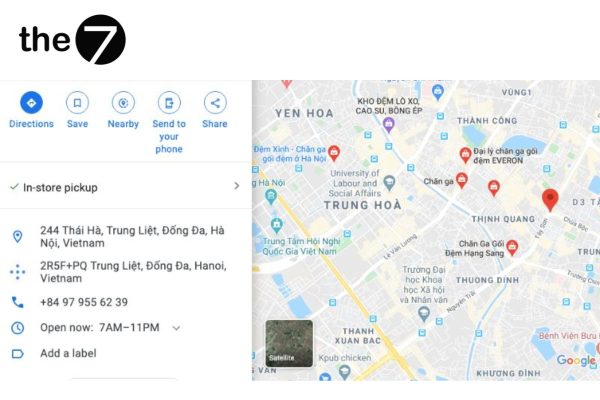
Most users assume that only Pinterest lets you pin images for advertising. But Google Maps supports this feature too: a red pin represents a business entity on Google Maps. Square pins are the promoted pins that appear at the top of search results. Google Maps looks at the following factors to suggest promoted pins:
- The customer’s search history.
- The history of areas the customer has visited.
- Previous purchase history.
That’s why, when searching, customers see suggested red pins or red dots. When a customer taps a red pin, your business information appears right away, including location, phone number, reviews, and more.
Featured Reviews
This feature lets customers share their impressions after using your business’s products or services. According to statistics, 77% of users read reviews before making a decision. As soon as someone clicks a map pin, Google displays earlier reviews.
Customer reviews matter a great deal: they build trust and boost credibility. They are also a way to collect customers’ opinions and feedback after they experience your product. Make sure your business profile gets as many 5-star reviews as possible, because that is how Google ranks the businesses shown in search.
Promotions Display
Google Maps ads can also show promotions, including coupons and product offers. Keeping your promotions up to date helps attract more customer visits.
Business Profile Display
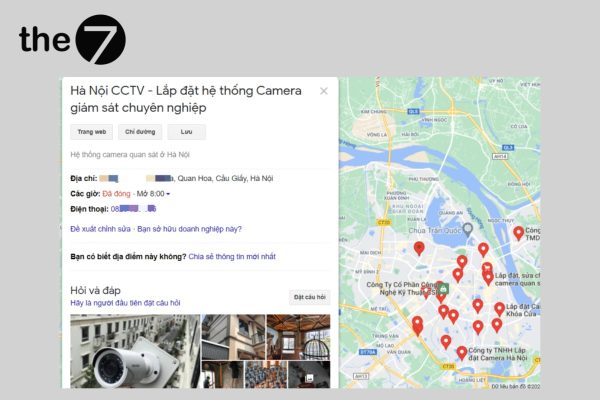
When you run Google Maps ads, your business profile shows complete information, including location, phone number, Gmail address, opening hours, directions, reviews, and more. With the call and message buttons, users can easily contact your business directly.
Browse In-Store Items
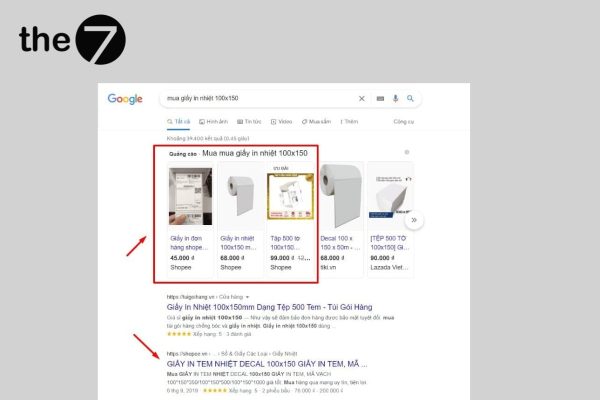
When you run Google Maps ads, users can easily browse and search for the products available at your store by tapping the red pin location. These ads let you promote in-stock products based on the location a customer is searching for, or items related to that location.
When customers search for products, Google suggests matching products side by side. This increases purchases for your business by bringing customers to your website.
How to Run Google Maps Ads for Beginners
Sign In to Google Maps
To run Google Maps ads, you first need a Google account for your business. You will need to provide all the information Google asks for so your account can be approved and you can sign in to Google Maps.
Register Your Business Profile
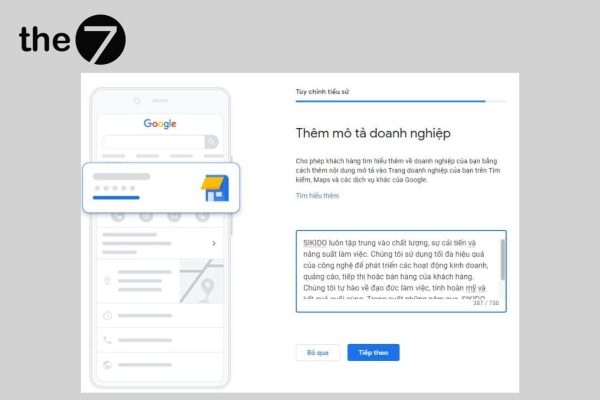
After signing in to Google Maps, you can register and create a business profile fairly easily, but it takes a while to receive the verification code that approves your business profile.
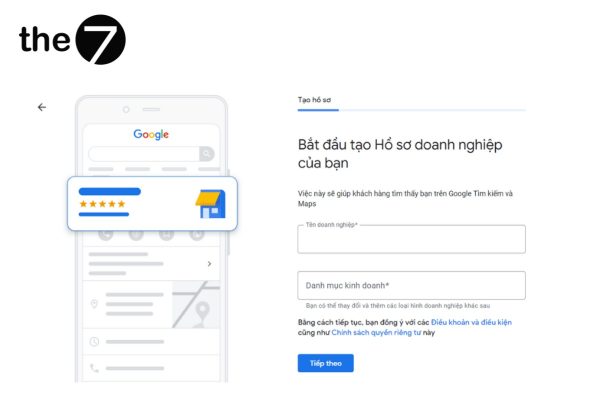
Before you can create a Google Ads ad, you need an account to run it. To create a Google Ads account, your business needs an email address that is used for both the profile and the Google account. If you already have a Google Ads account, you should run ads alongside search.
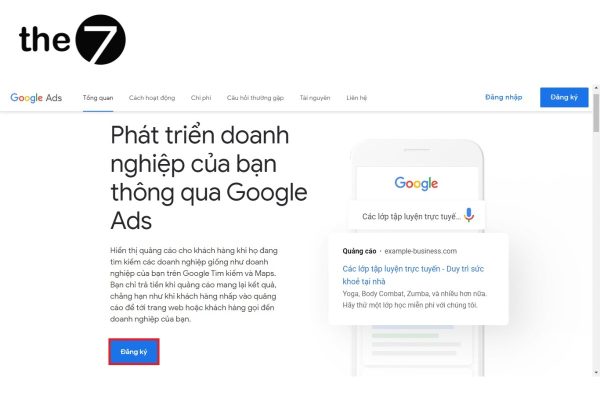
Set Up a Search Ad Format With Location Extensions
Location extensions let your ads include information such as the address, phone number, directions, and the distance from your business to the user. To use this feature, open the left-hand menu on your Google Ads overview page. Then select “Ads & extensions,” choose “Extensions,” click “Location” under “Automated extensions,” and select “Create ad extension.”
In Business Manager, choose the ad account where the extension will be applied. If you don’t know how to link your Google account with another account, you can follow Google’s prompts to apply the extension faster. This tool helps attract user views and helps people find your location.

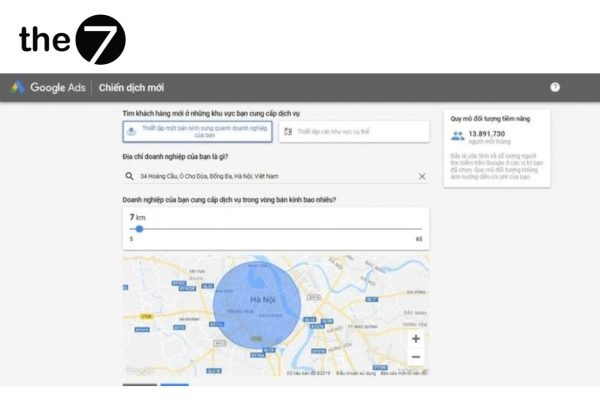
Set Up Location Targeting
The next step is to set up location targeting so your ads appear in the places you want. In the left-hand corner, select “Locations” and choose the search strategy you want to edit. There are 2 options: Location or area.
These include territories, cities, countries, and regions, plus the radius and distance around the location you want to target. Once you’ve made your selection, click “Save” to finish.
Set Bids by Location
A bid on Google Maps is the amount you pay for each user click on your ad. Bids are metrics that show how effective your ads are, and you can easily adjust them to match customers’ search demand. You can raise or lower your bids on the Google Ads home page.
Evaluate Strategy Performance
Through the metrics, you can easily evaluate the performance and effectiveness of your advertising strategy, including clicks, impressions, and conversions. You can also use the data to see how your business page is performing. From there, you can make any necessary adjustments.
You can also check the “Campaigns” section in the navigation bar to review your business strategy. It provides full details on cost per conversion, conversion rate, average cost, and more. After reviewing performance, select “Ads & extensions” to monitor things in more detail.
We hope The7’s Google Maps advertising guide has helped beginners learn how to use this promotional tool for their business. Running ads on Google Maps is a way to bring your business closer to customers, which in turn drives better business results.
>>>> See more:
- What Is Google Ads? Google Ads knowledge for beginners
- What is a Google Smart campaign? Secrets to attracting high traffic
- A guide to running Google Ads most effectively in 2024
- Google Shopping Ads: What are they? A detailed A-to-Z guide to running them
- What Is Google Remarketing? How to optimize your remarketing ads like a pro

Nguyễn Đình
Bảo




As CEO of The7, I am committed to sharing practical, useful knowledge with every reader. Every article on The7 is based on my 7 years of hands-on experience in marketing — Facebook advertising, LinkedIn advertising, Google advertising, and marketing strategy. I hope you take away plenty of insight from these posts and apply it successfully in practice.
Related Articles
6 Simple Yet Effective Steps to Run Google Ads in 2024
Google Ads (Google AdWords) is Google’s online advertising service that helps businesses reach the right target customers, boost brand awareness, attract customers, and drive sales as customers search for information...
How to Run Effective Gmail Ads for Your Business
One of the advertising formats attracting the attention of many business owners is Gmail advertising. So how do you run effective Gmail ads? Let The7 walk you through this fresh...
What Are Google Smart Campaigns? Tips to Drive High Traffic
Google Smart Campaigns are one of the ways advertisers can access advertising information and digital marketing techniques faster. If you have just started a small business, keeping track of your...
What Card Should You Use to Pay for Google Ads in 2024?
Which card to use to pay for Google Ads is a common question among people who are new to Google Ads campaigns. So which card is best for paying for...
How to Link Google Analytics With Google Ads in 2024
To run Google Ads effectively, you need to do more than just launch campaigns. You also have to analyze and evaluate the performance of each campaign through its metrics. So...
How to Add Sitelink Extensions in Google Ads (2024 Guide)
Sitelink extensions let your ads give customers more information. They also make each ad stand out more than your competitors’ ads. This gives your Google Ads extensions a Quality Score...