


What Is Facebook Ads Manager? How to Create an FB Ads Manager Account

If you haven’t worked with Facebook’s advertising tools before, you’re likely to feel confused about how to use them. Before diving into these tools, you should first understand what Facebook Ads Manager is. How do you create an account in FB Ads Manager? Let’s find out with The7 how to use these tools to make your ad campaigns more effective in the article below!
>>> You can also check out more of The7’s services:
What Is Facebook Ads Manager?
Facebook Ads Manager (the FB Ads Manager) is a “one-stop shop” platform covering all the operations you need to run ads on Facebook, Instagram, and Messenger. Its interface lets you create ads and manage campaign start times, targeted locations, targeted age groups, and the performance of each ad campaign.
Ads Manager comes fully equipped with the features and tools to help you create and run Facebook ads as effectively as possible. Because of this, the Facebook Ads Manager interface can look fairly complex to first-time users, since there are so many features built in.
However, you don’t need to worry too much, as Ads Manager is designed for every type of user, regardless of business size or brand scale. You can also rest assured, since Facebook Ads has been around and reaching large customer bases for many years, delivering strong results for businesses and individuals running ads.
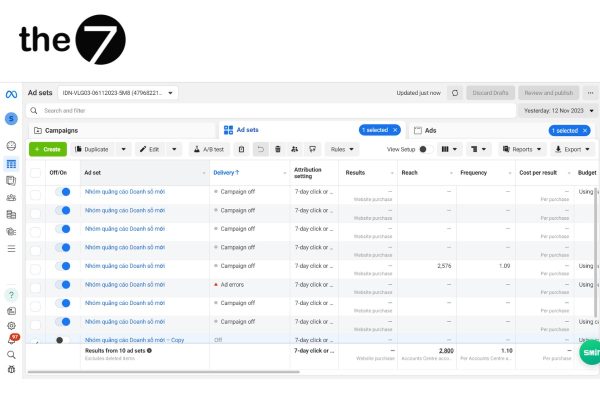
Below are some of the basic features of FB Ads Manager:
- Create new ad campaigns on Facebook, Instagram, and Messenger.
- Edit campaigns and track their performance statistics.
- Reach a wide range of audiences by age, location, interests, behavior, and more.
- Get complete, real-time reporting on your ad data.
You can save a lot of time by setting up ads on Instagram, Facebook, and Messenger all at once. The setup features and tools all work well together to support running ads.
How to Create a Facebook Ads Manager Account: A Complete Guide
Create a Business Page
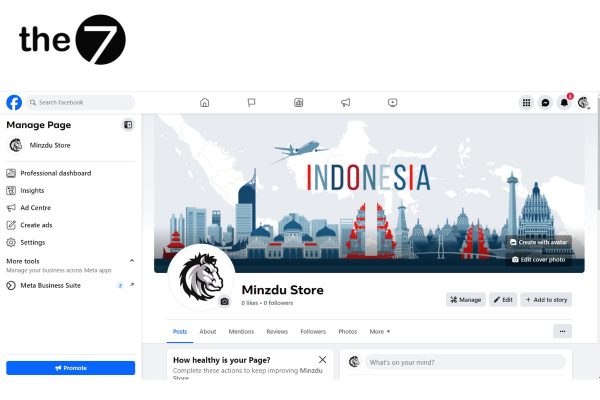
To get started with Ads Manager, you’ll need a personal or business Facebook Page. A business Facebook Page helps you reach users through social marketing strategies for your brand. Besides giving you access to business tools such as Facebook Analytics and advertising tools, it also lets you publish ad posts at specific scheduled times.
Once you’ve finished setting up your business profile, Facebook makes it easy for you to create ad posts. You don’t need to create a separate Facebook Ads Manager Account, since it’s automatically set up for you when you create a business Facebook Page.
To switch from a personal account to a business fan page, simply click the avatar in the top-right corner and select Switch.
Confirm Your Details
The next step is to confirm the details needed to run ads.
In the Ads Manager settings, you’ll find an ad account setup section — here, you’ll need to confirm a few options for your account.
Facebook automatically assigns a random numeric ID to each Facebook account and automatically sets the currency and time zone based on your detected location, using signals such as your Wi-Fi IP, GPS, and so on.
Once you have an account ID, you can change the time zone and currency. For example, if you change your business Page’s location or list a specific address, Facebook will automatically switch the currency to match that location.
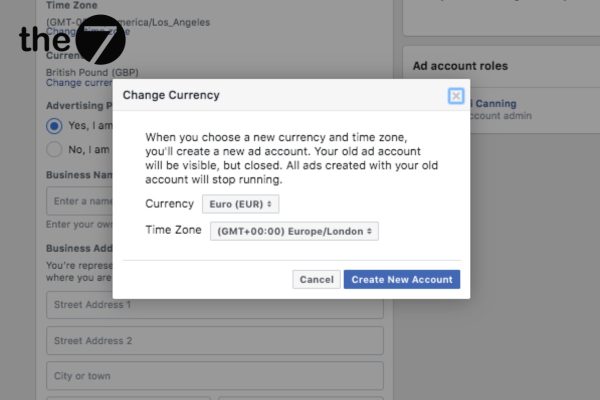
Note: Once you change the currency and time zone, your account switches to a new account ID, and the old account is closed. You can still use the old account to build page engagement, but any ad campaigns running under it will stop.
However, if the default currency and time zone information is already correct, you don’t need to create a new account or change anything else.
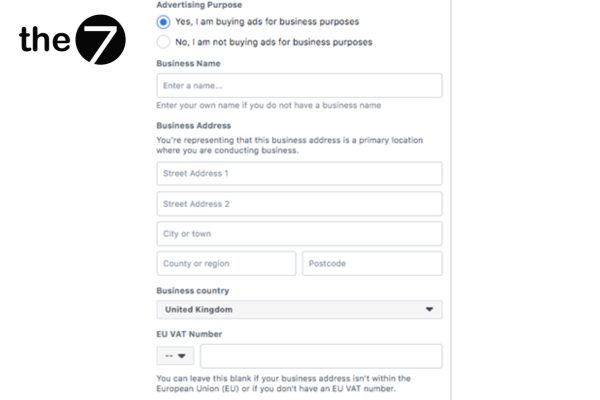
Finally, you’ll need to select your business’s advertising purpose. Facebook will ask questions to verify legitimacy, such as your business address, business name, and tax code, since some countries have restrictions on certain types of ads.
Once you’ve completed your business information, click “Save Changes” to confirm.
Create Your First Ad in Ads Manager
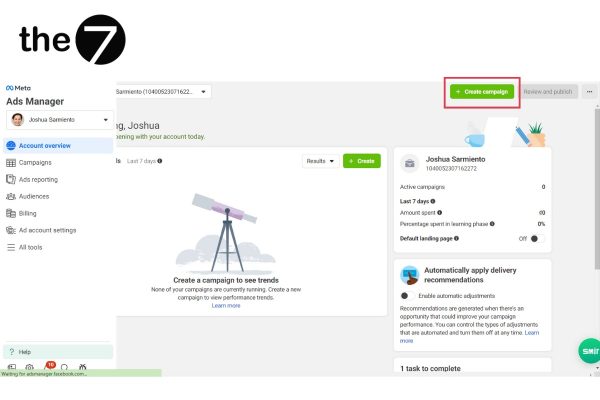
To create your first ad, go to https://adsmanager.facebook.com/, and a window will open showing the Ads Manager interface.
In the top-right corner of Ads Manager you’ll see a green “+Create campaign” button. After clicking it, you’ll be guided through detailed advertising objectives such as budget, location, age, and ads content to help you build out your ad campaign.
Select “Switch to Guided Creation” in the top-right corner. This walks you through the process step by step, so you won’t feel lost when creating your first ad.
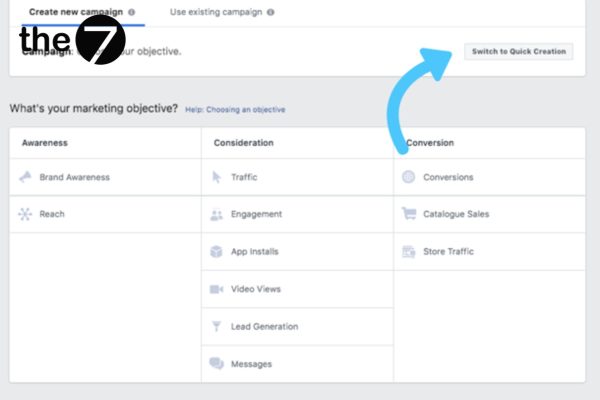
Choose Your Ad Campaign Objective
Before you spend your ad budget, you should first understand the objectives available in Facebook Ads Manager. Here’s a summary of the 11 campaign objectives:
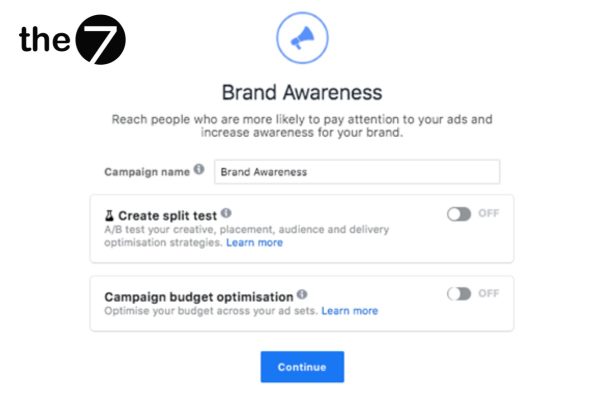
- Brand Awareness: This objective helps capture the attention of Facebook users and build brand awareness through content, videos, and more.
- Reach: Uses distance and location to help your campaign reach as many people as possible.
- Traffic: Measured by clicks to your website, Facebook shop, or app.
- Engagement: This objective reaches more people through views, comments, shares, and likes on your brand’s Page.
- App Installs: Drives users to a page or store where they can download your business’s app.
- Video Views: Video content such as stories, behind-the-scenes footage, and product ads sparks curiosity and helps people learn more about your business.
- Lead Generation: Targets an audience group based on interests, age, purchasing behavior, clicks on similar products, and more.
- Messages: Connects your business with potential customers, making it easy to send promotional information to loyal customers.
- Conversations: Encourages users to take actions that create value for your website and app, as well as share buying and selling information.
- Catalog Sales: Products are organized and displayed by category to support search and sales.
- Store Traffic: Promotes your brand to nearby customer groups.
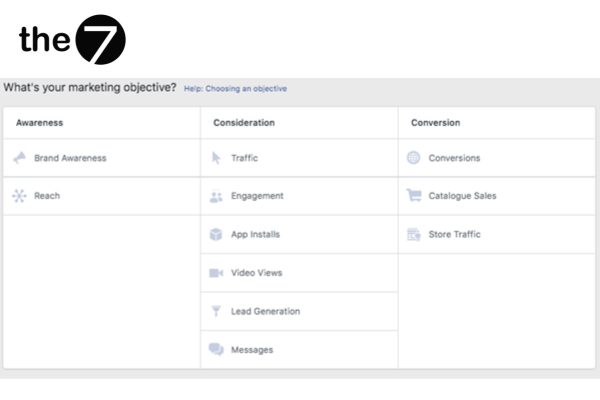
Brand Awareness, Reach, and Traffic are among the most commonly used objective groups on Facebook. If you want more people to know about your brand and website, you should choose Traffic as your main ad objective.
Or, if you want your product or service to reach nearby customers with a broad audience scope in mind, you should choose Brand Awareness.
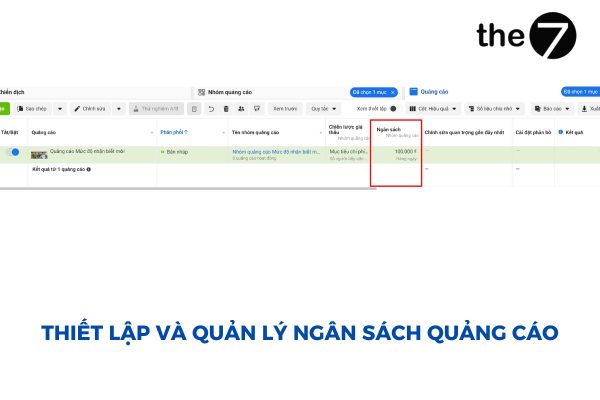
Set Up and Manage Your Ad Budget
There are two ways to set an ad budget in Facebook Ads Manager:
- Account spending limit: The account spending limit is the maximum amount you want to spend across all your ad sets over a given period.
- Daily budget: The daily budget is the maximum amount you want to spend on each ad set per day. This budget applies to all ad sets.
- Lifetime budget: The lifetime budget is the maximum amount you want to spend on each ad set over its entire run time.
To manage your ad budget, you can do the following:
- Change the budget: To change your budget, follow the same steps as when you first set it up.
- Temporarily pause an ad set: If you want to pause an ad set, you can set its budget to 0.
- Delete an ad set: If you delete an ad set, its budget is deleted along with it.
How to Edit Ads in Facebook Ads Manager
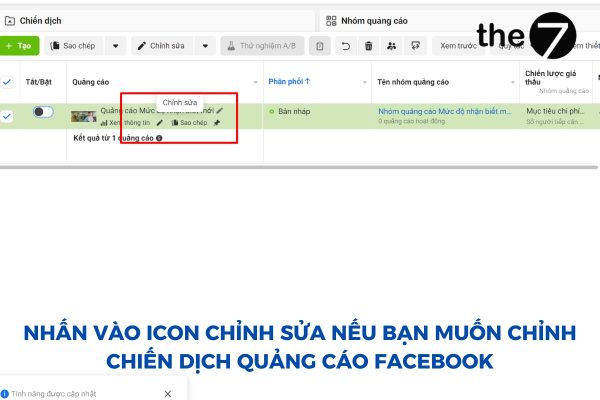
There may be times when you want to edit your Facebook ad. For example, you might spot a typo after creating it, or you might want to increase the budget for an ad set that’s performing well.
One of the handy features of Facebook Ads Manager is the ability to edit multiple campaigns, ad sets, or ads at the same time. To bulk-edit, select the checkboxes in the first column and click the “Edit” icon.
For campaigns, you can:
- Change the campaign name.
- Set an optional campaign spending limit.
- Turn the campaign on or off.
For ad sets, you can:
- Change the ad set name.
- Adjust ad placements.
- Change the budget and schedule.
- Edit the target audience.
- Adjust how your ads are optimized and delivered.
- Turn the ad set on or off.
For ads, you can:
- Change the ad name
- Choose a Facebook Page as the ad’s destination
- Change the ad’s content, including images, text, links, and calls to action
- Turn the ad on or off.
How to View Facebook Ad Reports in Facebook Ads Manager
Ad Filters
Facebook offers four quick ways to filter and search for specific ads or ad sets.
- Search.
- Filters.
- Date range.
- Ad level.
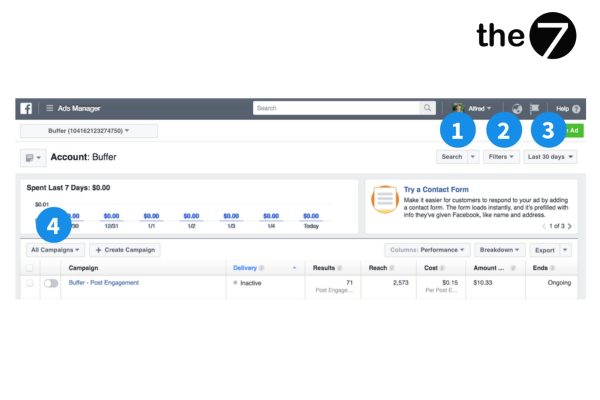
Search: You can easily search for your ads by entering information such as:
- Campaign name.
- Ad set name.
- Ad name.
- Campaign ID.
- Ad set ID.
- Ad ID.
Filters: You can filter your search results using previously saved filters or by choosing from the following criteria:
- Delivery status: View the current status of your ad.
- Objective: Select your ad objective, for example increasing brand awareness or boosting conversions.
- Buying type: Choose how you pay for your ads, for example auction or fixed price.
- Placement: Define where your ad will appear, for example the right column on Facebook or on Instagram.
- Metrics: Choose specific metrics to evaluate ad performance, for example total spend under $50.
- Last updated: Review the ads that were most recently updated.
Date range: You can choose a specific time period to view data for, including:
- All time.
- Today.
- Yesterday.
- Last 7 days.
- Last 14 days.
- Last 30 days.
- Last month.
- This month.
- Custom.
Ad level: You can filter search results by ad level, including campaign, ad set, or individual ad. These options sit above the report table, on the left side of the dashboard. Using this dropdown menu, you can switch between:
- All campaigns
- All ad sets
- All ads
You can apply several filters at once. For example, you could search for all ad sets with the Conversions objective and total spend under $50 over the last 30 days.
If you use a filter often, you can save it as a custom filter for quick access. You’ll find the save-filter button to the right of the gray filter bar.
Stats Filters
Columns
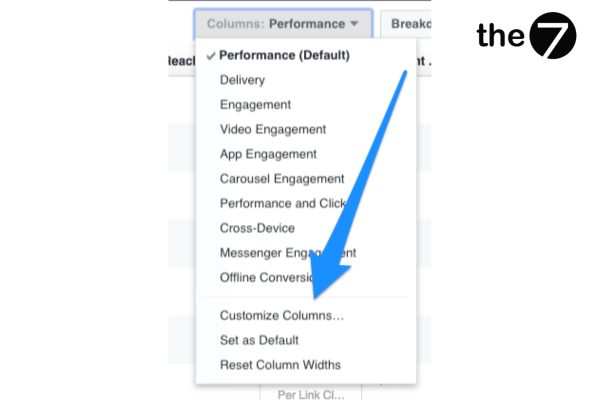
You can use a number of default column presets such as Performance & Results, Reach, Cost, and Amount Spent, or Delivery, Reach & Frequency, CPM, Impressions, and more, to view the metrics you’re interested in.
You can also track viewer engagement actions such as reactions, comments, and shares, or video engagement metrics such as Impressions, 3-Second Video Views, and Cost per 3-Second Video View.
In addition, App Engagement metrics such as Mobile App Installs, Mobile App Actions, and Cost per Mobile App Install can also be tracked.
If none of the default presets fit your needs, you can customize or create new presets by selecting “Customize Columns…” in the Column Performance dropdown menu.
Breakdown
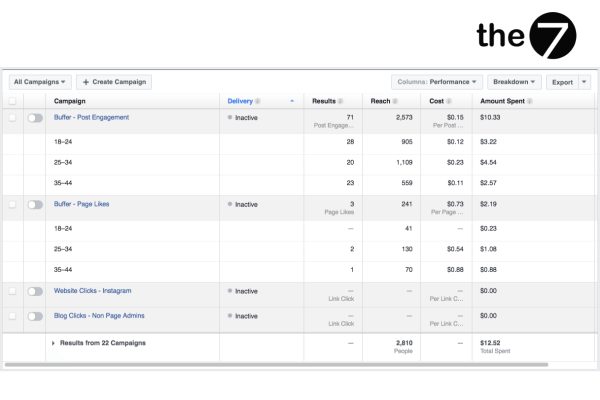
To better understand your Facebook Ads Manager data, you can break it down by criteria such as age, location, and platform. For example, you can view your ad results broken down by age, device, and week.
When you hover over a criterion, Facebook provides an explanation for it. Below is an example of what a report table might look like after you’ve selected the right columns and breakdown.
How to Share Data from Facebook Ads Manager
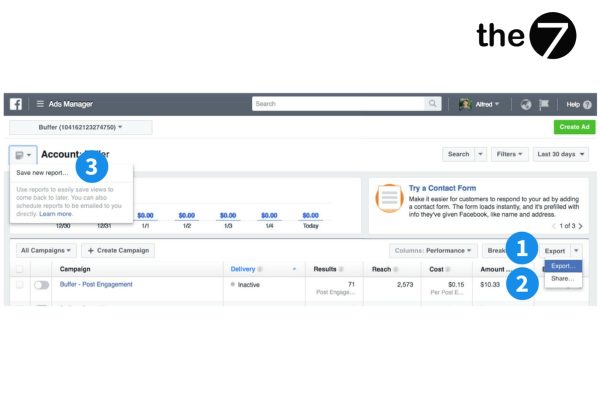
Once you’ve found the data you need for your report, you can export, share, or save it as a report. Exporting a report lets you download the data as an Excel or CSV file.
The share option provides a link to the data view you’ve created, which you can share with anyone who has access to your ad account.
The save button is located near the top-left corner of the dashboard and lets you save data views to revisit later, or schedule automated email reports sent daily, weekly, or monthly.
How to Read Ad Performance in Facebook Ads Manager
Facebook Ads Manager lets you dig deeper into any specific campaign, ad set, or ad, providing detailed insights such as results over time and target audience analysis.
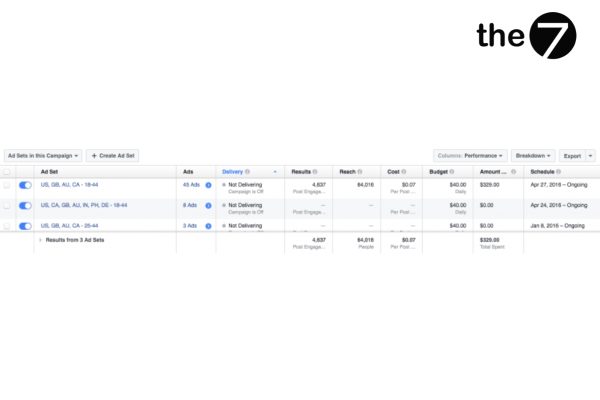
To do this, you can click on an ad’s name. You can also select and view multiple campaigns, ad sets, or ads using the checkboxes in the first column. When viewing a campaign, you’ll see something like this:
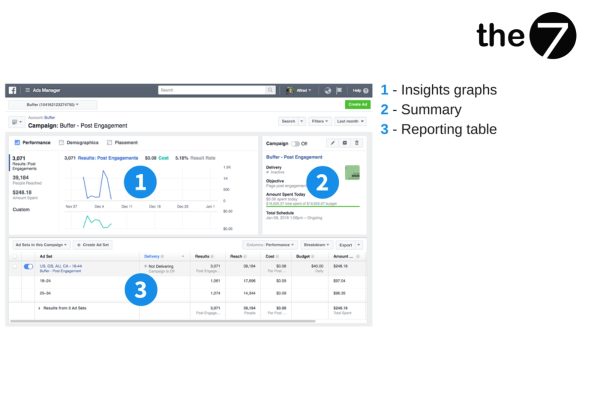
The insights chart section visualizes your ad data with charts to give you an overview. There are three tabs: Performance, Demographics, and Placement.
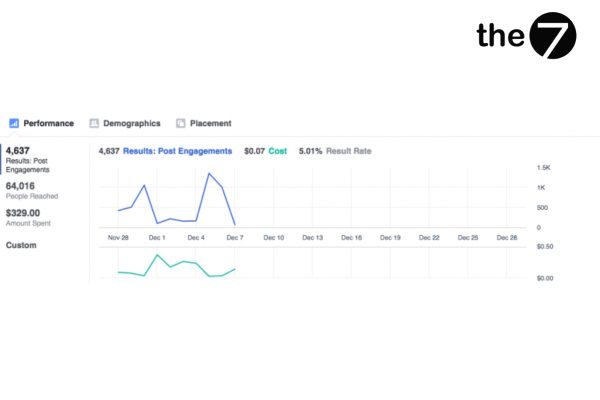
The Performance tab shows how your ad performed over the time period you selected. Three charts are displayed by default, showing ad results by objective, reach, and total amount spent. You can also customize the charts to compare any two metrics of your choosing.
The Demographics tab shows a breakdown by gender and age of your target audience. You can switch to view breakdowns of results, impressions, reach, and amount spent. Note that impressions is the number of times your ad was seen, while reach is the number of people who saw your ad.
The Placement tab shows how your ad performs across different platforms, such as Facebook or Instagram, and placements such as the right column on desktop or the News Feed on mobile. You can view data such as results, impressions, reach, and amount spent across these platforms.
The summary section gives you an overview of your ad, including delivery, objective, amount spent today, and overall schedule. You can also turn the ad on or off, edit it, duplicate it, or delete it from here.
The report table works the same way as the one on the main dashboard page. The only difference is that it doesn’t show all your Facebook ads. If you’re viewing a specific campaign, it only shows the ad sets or ads within that campaign.
Useful Features of Facebook Ads Manager
Audience Insights
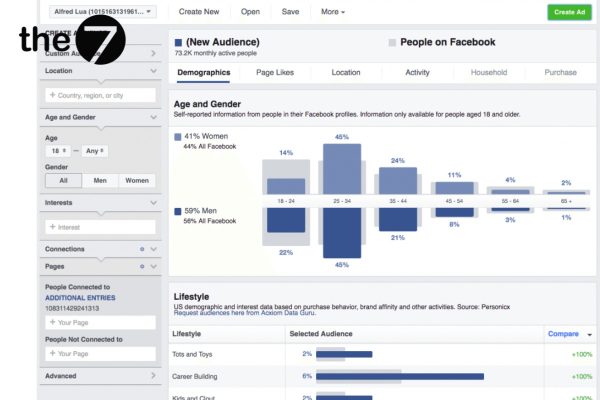
Audience Insights is a tool that helps you learn more about the customer audience you want to reach, through location, interests, behavior, age, and more.
For example: If you want to learn about the group of customers who liked your Fanpage, you can select Facebook Page under “People Connected to” in the left panel. The Audience Insights tool will show you full details about the people who liked your Page, including their location, their interests, and more.
If you want to reach this group of customers, click the green “Create Ad” button to start your ad campaign.
Power Editor
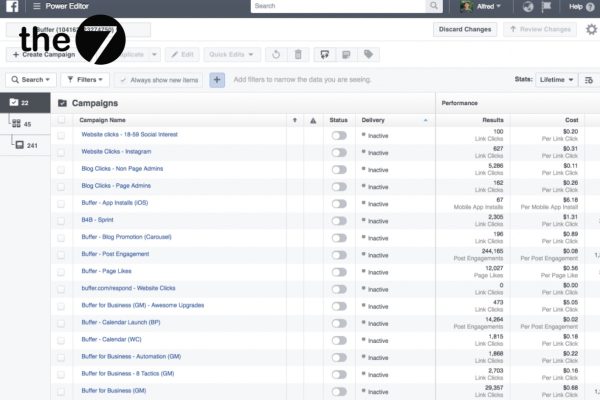
The Power Editor tool gives you greater control over ad delivery when you’re creating large numbers of campaigns. You can easily access and edit your ad campaigns through the Facebook Ads menu, under “Create & Manage”.
Pixels
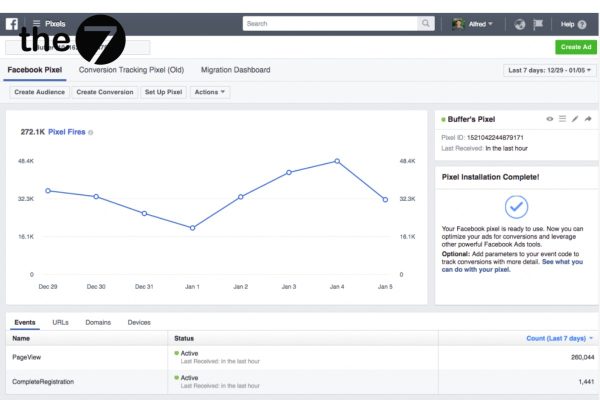
The Facebook Pixel is a piece of tracking code that lets you capture the actions users take on your website or Fanpage, helping your ad campaigns perform better. By adding the pixel code to your website’s header, you can track conversions on your site, optimize your ad spend, and remarket to people who have visited your website or taken action on it.
To create a Pixel that tracks conversions, go to Pixels in the Facebook Ads menu, under Assets.
A Few Things to Note When Using Facebook Ads Manager
Facebook Ads Manager is a powerful tool that helps businesses create and manage ad campaigns on Facebook. However, to use Facebook Ads Manager effectively, keep the following points in mind:
- Define your campaign objective: Before you start running ads, you need to clearly define what your campaign objective is. Do you want to boost brand awareness, drive conversions, or generate leads? Your campaign objective will help you choose the right ad format and targeting.
- Set a reasonable budget: Your ad budget is a key factor in determining how effective your campaign will be. You need to set a budget that matches your campaign objective and your financial capacity.
- Research your target audience: Your target audience is the group of people you want your ad to reach. You need to research your target audience thoroughly to choose the right targeting criteria.
- Create compelling ad content: Ad content is a key factor in grabbing users’ attention. Your ad content needs to be engaging, clear, and concise.
- Track campaign performance: Once your campaign is running, you need to track its performance so you can evaluate and adjust it as needed.
- Choose the right ad format: Facebook offers many different ad formats, each with its own strengths and weaknesses. You need to choose the ad format that fits your campaign objective.
- Use the available tools: Facebook provides many tools to help you create and manage ad campaigns more effectively. You should use these tools to optimize your campaigns.
- Keep learning and stay up to date: Facebook Ads is a tool that never stops evolving. You need to keep learning and stay up to date to use Facebook Ads effectively.
Facebook Ads Manager is a great tool for supporting ad campaigns for both individuals and businesses. To run Facebook Ads well, you need a solid understanding of the tools and objectives involved so you can more easily optimize your campaign costs. The7 has more great articles about Facebook Ads — check out some others like:
- Running Ads: What Is Facebook Ads? A 2024 Guide to Facebook Advertising
- Requirements for running Facebook ads successfully and effectively
- Facebook Remarketing : A Detailed Guide to Facebook Remarketing

Nguyễn Đình
Bảo




As CEO of The7, I am committed to sharing practical, useful knowledge with every reader. Every article on The7 is based on my 7 years of hands-on experience in marketing — Facebook advertising, LinkedIn advertising, Google advertising, and marketing strategy. I hope you take away plenty of insight from these posts and apply it successfully in practice.
Related Articles

What Is Facebook Ads? Popular Types of Facebook Advertising
What is Facebook Ads? This is surely a question many people wonder about, especially those just starting to learn about Facebook advertising. Let’s explore Facebook Ads from A to Z...

26 Predictions for Social Media Marketing Trends in 2025
It’s that familiar time of year again, when experts and analysts start revealing their predictions for the social media marketing trends worth watching, along with the shifts that promise to...

How to Run Facebook Ads: 2024 Step-by-Step Guide
How can you run Facebook ads effectively, reach the right target customers, and generate valuable conversions? This is probably a question many Digital Marketers and business owners ask when promoting...

Requirements for Running Facebook Ads Successfully and Effectively
When you start your Facebook advertising journey, mastering the basics is the key to success. So what are the requirements for running Facebook ads exactly? Let’s begin exploring and optimizing...

The Most Detailed Guide to Creating a Facebook Ad Account in 2024
To run a campaign on Facebook, the first thing you can’t do without is an ad account. Below, The7 will walk you through how to create a Facebook ad account....

Facebook Video Ad Size: The Most Accurate Guide for 2024
Running video ads is becoming the go-to choice for many businesses. In this context, the Facebook video ad size plays a key role in determining how well your post performs....