


How to Create a Google Ads Account: A Simple Step-by-Step Guide

Google Adwords (Ads) is an application that helps businesses and individuals run effective advertising, making it easy to promote their products and services. To use Google Adwords, the first thing you need to do is create an account. So, how do you create a Google Adwords advertising account ? In this article, the7 will walk you through how to create a Google Adwords account, step by step.
What Is a Google Ads Account?
A Google Ads account is an account that lets users run paid advertising campaigns for their business and products on an online platform. Through effective bidding, your ads appear in search results, on relevant websites, or in relevant apps. Users can track performance through detailed statistical reports, which helps them optimize their advertising budget and improve ROI.
>>> See more: What Is Google Ads? Google Ads Knowledge for Beginners
What Do You Need to Run Google Adwords Ads?
To run ads on the Google Adwords platform, you need to have the following ready:
- 1 Google Adwords advertising account
- 1 website (a landing page)
- A Visa card (for international payments)
Of the 3 requirements above, a Google advertising account is a must-have. Google Adwords lets users create an account and then use that account to run promotional campaigns for their business and products.
Types of Google Adwords Accounts Today
The Google Adwords platform currently lets users create 2 types of accounts: personal accounts and Google Adwords MCC accounts. Here is what you need to know about each:
Personal Account
This is the basic account type. It is easy to use and suits any individual. A personal account lets you manage your advertising campaigns with ease. However, its downside is that it still has many limitations and does not support as many features as a Google MCC account.
For that reason, a personal account suits small stores and businesses that do not need to run too many advertising campaigns.
Google Adwords MCC Account
The Google Adwords MCC account is intended for Google advertising partners. As a result, this account type also offers a fuller set of features. You get support for all advertising features and receive the latest improvements quickly. Businesses also get support with bidding when running campaigns.
In addition, with a Google Adwords MCC account, you can create and manage multiple advertising accounts. This allows users to run many advertising campaigns at the same time without difficulty.
So, if you can, you should still create a Google Adwords MCC account and run your ads on it to get the best possible support.
How to Create a Personal Google Ads Account Easily
If you don’t have an advertising account yet, you can follow these steps to sign up for a Google Adwords account:
Step 1: Go to https://ads.google.com/intl/vi_VN/home/.
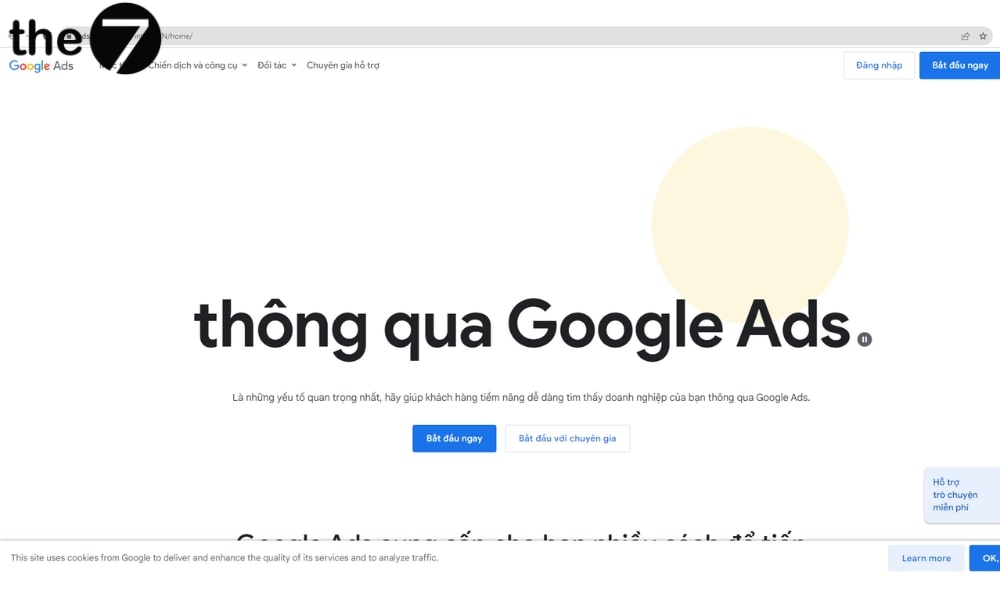
Step 2: Click Start now.
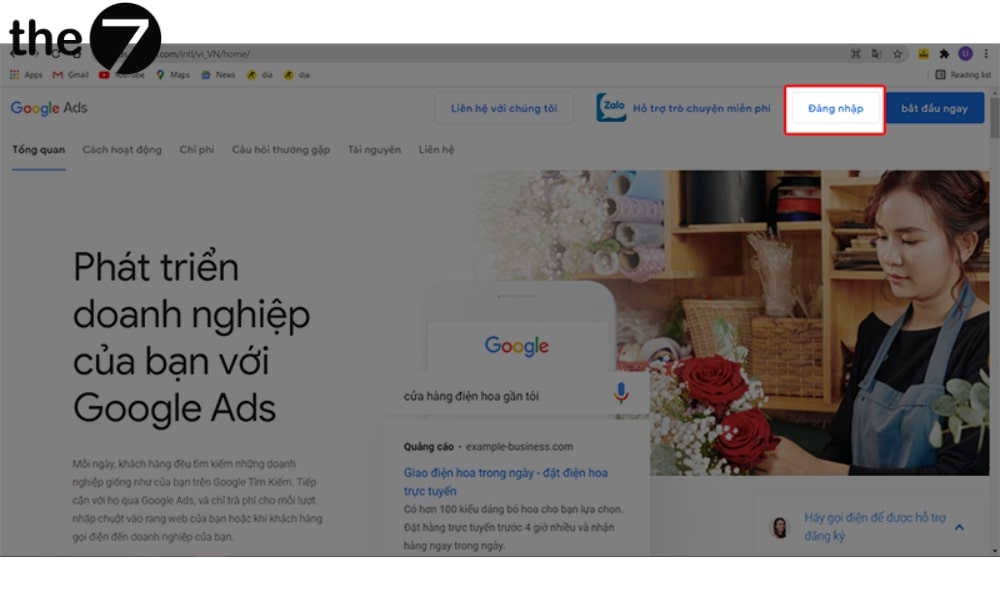
Step 3: Sign in with your personal email account.
Note: Once you complete this step, you have an advertising account on the Google Adwords platform. The following steps show you how to create an advertising campaign.
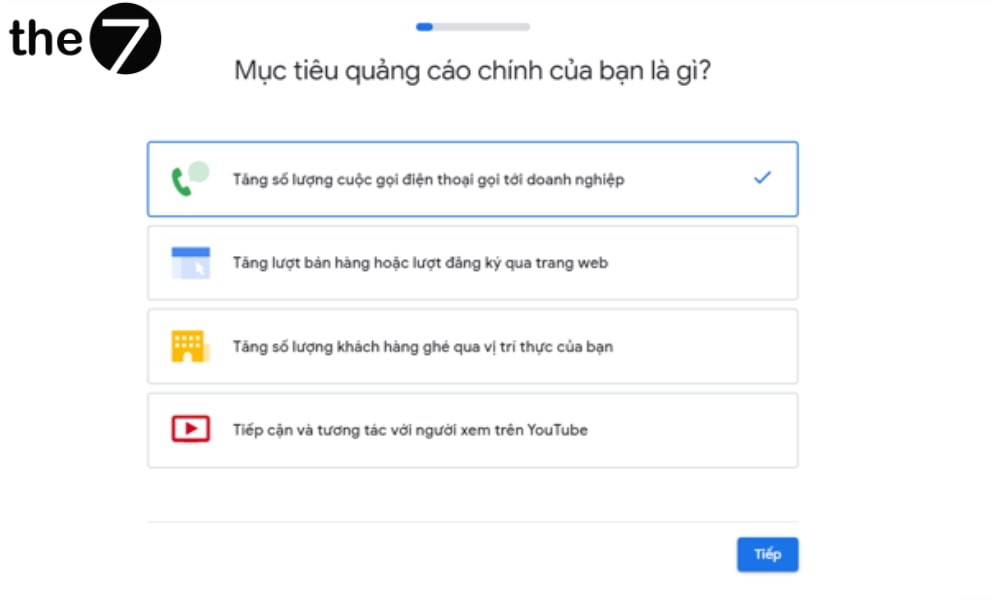
Step 4: Choose the right advertising goal
Google Adwords offers 3 options:
- Increase the number of incoming calls
- Increase sales and sign-ups on your website
- Increase the number of customers visiting your store or business.
Note: After you choose your advertising goal, click Next to move on to the next step.
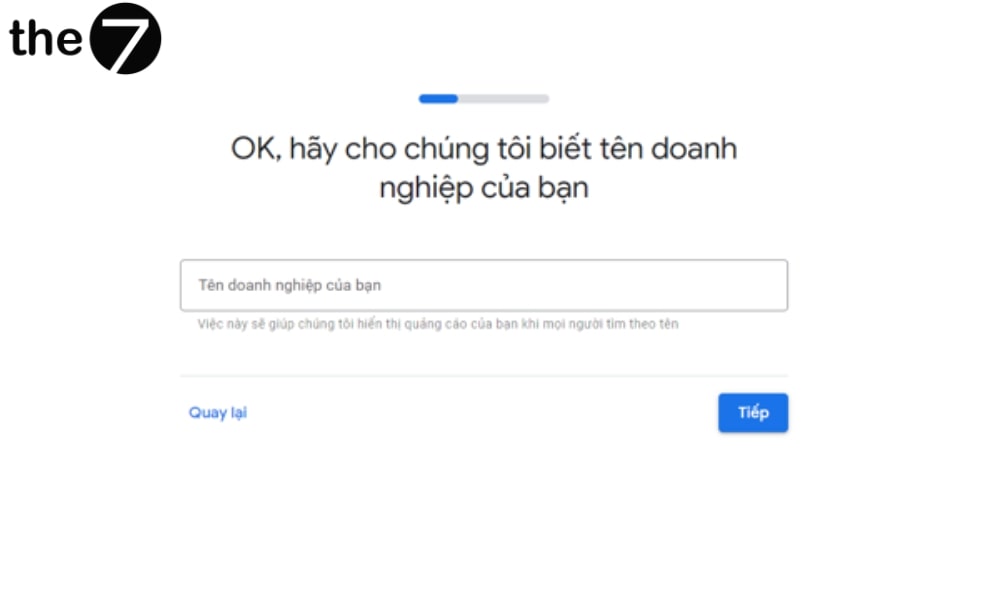
Step 5: Enter your business name, store name, and website name. Then click Next.
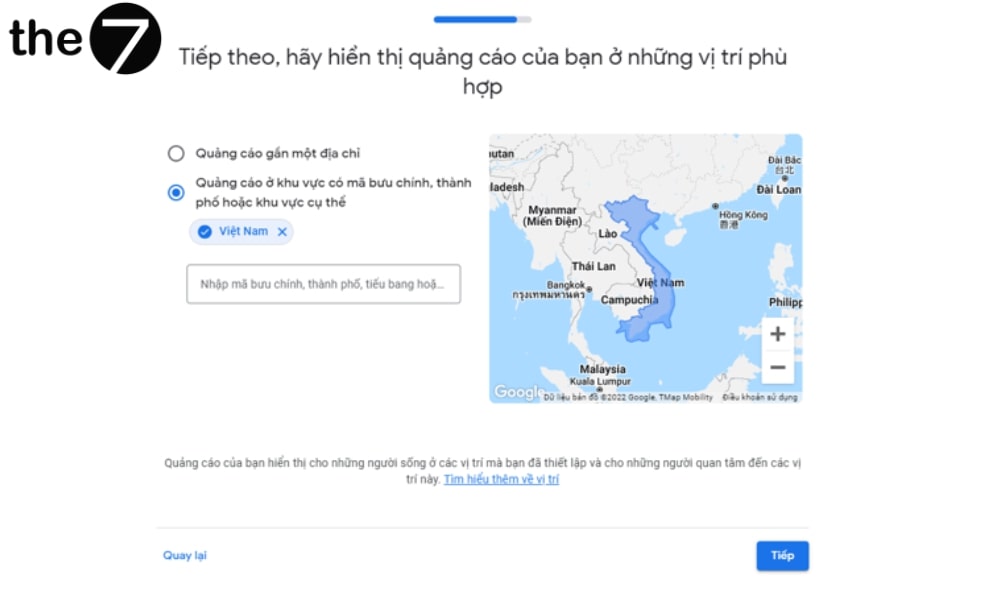
Step 6: Choose where your ads will run
You can choose specific provinces or cities, or entire countries. Click the search box, look up a location, and Google Adwords will make suggestions for you.
Step 7: Define the products and services to promote
- First, set the language to Vietnamese
- Next, select your business.
- Finally, choose the services and products you want to promote. After you enter your business type, Google will offer suggestions, or you can click the suggestion tab to pick one quickly.
Step 8: Finalize your ad
*Note: Pay attention to the character limit in each text field. You can also write an additional ad to use when needed.
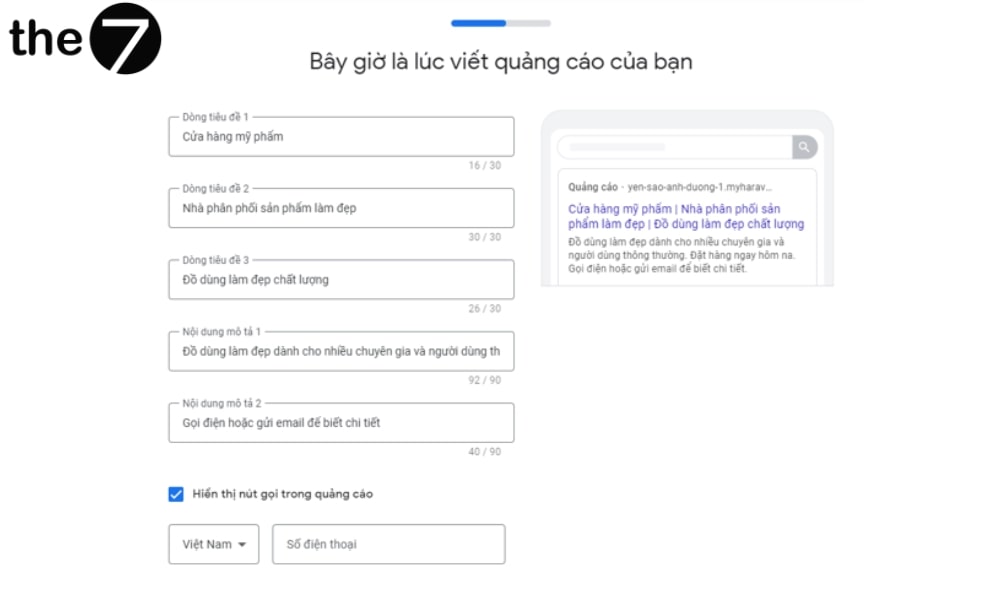
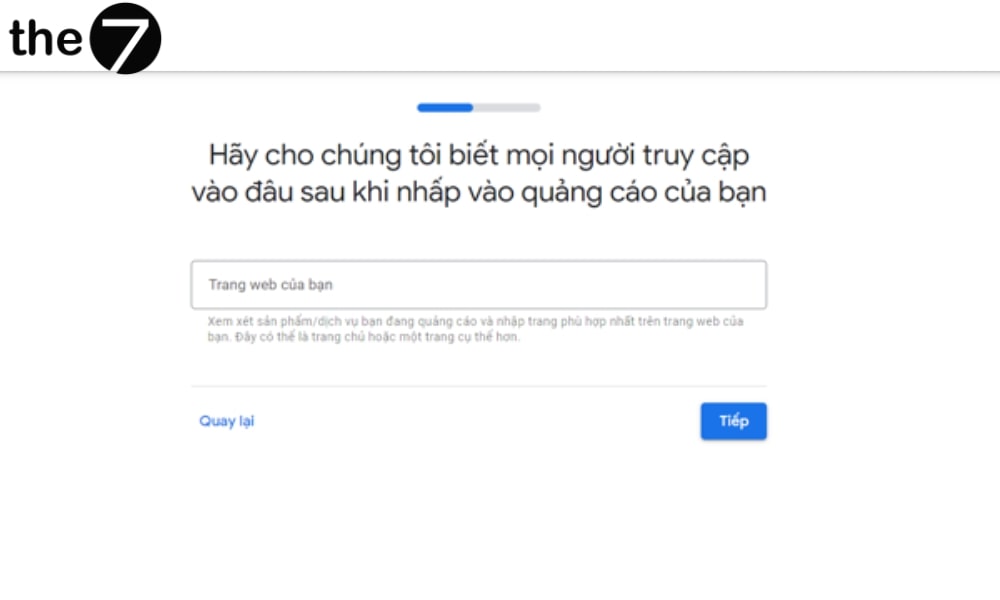
Step 9: Enter your ad’s landing page.
You can advertise your website’s homepage or choose any product or service page.
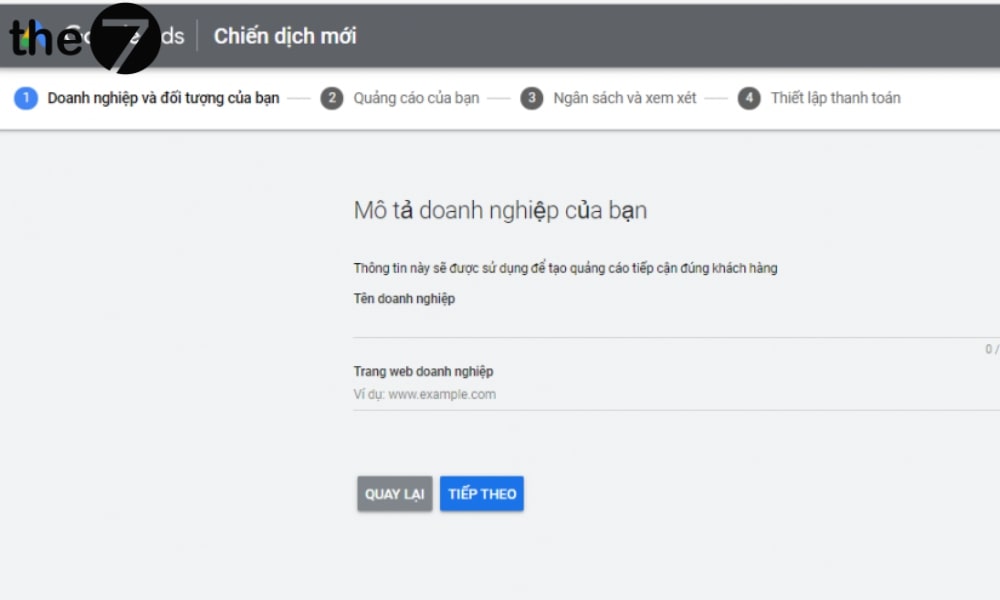
Step 10: Add images to your ad.
*Note: You can skip this step if you only advertise on Google Search.
Step 11: Set your costs
You can use the cost level Google suggests, or set your own budget.
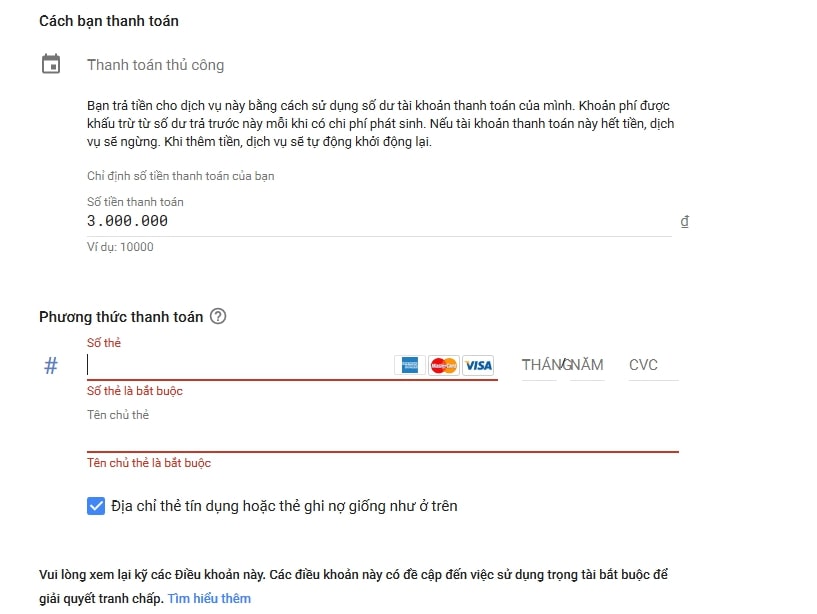
Step 12: Review the entire advertising campaign.
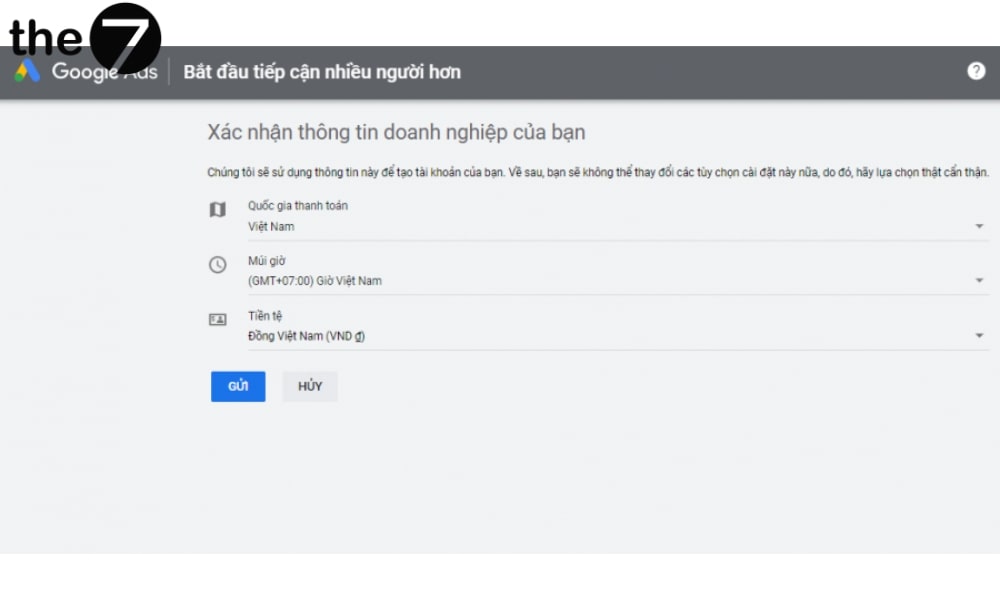
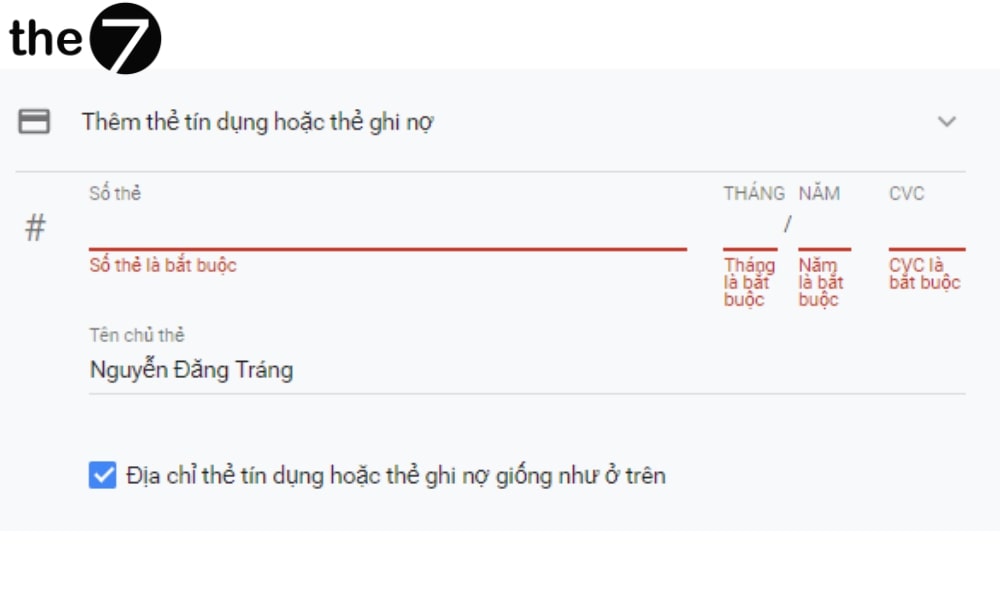
Step 13: Confirm your payment information. The most important part here is entering your Visa card details, including:
- Card number.
- Card expiration date.
- Card security code (the last 3 digits on the back).
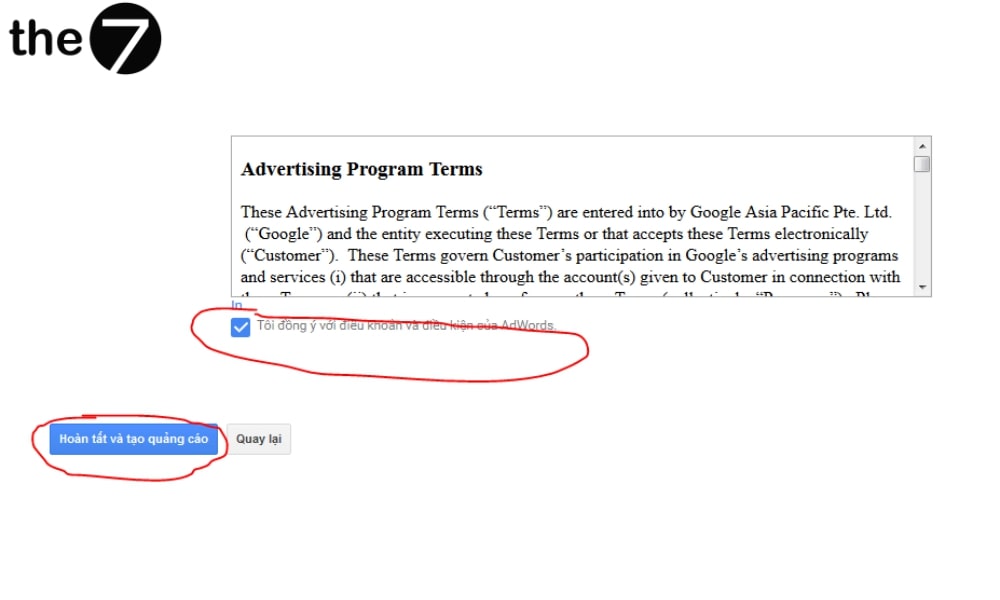
Step 14: Click to agree to Google’s terms, then select Submit. That completes the process of creating a Google Adwords account and your first advertising campaign.
How to Pay on Google Adwords Quickly
Here is a quick, simple, step-by-step guide to paying on Google Adwords:
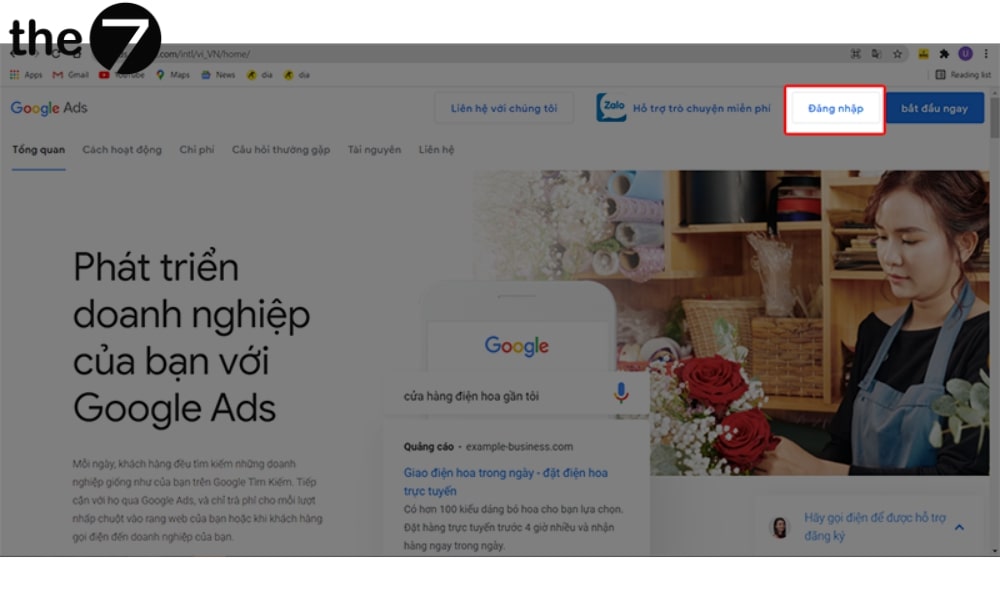
Step 1: Go to Google Adwords and select Sign in.
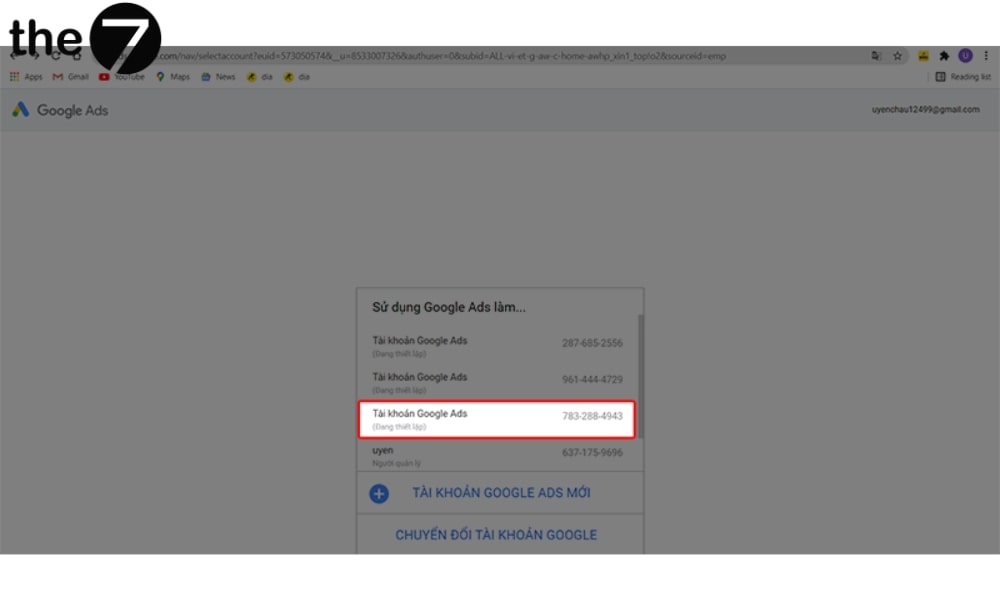
Step 2: Select your account.
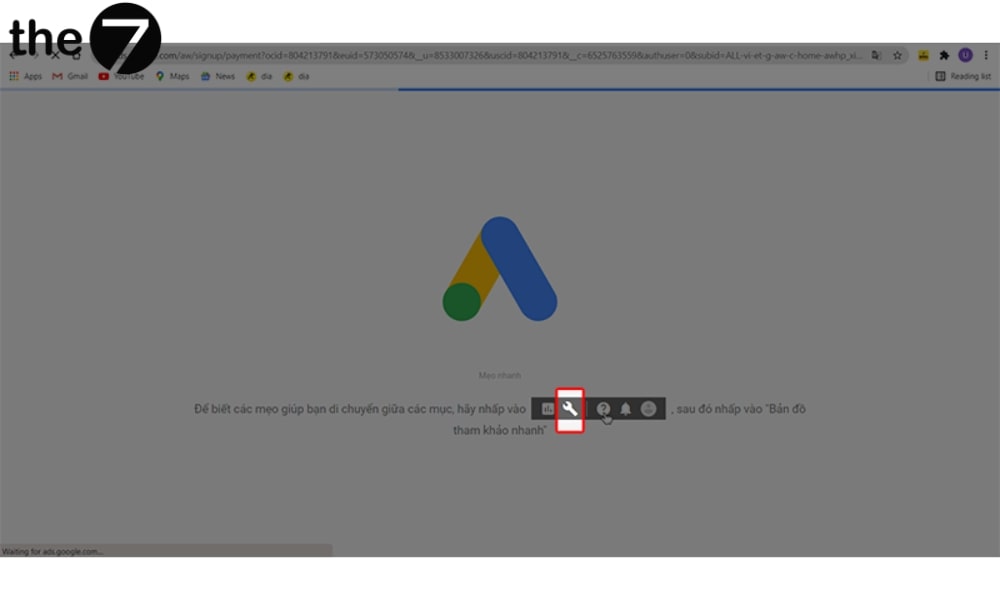
Step 3: Click the wrench icon on the home page to open the payment interface in Google Adwords.
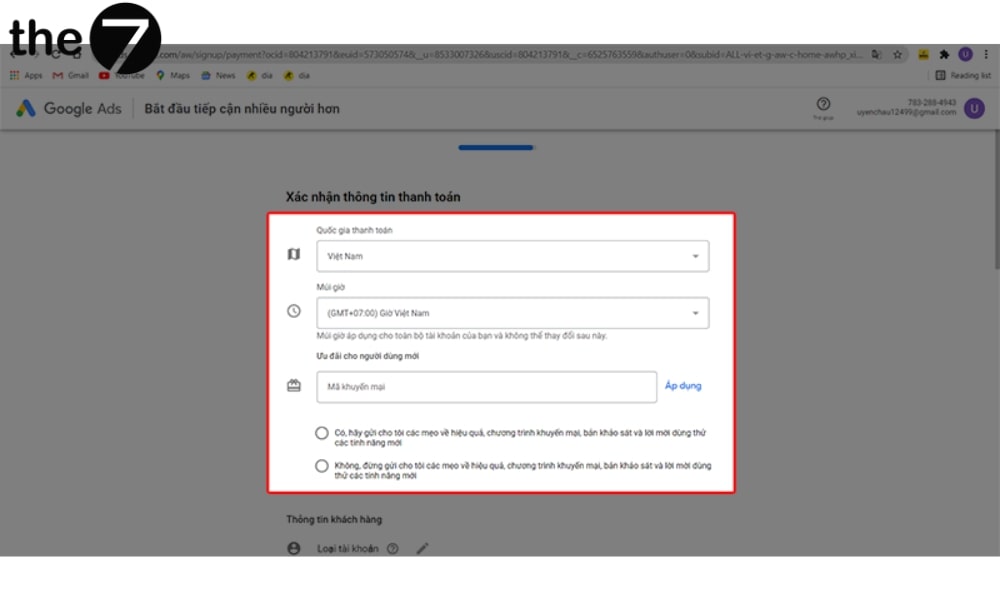
Step 4: Fill in the verification details on the form.
Step 5: Enter all the information in the table completely and accurately.
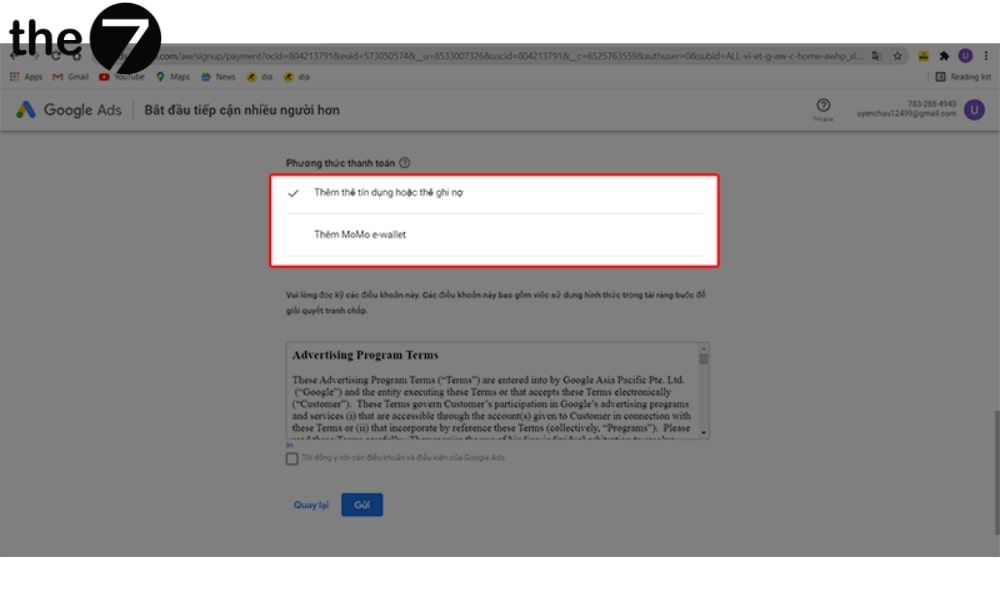
Step 6: Choose the right payment method
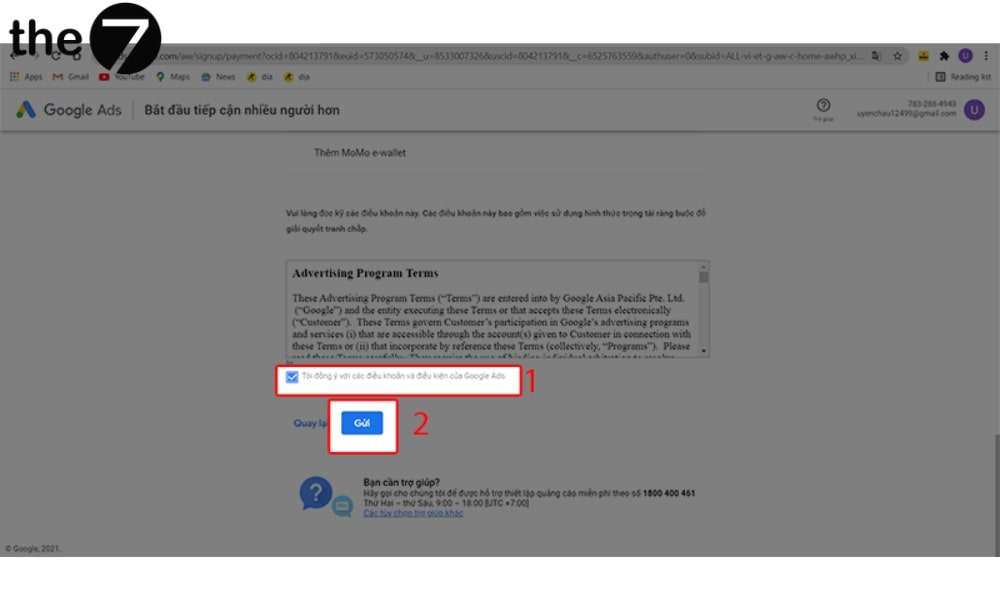
Step 7: Check the I agree box, then click Submit to finish confirming your payment information.
Access Levels for Google Ads Account Permissions
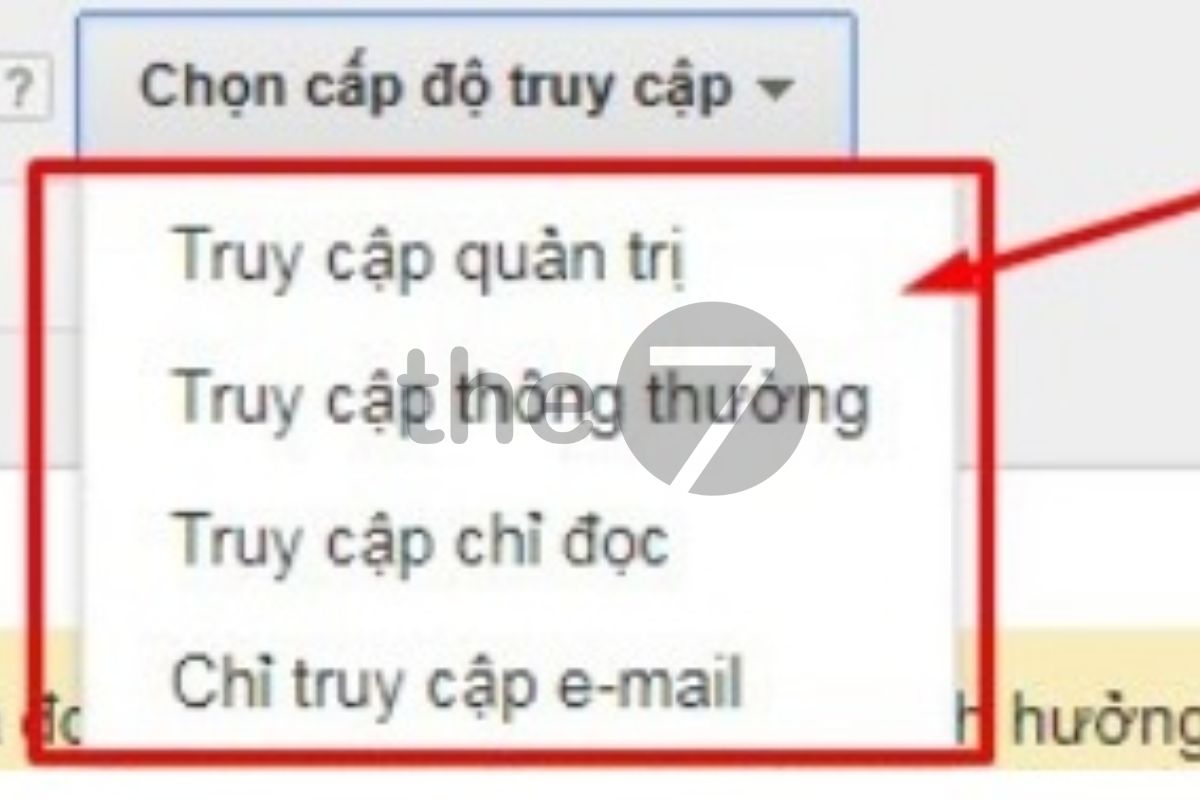
Google Ads currently has 4 access levels for assigning account permissions, as follows:
Administrative access: When you grant a user administrative access, they have complete control over your Google AdWords account, including the ability to:
- Receive email notifications,
- View, manage, and adjust advertising campaigns and other settings in the account,
- Grant or change other people’s access,
- Cancel other users’ invitations.
Standard access:
When you grant a user standard access, their permissions are more limited than with administrative access, as follows:
- They can receive email notifications,
- They can view, adjust, and manage all advertising campaigns and settings in the account,
- They cannot cancel or change other people’s access.
Read-only access: When a user is granted read-only access, they have these permissions:
- Receive the account’s email notifications,
- Sign in, view, and run campaign reports,
- Browse the tools, analytics, campaigns, and opportunities tabs.
Email-only access: Users who are given email-only access cannot sign in to the account. They can only receive email notifications and reports.
Granting and Removing Google Ads Account Access
How to grant access to a Google Ads account: To add a user and assign access permissions on a Google Ads account, follow these steps:
- Step 1: Sign in to the Google Ads account you created,
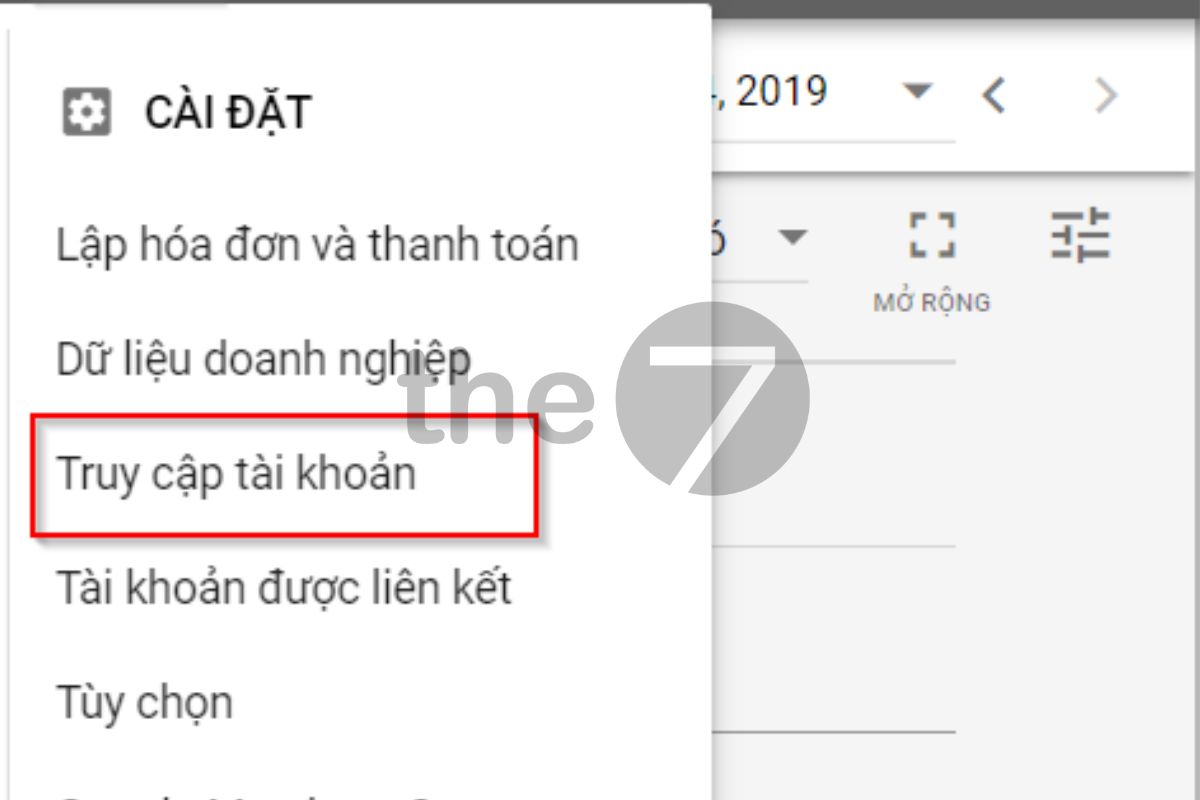
- Step 2: Click the gear icon in the right corner to open the Settings menu and select “Account settings”,
- Step 3: In the menu bar on the left side of the screen, select “Account access,” then click “Users”,
- Step 4: Enter the new user’s details, including their email address and the name of the user you want to add, and choose one of the four available access levels,
- Step 5: Click the “Send invitation” button.
How to remove access to a Google Ads account: To remove a specific user’s access to your Google Ads account, follow these steps:
- Step 1: Sign in to your Google Ads account and go to “Settings” by clicking the gear icon and selecting “Account settings”,
- Step 2: In the settings window, select “Access”,
- Step 3: Find the email address of the user whose access you want to remove under “Users with access to the account”,
- Step 4: Once you find it, click “Actions” and select “Terminate access” to confirm removing that user’s access.
Linking and Unlinking Google Analytics and Your Google Ads Account
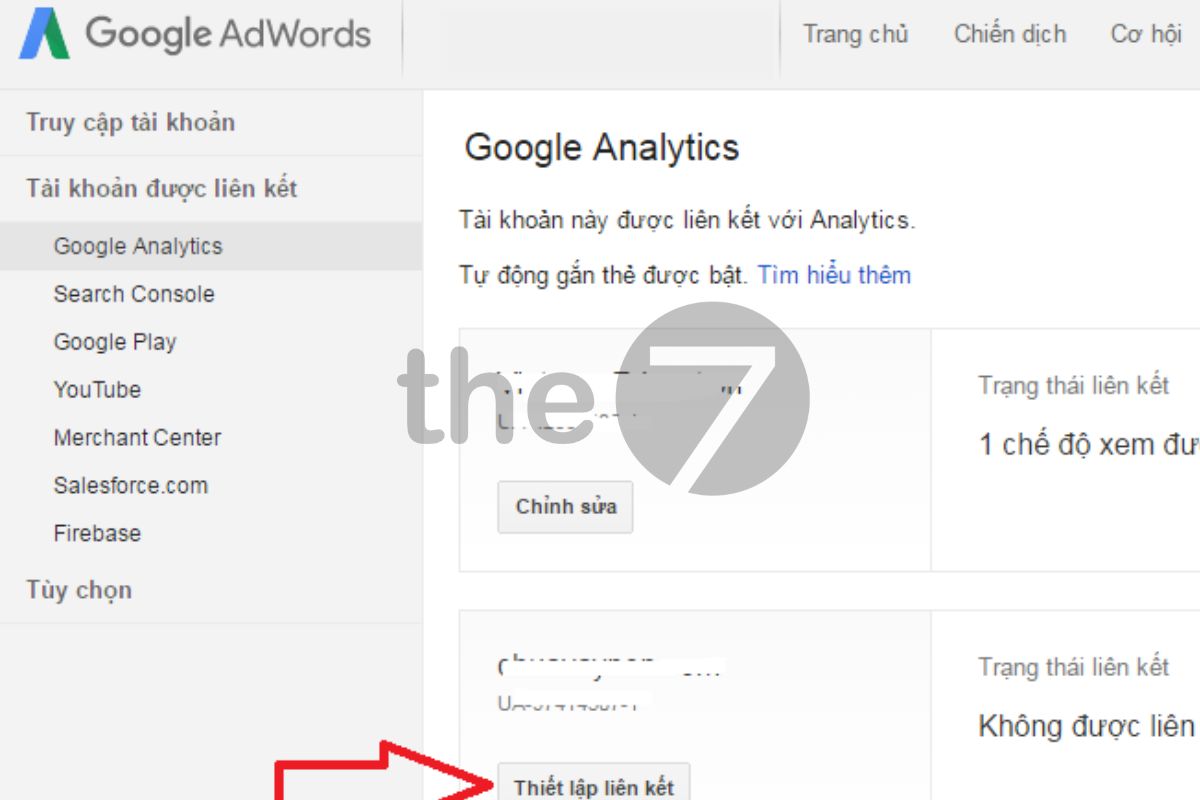
Linking Google Ads with Google Analytics: To link your Google Analytics account with Google Ads, you need edit permission on the Analytics property and administrative access to your Google Ads account. Note that only active Google Ads accounts can connect to Google Analytics. Follow these steps to link them easily:
- Sign in to your Google Analytics account, or open Analytics from your Google Ads account by clicking “Tools and settings” and selecting “Analytics”,
- Select “Admin” and go to the property you want to link,
- In the “Property” column, select “Google Ads linking”,
- Click “+ New link group”,
- Select the accounts you want to link, then click “Link”,
- Enter a title for the link group,
- Turn on linking for each view in the property where you want to see Google Ads data,
- (Optional) Turn on Google Display Network impressions reporting if needed,
- (Optional) Configure auto-tagging in your Google Ads account, or manually tag the items linked to Google Ads,
- Select “Link accounts”.
Unlinking a Google Ads account from Google Analytics: You can follow this process to unlink them quickly:
- Sign in to Google Analytics,
- In the Google Analytics interface, select “Admin”,
- Find and select the property you want to unlink from your Google Ads account,
- In the “Property” column, click “Google Ads linking”,
- Find and select the link group you want to delete,
- Click the “Delete link group” option,
- In the confirmation window that appears, click “Delete” to finish unlinking.
That’s how this article from The7 has shown you how to create a Google Adwords advertising account and run your first advertising campaign. If you have any questions, don’t forget to leave a comment below. We wish you every success.
>>> See more related articles:
- A roundup of the latest Google Ads policies for 2024
- Which card should you use to pay for Google Adwords in 2024?

Nguyễn Đình
Bảo




As CEO of The7, I am committed to sharing practical, useful knowledge with every reader. Every article on The7 is based on my 7 years of hands-on experience in marketing — Facebook advertising, LinkedIn advertising, Google advertising, and marketing strategy. I hope you take away plenty of insight from these posts and apply it successfully in practice.
Related Articles
Building a Full-Funnel Content Marketing Strategy on LinkedIn
Table of Contents Toggle Why Build Content Marketing for the Full Marketing Funnel? (Why Full-Funnel Content Marketing?)Creating Your Strategy (Creating Your Strategy)Implementing Your Content Strategy (Rolling out your content strategy)Summary...
Designing Creative Content for LinkedIn
Table of Contents Toggle Why Is Good Creative Content So Important? (Why is Good Creative Important?)Key Components of Creative Design (the core elements of creative design)Summary (summary) Why Is Good...
Building an Organic Business Presence on LinkedIn With a LinkedIn Page
Table of Contents Toggle Why Have a LinkedIn Page?Establishing Your LinkedIn PageKeeping Your LinkedIn Page ActiveThe Measure of SuccessSummary About LinkedIn Page (Summary) Why Have a LinkedIn Page? For a...
6 Best LinkedIn Marketing Strategies for B2B in 2026
Table of Contents Toggle LinkedIn 2026: Where B2B Decisions Get MadeStrategy #1 – Why Is LinkedIn the Best B2B Marketing Channel Today?1. Decision-makers are concentrated here2. Users are in work...

7 Social Media Trends for 2026: The Era of Real Value, Real Conversion, and Real People
Table of Contents Toggle Social media is entering the biggest restructuring of the decadeTrend 1: Why is buying directly in-app becoming the new standard for 2026? (On-Platform Conversion)What should businesses...

What Is TikTok Marketing? Effective TikTok Marketing Strategies
TikTok has been topping the global rankings of the most downloaded and most visited apps. That makes it a gold mine for marketers who love creativity. In this article, The7...